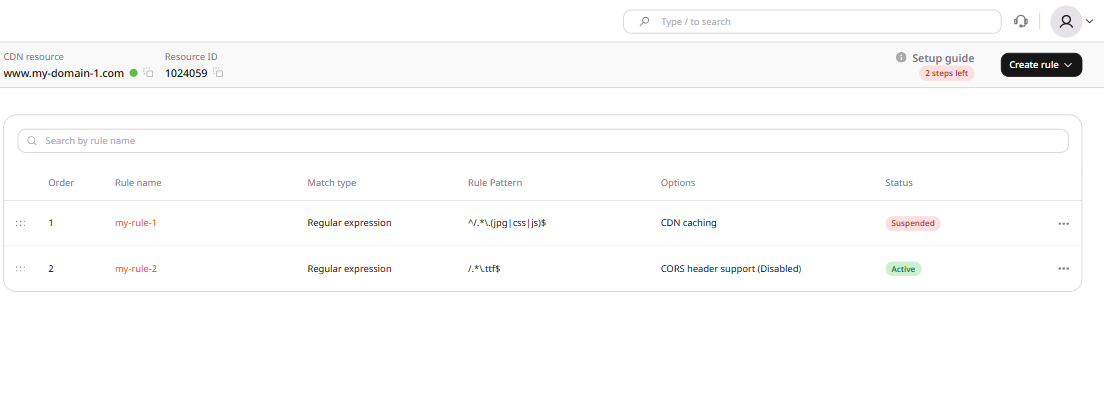
Create a rule manually or from a template to configure settings for particular files
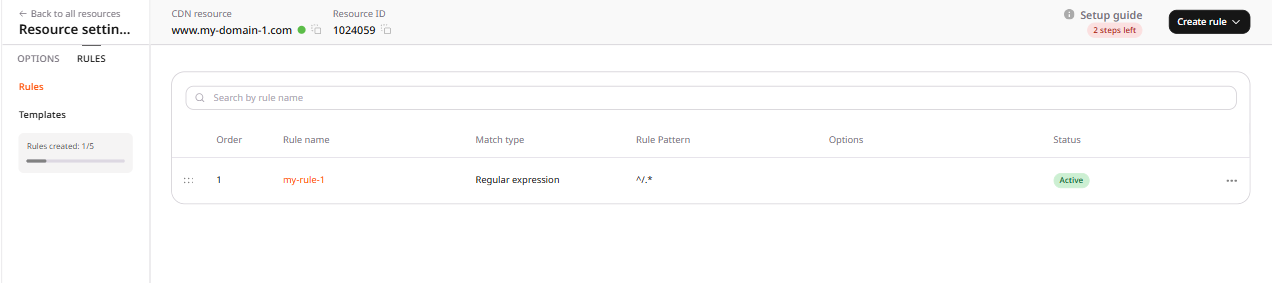
The Rules section overrides CDN options for specific files — independently of the Resource Settings that apply to all files by default. Each rule matches files by URI pattern or regular expression and applies its own option set to those files only, with a maximum of five rules per CDN resource.
As an example: CDN caching settings are enabled for a resource with the CDN-controlled option, which applies to all files. To apply Origin-Controlled to specific files instead, create a rule for those paths and add the Origin-Controlled option — CDN-Controlled then applies everywhere except the paths covered by the rule.
The Rules tab shows how many rules have been created for the resource.
Add rules in the customer portal
Rules are added from the Rules tab of any CDN resource. Each rule can be built from scratch or created from a template.
Create a rule manually
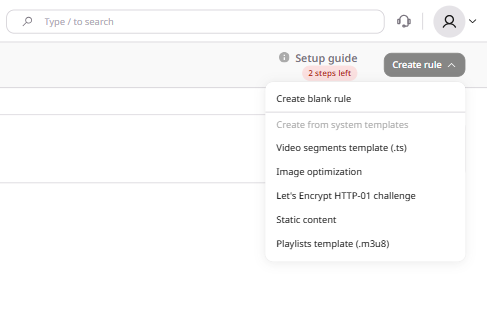
1. In the Resource settings, navigate to the Rules tab. Click Create rule and select Create blank rule from the drop-down list.
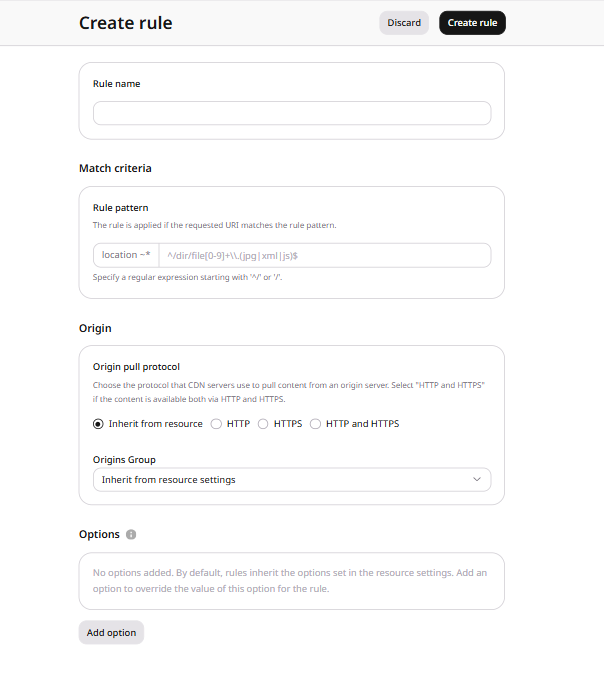
A new page will open. Follow the remaining steps on that page.
2. Enter the rule name.
3. Specify the path to the file or folder to which the rule applies. The path must start with ^/ or / and cannot contain the origin domain name. Specify a URI or use regular expressions (regex).
📝
If a URI matches multiple rules, the rule that appears first in the order is applied. For instance, if the resource has two rules — /folder/.* (first) and /folder/image.jpg (second) — the first rule applies to /folder/image.jpg.
4. If the CDN resource has multiple origin groups, select the required group from the Origins Group list.
5. Select the protocol that the CDN resource will use to pull the files specified in step three. If files are accessible over the same protocol as the origin, select Inherit from resource. If not, select the appropriate option: HTTP, HTTPS, or both protocols at once.
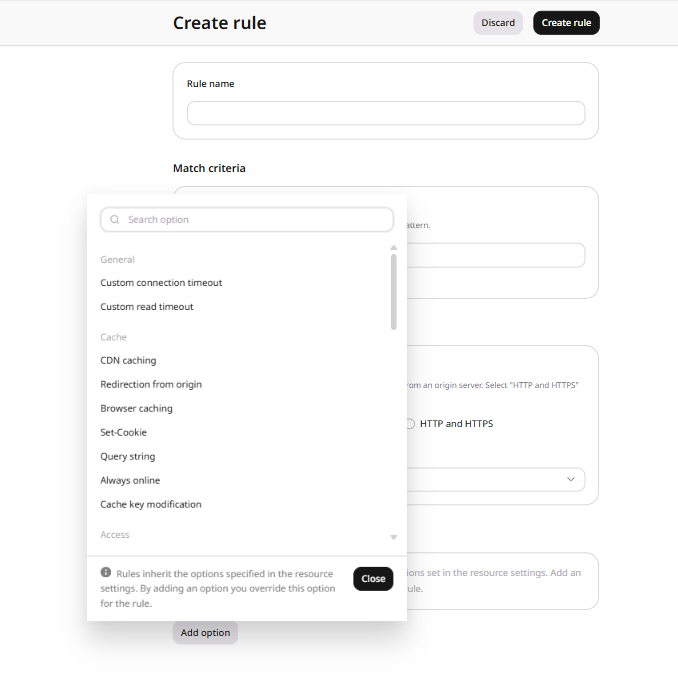
6. Click the Add option button to configure options if necessary. A panel opens with the list of available options — click an option name to add it to the rule. When done, close the panel.
There are three variants for how the options in the Rules sections interact with the options in the Resource Settings:
Variant
Interaction method
Example
Options are not added to the rule
Option parameters are inherited from the Resource settings
CDN caching is enabled in the Resource settings and the rule contains no CDN caching option — caching parameters for the files in the rule are inherited from the Resource settings.
An option is added to the rule, but is disabled
Option parameters from the Resource Settings are disabled
The Country access policy option is enabled with Allow by default and DE in the Resource settings, blocking access to content in Germany. A rule with the disabled Country access policy option means that files in the rule remain accessible in Germany.
An option is added to the rule and enabled
Option parameters from the Resource Settings are overridden
Browser caching is set to CDN-Controlled, 4 days in the Resource settings. A rule with Browser caching set to 30 minutes overrides that for the files in the rule — they are cached in the browser for 30 minutes while other files are cached for 4 days.
7. Click Create rule.
Create a rule from a template
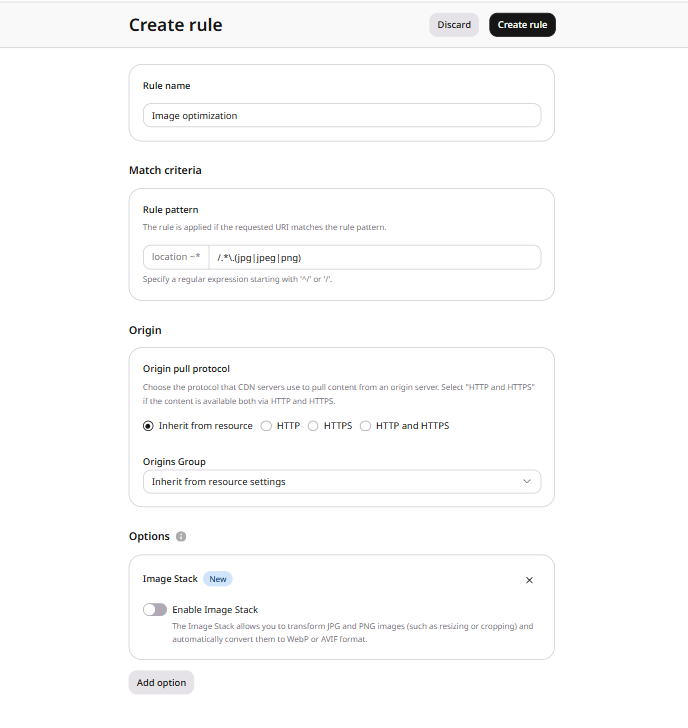
Templates allow a fixed set of options to be reused across multiple CDN resources. Five system templates are available — Video segments (.ts), Playlists (.m3u8), Let's Encrypt HTTP-01 challenge, Static content, and Image optimization — and custom templates can be created from any saved rule. Full details are in the templates guide.
To create a rule from a template:
1. In the Resource settings, navigate to the Rules tab. Click Create rule. In the dropdown, select Create blank rule to build a rule from scratch, or select a template name under Create from system templates to use a system template, or select a custom template created earlier.
2. A form opens with pre-filled settings from the template. Review the settings and edit them if needed — the steps in Create a rule apply.
3. Click Create rule.
Examples of rules
The following examples show how rules can be used to override specific CDN options for a subset of files.
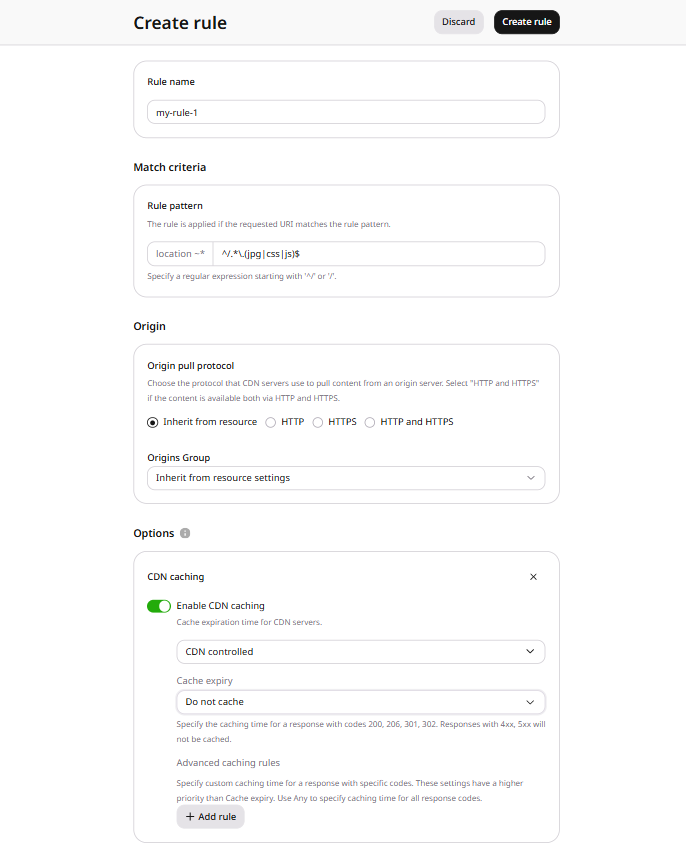
Prohibit caching for static files
To prohibit CDN caching for JPG, CSS, and JS files:
Enter ^/.*\.(jpg|css|js)$ in the Rule pattern field.
Add the CDN caching option with the "CDN Controlled" and "Do not cache" values.
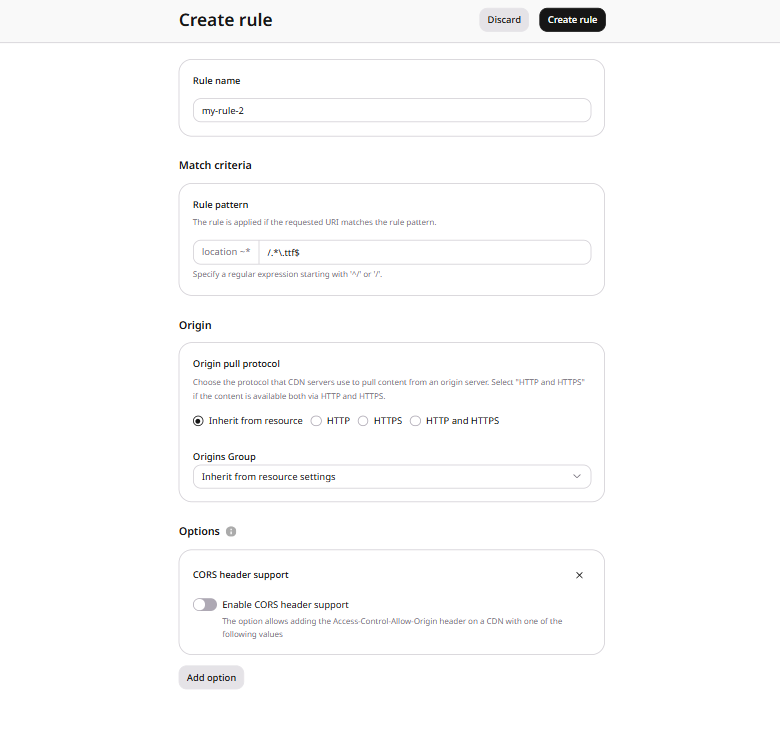
Set Access-Control-Allow-Origin for .ttf files
To set up the Access-Control-Allow-Origin HTTP header only for files with the .ttf extension:
Enter /.*\.ttf$ in the Rule pattern field.
Add the CORS header support option.
Configure which domains the header applies to — CORS header support explains the available options.
Suspend, activate, or delete a rule
Rules can be suspended when not needed — for testing purposes or before deletion. Suspended rules do not apply to the specified files but still count toward the rule limit.
To suspend a rule:
1. Navigate to the Rules tab and click the rule name to open its settings.
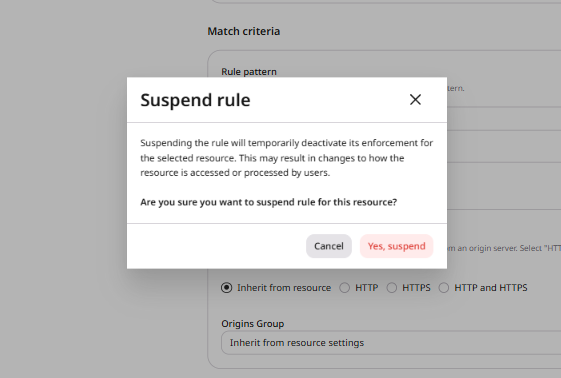
2. In the Rule availability section, uncheck Enable rule. A confirmation dialog appears — click Yes, suspend.
To activate a suspended rule, click the rule name, check Enable rule, and click Save changes.
Suspended rules have a Suspended status and active rules have an Active status in the rules list.
Alternatively, use the three-dot menu next to any rule in the list. For active rules, the menu provides Suspend rule — clicking it opens the same confirmation dialog. For suspended rules, the menu provides Activate rule — clicking it activates the rule immediately, without a confirmation dialog.
The three-dot menu also provides Edit to open the rule settings, Save as template to create a template from the current rule configuration, and Delete rule to delete the rule. Only suspended rules can be deleted.
To delete a rule:
1. Suspend the rule (see above).
2. Click the three-dot menu next to the suspended rule and select Delete rule.
3. Click Yes, delete to confirm.
Create a rule that overrides CDN resource settings for matching file paths. A CDN resource can have up to five rules. The CDN resource ID is visible in the Customer Portal under CDN → CDN Resources, or from the List CDN resources API call.
Match files with a regular expression. ruleType0 requires a pattern that starts with ^/ or /. If a URI matches more than one rule, the rule with the lower weight is applied first. Options omitted from the rule stay inherited from the CDN resource. A Customer Portal template pre-fills these fields — send the same values in the create request.
Parameter
Required
Description
name
Yes
Rule label
rule
Yes
URI pattern or regular expression, without a domain
ruleType
Yes
0 for a regular expression that starts with ^/ or /
active
No
true applies the rule. Defaults to true
weight
No
Execution order, lowest first. Defaults to 1
originGroup
No
Origin group ID. When omitted, the resource origin group is used
Set active to false to suspend a rule. A suspended rule does not apply to matching files, but still counts toward the five-rule limit. Set active to true to apply the rule again.
Deactivate the rule first. A delete request against an active rule returns HTTP 400. After the rule is suspended, delete it. A successful delete returns HTTP 204.
A successful delete returns HTTP 204 with an empty body.
Declare CDN resource rules that override delivery options for matching paths with the Terraform provider v2. A CDN resource can have up to five rules. Options omitted from the rule stay inherited from the CDN resource. Suspended rules still count toward that limit.
Create a rule
Match files with a regular expression. rule_type0 requires a pattern that starts with ^/ or /. If a URI matches more than one rule, the rule with the lower weight is applied first. A Customer Portal template pre-fills these fields — declare the same values in the rule block.
After terraform apply, matching JPG, CSS, and JS paths use this rule instead of the CDN resource defaults. edge_cache_settings is 0s, so those files are not cached on CDN servers.
Suspend or activate a rule
Set active to false and run terraform apply to suspend the rule. The rule stops applying to matching files, while it still counts toward the five-rule limit. Set active to true and apply again to restore it.