
Create a CDN resource for video streaming

CDB Video CDN delivers prepared HTTP Live Streaming (HLS), Dynamic Adaptive Streaming over HTTP (MPEG-DASH), HTTP Flash Video (HTTP-FLV), and MP4 content globally without transcoding. After setup, viewers request streams and files through a CDN domain while the CDN retrieves content from the configured origin.

Activation requirements differ by delivery format:

  • HLS and MPEG-DASH — require video-delivery approval from CDB Support and a paid CDN plan.
  • HTTP-FLV Live — requires a sales agreement and a dedicated service profile. Contact your account manager or sales@gcore.com.
  • HTTP-FLV video on demand (VOD) and MP4 VOD — self-service; only a paid CDN plan is required.

Video CDN or CDB Video Streaming

Select Video CDN when prepared streams already exist, or CDB Video Streaming when transcoding and a hosted workflow are required.

Video CDN

Video CDN delivers prepared content without transcoding and is suitable when:

  • HLS, MPEG-DASH, HTTP-FLV, or MP4 content is available
  • Global delivery is required
  • Geo-blocking, secure token authentication, custom domains, or Origin Shielding is required
  • Origin bandwidth must be reduced

It supports HLS .m3u8 playlists with .ts or .m4s segments, MPEG-DASH .mpd manifests, HTTP-FLV .flv streams, and progressive MP4 downloads.

CDB Video Streaming

CDB Video Streaming accepts Real-Time Messaging Protocol (RTMP) or Secure Reliable Transport (SRT) input and transcodes it into adaptive-bitrate renditions. It also provides encoder integration, digital video recorder (DVR), and recording.

Quick setup

Follow the steps below. The approval step applies to HLS, MPEG-DASH, and HTTP-FLV Live; HTTP-FLV VOD and MP4 VOD can proceed directly to resource creation. The LIVE STREAMING preset step applies to live delivery only.

  1. 1

    Request video-delivery approval (HLS, MPEG-DASH, or HTTP-FLV Live)

    HLS and MPEG-DASH require video-delivery approval from CDB Support and a paid CDN plan. HTTP-FLV Live requires a sales agreement and a dedicated service profile — contact your account manager or sales@gcore.com. HTTP-FLV VOD and MP4 VOD are self-service and do not require this step.

    For HLS and MPEG-DASH, contact CDB Support or use the account chat and provide:

    • ID (shown in the profile menu at the top right — click your avatar to reveal it)
    • Domain name and company name
    • Content type: sports, education, entertainment, or news
    • Sample stream URL: an example of the typical stream format
    • Viewer geography: where the audience is located
    • Broadcasting license or content compliance policy
    • Abuse or copyright contact email

    For sports, TV channels, events, or other third-party protected content, Support may request proof that the account holder or its clients have rights to distribute the content. Requests without the necessary licensing details, company identity, or abuse handling information may be declined or closed.

    Processing time is usually 1–2 business days.
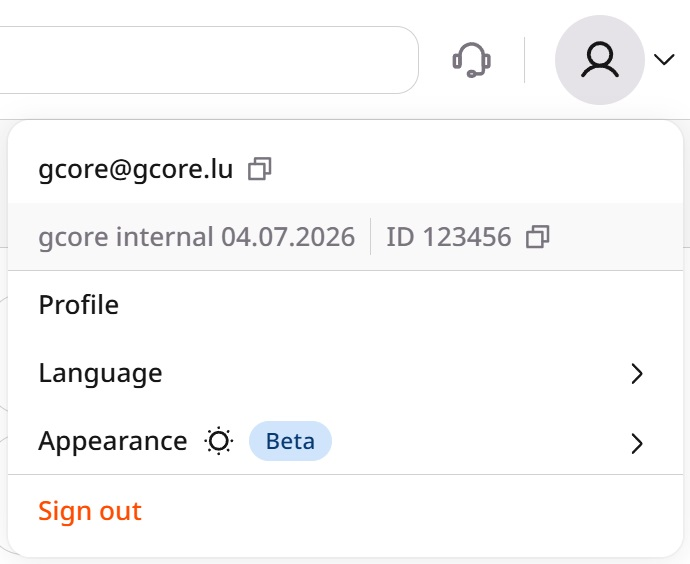
    Profile menu showing the ID field

    For HTTP-FLV Live, contact your account manager or sales@gcore.com to initiate the sales agreement and dedicated service profile setup. Processing time varies.

  2. 2

    Activate a paid CDN plan

    Video streaming requires a paid CDN subscription.

    1. Navigate to CDN in the CDB Customer Portal.

    2. On the free plan, upgrade to a paid CDN plan. See CDN billing for current plan options and included traffic allowances.

  3. 3

    Create a CDN resource

    Create the CDN resource at the right point in your workflow:

    • HLS or MPEG-DASH — after receiving video-delivery approval from CDB Support
    • HTTP-FLV Live — after sales approval and dedicated-profile activation by CDB
    • HTTP-FLV VOD or MP4 VOD — immediately after activating a paid CDN plan

    1. Navigate to CDN > CDN resources.

    2. Click Create CDN resource.

    3. Enter the domain that will serve the Video CDN — for instance, video.example.com. Use Add CNAME to add more domains if needed.

    4. Under Origin, keep Specify content origin selected and configure one source:

    • URL — enter a resolvable media server domain or IP in Origin source — live.example.com
    • S3 storage — select the CDB Storage bucket that contains the VOD files
    • CDB EdgeCompute — select the CDB EdgeCompute app that generates the response

    5. Click Create.

    For each custom domain, create a CNAME record that points to the assigned CDN domain and issue or upload a valid SSL certificate before testing over HTTPS.

  4. 4

    Configure caching rules

    Optimize caching for the delivery type. The settings below are organized by delivery format.

    Configure the baseline cache settings:

    1. Navigate to CDN Resource > Cache.

    2. Enable Always online and add these error types:

    • error
    • timeout

    When an error or timeout occurs, Always Online serves previously cached content while a valid stale response is available.

    Do not add updating to the error types list for live streaming. Add only error and timeout.

    3. In the CDN caching dropdown, select CDN controlled.

    4. Set Cache expiry to 60 seconds. With DVR enabled, increase this value to match the DVR window.

    5. Click Save changes.

    Next, create a manifest caching rule:

    6. Navigate to CDN Resource > Rules and click Create rule.
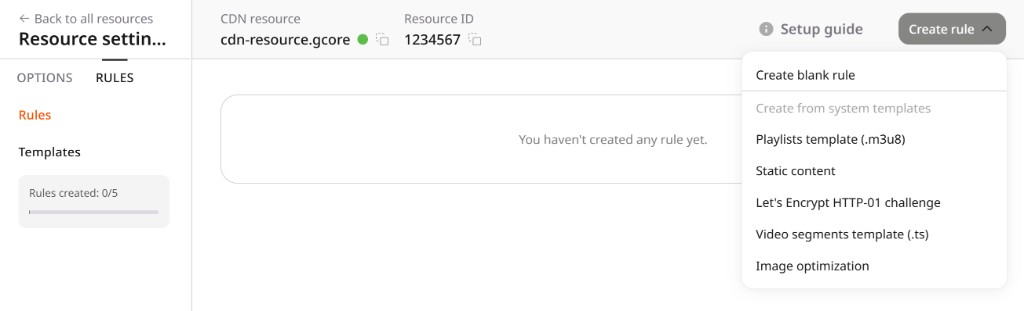
    Create rule dropdown with the Playlists and Video segments templates

    7. Select Playlists template (.m3u8).

    8. Set Cache time to 2 seconds and Browser cache to 0 seconds, then click Create rule.

    A 60 s segment cache and 2 s manifest cache balance segment availability with playlist freshness.

    For Low-Latency HLS (LL-HLS), add the delivery parameters to the cache key:

    9. Navigate to CDN Resource > Cache.

    10. Enable Query parameters allowlist.

    11. Add these parameters: _HLS_msn, _HLS_part, _HLS_skip.

    • These are required for LL-HLS to work correctly
    • Other parameters are excluded from the cache key but are still forwarded to the origin

    12. Click Save changes.

    Configure the baseline cache settings:

    1. Navigate to CDN Resource > Cache.

    2. Enable Always online and add these error types:

    • error
    • timeout

    When an error or timeout occurs, Always Online serves previously cached content while a valid stale response is available.

    Do not add updating to the error types list for live streaming. Add only error and timeout.

    3. In the CDN caching dropdown, select CDN controlled.

    4. Set Cache expiry to 60 seconds. With DVR enabled, increase this value to match the DVR window.

    5. Click Save changes.

    Next, create a manifest caching rule:

    6. Navigate to CDN Resource > Rules and click Create rule.

    7. Select Create blank rule and use ^/.+\.mpd$ as the pattern.

    8. Set Cache time to 2 seconds and Browser cache to 0 seconds, then click Create rule.

    For Low-Latency DASH (LL-DASH) with Common Media Application Format (CMAF) segments, low-latency delivery with an external transcoder requires the Chunked-Proxy module.

    When using MPEG-DASH with an external transcoder (not CDB Video Streaming), enable the Chunked-Proxy module for low-latency delivery by contacting CDB Support or the account manager.

    Without Chunked-Proxy, the CDN uses store-and-forward delivery, which can increase latency.

    Standard CDNs wait for files to download fully from origin before sending them to viewers. The Chunked-Proxy module sends bytes to viewers while receiving them from the origin, using chunked transfer encoding and protocol framing.

    The low-latency streaming configuration targets 2–4 seconds. Actual end-to-end latency depends on the transcoder, segment duration, player buffering, and network conditions.

    To activate Chunked-Proxy, contact CDB Support or the account manager and provide:

    1. The CDN resource ID or domain

    2. Confirmation of using LL-DASH with CMAF segments

    3. Origin transcoder details (for example, Wowza or NGINX RTMP)

    After activation, the CDN streams chunks as they arrive from the origin instead of waiting for complete segments.

    When using CDB Video Streaming (the CDB transcoding service), Chunked-Proxy is already enabled by default. Activation is only needed for an external transcoder.

    Common DASH/CMAF file extensions:

    • Manifests: .mpd
    • Segments: .m4s, .m4v, .m4a, .cmfv, .cmfa
    • Initialization: .mp4 (init segments)

    VOD cache duration depends on whether content URLs are immutable or reused.

    Enable Always online first:

    1. Navigate to CDN Resource > Cache.

    2. Enable Always online and add these error types:

    • error (serve stale cache if origin returns errors)
    • timeout (serve stale cache if origin times out)

    When an error or timeout occurs, Always Online serves previously cached video while a valid stale response is available.

    3. Click Save changes.

    Then set long-term cache:

    4. Still in CDN Resource > Cache, select CDN controlled from the CDN caching dropdown.

    5. Set Cache expiry to 1 year (31,536,000 seconds) for immutable or versioned URLs.

    • In CDN-controlled mode, responses with status codes 200, 206, 301, and 302 are cached by default; responses with other codes are not cached unless configured separately
    • In origin-controlled mode, caching is governed by the Cache-Control header the origin sends
    • For content replaced at the same URL, use a shorter TTL or purge the cache after replacement

    6. Click Save changes.

    7. To limit caching of 404 responses, add an advanced caching rule: in CDN caching settings, click Add rule, set Response code to 404, and set Caching time to 1 second. Click Save changes. This protects the origin from repeated requests for non-existent files.

    A 1-year TTL is appropriate only when content URLs are immutable or versioned. After replacing content at the same URL, purge the cache to remove the older object.

    Optionally, configure query string handling:

    8. Navigate to CDN Resource > Cache.

    9. Enable Ignore query string if VOD URLs do not use query parameters for logic, and caching video.mp4?ref=email and video.mp4?ref=social as the same file is preferred.

    10. Before removing query parameters from the cache key, confirm that they are not required for analytics or access control. Ignored parameters are still forwarded to the origin.

    11. Click Save changes.

    Common file extensions:

    • Manifests: .m3u8, .mpd
    • Segments: .ts, .m4s, .m4v, .m4a, .m4i
    • Subtitles: .vtt, .webvtt, .ttml

    HTTP-FLV Live streaming uses a single continuous connection and requires a dedicated service profile. Cache settings for HTTP-FLV Live are configured by CDB Support as part of the service activation process — contact Support or your account manager to request the configuration.

    Enable Always online first:

    1. Navigate to CDN Resource > Cache.

    2. Enable Always online and add these error types:

    • error (serve stale cache if origin returns errors)
    • timeout (serve stale cache if origin times out)

    3. Click Save changes.

    Then set long-term cache:

    4. Still in CDN Resource > Cache, select CDN controlled from the CDN caching dropdown.

    5. Set Cache expiry to 1 year (31,536,000 seconds) for immutable or versioned URLs.

    • In CDN-controlled mode, responses with status codes 200, 206, 301, and 302 are cached; other codes require additional configuration
    • For content replaced at the same URL, use a shorter TTL or purge the cache after replacement

    6. Click Save changes.

    7. To limit caching of 404 responses, add an advanced caching rule: in CDN caching settings, click Add rule, set Response code to 404, and set Caching time to 1 second. Click Save changes.

    Optionally, enable large file optimization for MP4 progressive download:

    8. Navigate to CDN Resource > Content.

    9. Enable Large files delivery optimization.

    • Retrieves content from the origin in 10 MB chunks using HTTP range requests and caches each chunk independently — intended for large single-file MP4 content
    • Generally unnecessary for segmented HLS or MPEG-DASH, which already divide media into small independently cached chunks
    • The origin must support HTTP Range requests
    • Enabling this invalidates existing cache
    • Incompatible with Fetch Compressed, Gzip compression, and Brotli compression

    10. Click Save changes.

    Optionally, configure query string handling:

    11. Navigate to CDN Resource > Cache.

    12. Enable Ignore query string if VOD URLs do not use query parameters for logic.

    13. Before removing query parameters from the cache key, confirm that they are not required for analytics or access control. Ignored parameters are still forwarded to the origin.

    14. Click Save changes.

    Common file extensions:

    • Progressive: .mp4, .webm, .flv
    • Subtitles: .vtt, .webvtt, .ttml

    For high-traffic streaming or specific performance requirements, contact CDB Support to configure cache sharding across multiple servers, cache lock timing for concurrent requests, custom TTL strategies per file type, and origin connection limits that protect the origin from traffic spikes.

  5. 5

    Enable the LIVE STREAMING preset

    For live streams only — skip this step when delivering VOD.

    The LIVE STREAMING preset enables RAM-based caching for reduced latency.

    1. Navigate to CDN resources.

    2. Click ⋯ (more options) next to the Video CDN resource.

    3. Select Turn on LIVE STREAMING preset.
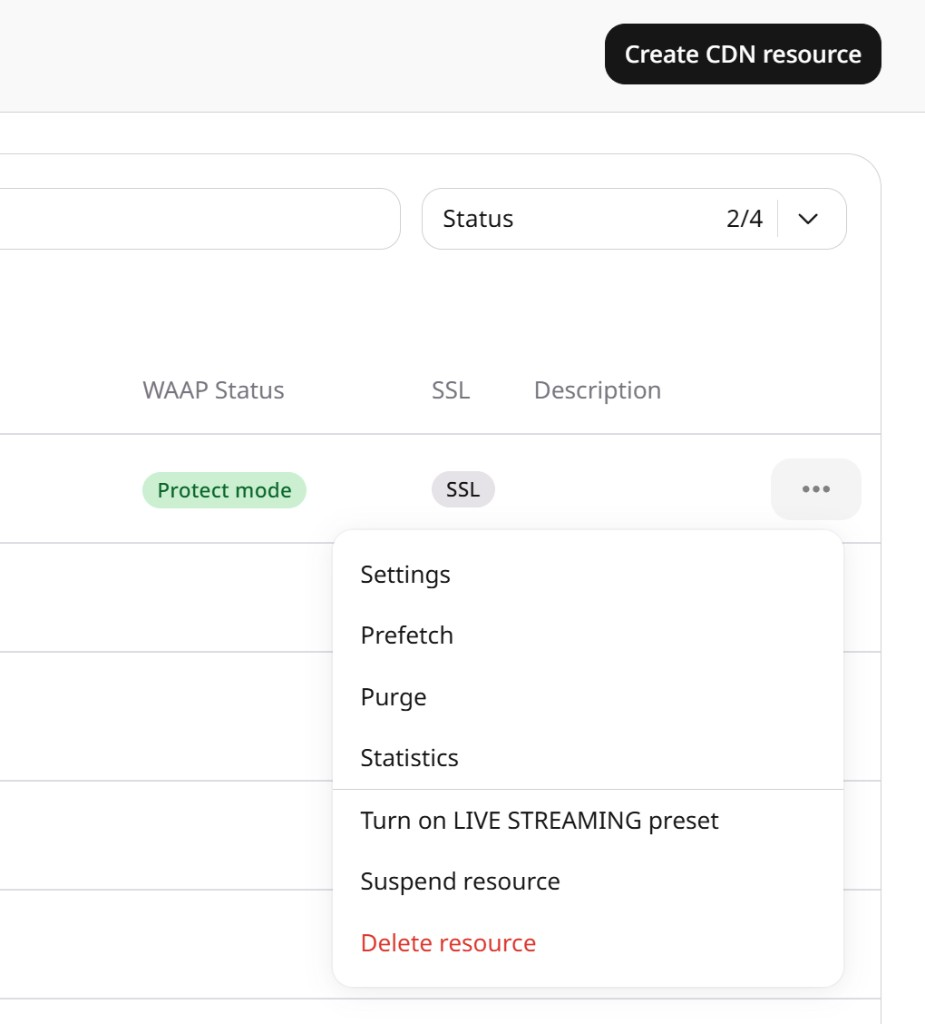
    Resource menu with Turn on LIVE STREAMING preset

    It caches video segments in RAM instead of disk for faster delivery and lower latency.

Video delivery testing

Confirm that the HTTPS CDN URL plays correctly before going to production.

CDN URL

Replace the origin hostname with the CDN hostname.

Before (origin):

https://live.example.com/playlist.m3u8

After (CDN):

https://video.example.com/playlist.m3u8

Or with an auto-generated domain:

https://123456.gcdn.co/playlist.m3u8

Playback test

Select a playback check that matches the delivery format. Playback alone can succeed while assets are still loaded from the origin — always verify that segment requests use the CDN hostname and return HIT in the Cache response header.

  • HLS — enter the CDN URL in the HLS.js demo or a native HLS player. Confirm the playlist loads and that segment URLs use relative paths or the CDN hostname, not the origin. Request the same segment URL twice and confirm the second response returns HIT in the Cache response header.
  • MPEG-DASH — open the .mpd URL in VLC Media Player or another MPEG-DASH player. Verify continuous playback and that segment URLs reference the CDN hostname. Request a segment URL twice and confirm HIT in the Cache response header.
  • HTTP-FLV — open the .flv URL in an HTTP-FLV player and verify that the continuous response plays.
  • MP4 — open the CDN URL in a browser or player, verify playback and seeking, and confirm that a repeated request returns HIT in the Cache response header.

Advanced configuration

After the resource is live, Origin Shielding, geo-restrictions, and secure tokens can further protect the origin and control who can watch.

Origin Shielding

Origin Shielding routes cache misses through a designated shield location before requests reach the origin, consolidating requests and reducing direct origin traffic.

  1. 1

    Open Origin Shielding settings

    Navigate to CDN Resource > General > Origin shielding.

  2. 2

    Enable and select a location

    Toggle Enable origin shielding, then select the shield location closest to the origin. Click Save changes.

The Origin Shielding settings support location selection and failover, so select a shield location close to the origin.

Geo-restrictions

Geo-restrictions combine country access with referrer, IP, and user-agent rules.

  1. 1

    Open the country access policy

    Navigate to CDN Resource > Security > Country access policy.

  2. 2

    Select allow or block

    Select Allow only to make content available only in selected countries, or Block to block content in selected countries.

  3. 3

    Apply the countries

    Select countries, then click Save changes.

Example: "Allow only in Dominican Republic" for regional sports rights.

Secure tokens

Secure Tokens protect paid content, private videos, and time-limited previews with authenticated URLs.

  1. 1

    Open Secure Token settings

    Navigate to CDN Resource > Security > Secure Token.

  2. 2

    Configure and generate tokens

    Enable and configure token settings, then click Save changes. Generate tokens on the backend for each user.

Troubleshooting

Use checks that match the delivery format and determine whether failure occurs at the origin, CDN, DNS, or player. Contact CDB Support or use the account chat if the issue remains.

Playback failures

Check the origin, domain, media files, and CDN response in order.

  1. 1

    Test the origin directly

    Request the origin URL directly and confirm it returns the expected content. Omitting the required Host header, SNI, authentication, or network access can produce a misleading success or failure — the test must preserve all conditions that the CDN request uses.

  2. 2

    Verify the custom domain

    For a custom domain, confirm that its CNAME points to the *.gcdn.co target shown in the CDN resource's Setup guide, and that the SSL certificate is valid.

  3. 3

    Check the format-specific CDN response

    Verify the format-specific response from the CDN:

    • HLS — verify the .m3u8 playlist and referenced .ts or .m4s segments
    • MPEG-DASH — verify the .mpd manifest and referenced .m4s segments
    • HTTP-FLV — verify that the .flv endpoint maintains a continuous HTTP response
    • MP4 — verify a successful response and HTTP Range support for seeking
  4. 4

    Check CDN statistics

    Check 4xx and 5xx responses in CDN statistics.

High live-stream latency

For HLS or MPEG-DASH latency, review the live-delivery settings before requesting workload-specific tuning.

  1. 1

    Confirm the LIVE STREAMING preset is enabled

    Confirm that the LIVE STREAMING preset is enabled on the CDN resource.

  2. 2

    Check manifest cache time

    Check that manifest cache time is appropriate for the stream — 2 seconds is recommended for live delivery.

  3. 3

    Verify Chunked-Proxy for LL-DASH

    For Low-Latency DASH (LL-DASH) with an external transcoder, confirm that Chunked-Proxy is active.

  4. 4

    Contact Support for tuning

    Contact CDB Support for workload-specific tuning.

Create a CDN resource for prepared HLS, MPEG-DASH, HTTP-FLV, or MP4 content, then apply only the cache updates that match the delivery type.

Activation requirements differ by delivery format:

  • HLS and MPEG-DASH — require video-delivery approval from CDB Support and a paid CDN plan.
  • HTTP-FLV Live — requires a sales agreement and a dedicated service profile. Contact the account manager or sales@gcore.com.
  • HTTP-FLV VOD and MP4 VOD — self-service; only a paid CDN plan is required.

An API token is required. The origin hostname must resolve in DNS.

export GCORE_API_KEY="{YOUR_API_KEY}"

Create the CDN resource

Set origin to a resolvable media hostname and originProtocol to HTTPS. An unresolved hostname returns HTTP 400 with the message The domain name cannot be resolved. Please specify a valid domain name. The create endpoint stores the hostname as the source of a new origin group.

ParameterRequiredDescription
cnameYesDomain that viewers request
originYesResolvable origin hostname, without a scheme or a path
originProtocolNoOptional in the API. Set to HTTPS for this resource; otherwise it defaults to HTTP
from gcore import CDB

client = CDB()  # Reads GCORE_API_KEY from env

resource = client.cdn.cdn_resources.create(
    cname="video.site.com",
    origin="example.com",
    origin_protocol="HTTPS",
)
print(resource.id, resource.origin_protocol)
package main

import (
    "context"
    "fmt"

    gcore "github.com/G-Core/gcore-go"
    "github.com/G-Core/gcore-go/cdn"
)

func main() {
    client := gcore.NewClient() // Reads GCORE_API_KEY from env
    ctx := context.Background()

    resource, err := client.CDN.CDNResources.New(ctx, cdn.CDNResourceNewParams{
        Cname:          "video.site.com",
        Origin:         gcore.String("example.com"),
        OriginProtocol: cdn.CDNResourceNewParamsOriginProtocolHTTPS,
    })
    if err != nil {
        panic(err)
    }
    fmt.Println(resource.ID, resource.OriginProtocol)
}
curl -X POST "https://api.cdb-staging.cdn.orange.com/cdn/resources" \
  -H "Authorization: APIKey $GCORE_API_KEY" \
  -H "Content-Type: application/json" \
  -d '{
    "cname": "video.site.com",
    "origin": "example.com",
    "originProtocol": "HTTPS"
  }'

The API returns:

{
  "id": 1001,
  "cname": "video.site.com",
  "active": true,
  "originProtocol": "HTTPS",
  "originGroup": 1002
}

Select calls for the delivery type

The create call is the same for every format. Continue with the calls that match the content:

  • HLS live: set the HLS live cache, cache .m3u8 playlists, and apply the LIVE STREAMING preset.
  • MPEG-DASH live: set Always online and the 60-second CDN cache, cache .mpd manifests, and apply the LIVE STREAMING preset. The .m3u8 rule and the LL-HLS query parameters apply to HLS.
  • HLS VOD, MPEG-DASH VOD, HTTP-FLV VOD, and MP4: leave the live cache, the .m3u8 and .mpd rules, and the LIVE STREAMING preset unset, because no further updates are required after resource creation.
  • HTTP-FLV Live: Support configures the cache during service activation.

Set the HLS live cache

A resource update sets Always online for error and timeout and a 60-second CDN cache. HLS live and MPEG-DASH live use these two fields. Sending one of these options does not remove the other.

ParameterRequiredDescription
options.stale.valueNoerror and timeout when Always online is enabled
options.edge_cache_settings.valueNo60s for CDN-controlled caching
from gcore import CDB

client = CDB()

resource = client.cdn.cdn_resources.update(
    1001,
    options={
        "stale": {"enabled": True, "value": ["error", "timeout"]},
        "edge_cache_settings": {"enabled": True, "value": "60s"},
    },
)
print(resource.options.stale.value, resource.options.edge_cache_settings.value)
package main

import (
    "context"
    "fmt"

    gcore "github.com/G-Core/gcore-go"
    "github.com/G-Core/gcore-go/cdn"
)

func main() {
    client := gcore.NewClient()
    ctx := context.Background()

    resource, err := client.CDN.CDNResources.Update(ctx, 1001, cdn.CDNResourceUpdateParams{
        Options: cdn.CDNResourceUpdateParamsOptions{
            Stale: cdn.CDNResourceUpdateParamsOptionsStale{
                Enabled: true,
                Value:   []string{"error", "timeout"},
            },
            EdgeCacheSettings: cdn.CDNResourceUpdateParamsOptionsEdgeCacheSettings{
                Enabled: true,
                Value:   gcore.String("60s"),
            },
        },
    })
    if err != nil {
        panic(err)
    }
    fmt.Println(resource.Options.Stale.Value, resource.Options.EdgeCacheSettings.Value)
}
curl -X PATCH "https://api.cdb-staging.cdn.orange.com/cdn/resources/1001" \
  -H "Authorization: APIKey $GCORE_API_KEY" \
  -H "Content-Type: application/json" \
  -d '{
    "options": {
      "stale": {"enabled": true, "value": ["error", "timeout"]},
      "edge_cache_settings": {"enabled": true, "value": "60s"}
    }
  }'

The API returns:

{
  "id": 1001,
  "options": {
    "stale": {"enabled": true, "value": ["error", "timeout"]},
    "edge_cache_settings": {"enabled": true, "value": "60s"}
  }
}

For Low-Latency HLS, add options.query_params_whitelist with enabled set to true and the values _HLS_msn, _HLS_part, and _HLS_skip. The baseline update above does not include that field.

Cache HLS playlists

For HLS live, a rule with ruleType 0 matches playlist paths and caches them for 2 seconds. Browser cache is 0s.

ParameterRequiredDescription
ruleYes^/.+\.m3u8$
ruleTypeYes0 for a regular expression
options.edge_cache_settings.valueNo2s on the playlist rule
options.browser_cache_settings.valueNo0s on the playlist rule
from gcore import CDB

client = CDB()

rule = client.cdn.cdn_resources.rules.create(
    1001,
    name="HLS playlists",
    rule="^/.+\\.m3u8$",
    rule_type=0,
    options={
        "edge_cache_settings": {"enabled": True, "value": "2s"},
        "browser_cache_settings": {"enabled": True, "value": "0s"},
    },
)
print(rule.id, rule.options.edge_cache_settings.value)
package main

import (
    "context"
    "fmt"

    gcore "github.com/G-Core/gcore-go"
    "github.com/G-Core/gcore-go/cdn"
)

func main() {
    client := gcore.NewClient()
    ctx := context.Background()

    rule, err := client.CDN.CDNResources.Rules.New(ctx, 1001, cdn.CDNResourceRuleNewParams{
        Name:     "HLS playlists",
        Rule:     "^/.+\\.m3u8$",
        RuleType: 0,
        Options: cdn.CDNResourceRuleNewParamsOptions{
            EdgeCacheSettings: cdn.CDNResourceRuleNewParamsOptionsEdgeCacheSettings{
                Enabled: true,
                Value:   gcore.String("2s"),
            },
            BrowserCacheSettings: cdn.CDNResourceRuleNewParamsOptionsBrowserCacheSettings{
                Enabled: true,
                Value:   "0s",
            },
        },
    })
    if err != nil {
        panic(err)
    }
    fmt.Println(rule.ID, rule.Options.EdgeCacheSettings.Value)
}
curl -X POST "https://api.cdb-staging.cdn.orange.com/cdn/resources/1001/rules" \
  -H "Authorization: APIKey $GCORE_API_KEY" \
  -H "Content-Type: application/json" \
  -d '{
    "name": "HLS playlists",
    "rule": "^/.+\\.m3u8$",
    "ruleType": 0,
    "options": {
      "edge_cache_settings": {"enabled": true, "value": "2s"},
      "browser_cache_settings": {"enabled": true, "value": "0s"}
    }
  }'

The API returns:

{
  "id": 1003,
  "rule": "^/.+\\.m3u8$",
  "ruleType": 0,
  "options": {
    "edge_cache_settings": {"enabled": true, "value": "2s"},
    "browser_cache_settings": {"enabled": true, "value": "0s"}
  }
}

Cache MPEG-DASH manifests

For MPEG-DASH live, a rule with ruleType 0 matches manifest paths and caches them for 2 seconds. Browser cache is 0s.

ParameterRequiredDescription
ruleYes^/.+\.mpd$
ruleTypeYes0 for a regular expression
options.edge_cache_settings.valueNo2s on the manifest rule
options.browser_cache_settings.valueNo0s on the manifest rule
from gcore import CDB

client = CDB()

rule = client.cdn.cdn_resources.rules.create(
    1001,
    name="DASH manifests",
    rule="^/.+\\.mpd$",
    rule_type=0,
    options={
        "edge_cache_settings": {"enabled": True, "value": "2s"},
        "browser_cache_settings": {"enabled": True, "value": "0s"},
    },
)
print(rule.id, rule.options.edge_cache_settings.value)
package main

import (
    "context"
    "fmt"

    gcore "github.com/G-Core/gcore-go"
    "github.com/G-Core/gcore-go/cdn"
)

func main() {
    client := gcore.NewClient()
    ctx := context.Background()

    rule, err := client.CDN.CDNResources.Rules.New(ctx, 1001, cdn.CDNResourceRuleNewParams{
        Name:     "DASH manifests",
        Rule:     "^/.+\\.mpd$",
        RuleType: 0,
        Options: cdn.CDNResourceRuleNewParamsOptions{
            EdgeCacheSettings: cdn.CDNResourceRuleNewParamsOptionsEdgeCacheSettings{
                Enabled: true,
                Value:   gcore.String("2s"),
            },
            BrowserCacheSettings: cdn.CDNResourceRuleNewParamsOptionsBrowserCacheSettings{
                Enabled: true,
                Value:   "0s",
            },
        },
    })
    if err != nil {
        panic(err)
    }
    fmt.Println(rule.ID, rule.Options.EdgeCacheSettings.Value)
}
curl -X POST "https://api.cdb-staging.cdn.orange.com/cdn/resources/1001/rules" \
  -H "Authorization: APIKey $GCORE_API_KEY" \
  -H "Content-Type: application/json" \
  -d '{
    "name": "DASH manifests",
    "rule": "^/.+\\.mpd$",
    "ruleType": 0,
    "options": {
      "edge_cache_settings": {"enabled": true, "value": "2s"},
      "browser_cache_settings": {"enabled": true, "value": "0s"}
    }
  }'

The API returns:

{
  "id": 1004,
  "rule": "^/.+\\.mpd$",
  "ruleType": 0,
  "options": {
    "edge_cache_settings": {"enabled": true, "value": "2s"},
    "browser_cache_settings": {"enabled": true, "value": "0s"}
  }
}

Enable the LIVE STREAMING preset

List presets, select the one named LIVE STREAMING, and apply that id to the resource. After the apply call, preset_applied is true. The list returned id 52 for that name. Use this call for live delivery. VOD leaves the preset unset.

from gcore import CDB

client = CDB()

presets = client.cdn.presets.list()
preset_id = next(item.id for item in presets if item.name == "LIVE STREAMING")
applied = client.cdn.presets.applied.apply(preset_id, object_id=1001)
print(applied.preset_id, applied.object_id)
package main

import (
    "context"
    "fmt"

    gcore "github.com/G-Core/gcore-go"
    "github.com/G-Core/gcore-go/cdn"
)

func main() {
    client := gcore.NewClient()
    ctx := context.Background()

    page, err := client.CDN.Presets.List(ctx, cdn.PresetListParams{})
    if err != nil {
        panic(err)
    }
    var presetID int64
    for _, item := range page.Results {
        if item.Name == "LIVE STREAMING" {
            presetID = item.ID
            break
        }
    }
    applied, err := client.CDN.Presets.Applied.Apply(ctx, presetID, cdn.PresetAppliedApplyParams{
        ObjectID: 1001,
    })
    if err != nil {
        panic(err)
    }
    fmt.Println(applied.PresetID, applied.ObjectID)
}
curl "https://api.cdb-staging.cdn.orange.com/cdn/presets?limit=1000" \
  -H "Authorization: APIKey $GCORE_API_KEY"

The API returns:

{
  "results": [
    {
      "id": 52,
      "name": "LIVE STREAMING"
    }
  ]
}

Apply the id of the preset named LIVE STREAMING:

curl -X POST "https://api.cdb-staging.cdn.orange.com/cdn/presets/52/applied" \
  -H "Authorization: APIKey $GCORE_API_KEY" \
  -H "Content-Type: application/json" \
  -d '{"object_id": 1001}'

The API returns:

{
  "preset_id": 52,
  "object_id": 1001,
  "message": "Preset successfully applied"
}

Point the custom domain at the CDN

Add a CNAME record for video.site.com before requesting that domain over HTTPS. The target is the id from the create call with .gcdn.co appended. Viewer HTTPS uses a Let's Encrypt certificate or an own SSL certificate after that CNAME is in place.

DNS record fieldValue
TypeCNAME
Name / HostThe delivery subdomain — video.site.com
Value / Points to{resource_id}.gcdn.co. Replace {resource_id} with the id from the create call

Confirm playback through the CDN

Open the media through video.site.com after the CNAME and certificate are in place, or through the hostname formed from the create-call id and .gcdn.co. For HLS or MPEG-DASH, confirm that segment requests use the CDN hostname. Request a cached segment twice and confirm that the second response contains Cache: HIT.

Declare an origin group, an HTTPS CDN resource for prepared video, and live manifest rules with the Terraform provider v2.

Activation requirements differ by delivery format:

  • HLS and MPEG-DASH — require video-delivery approval from CDB Support and a paid CDN plan.
  • HTTP-FLV Live — requires a sales agreement and a dedicated service profile. Contact the account manager or sales@gcore.com.
  • HTTP-FLV VOD and MP4 VOD — self-service; only a paid CDN plan is required.

Create the CDN resource

The origin hostname must resolve in DNS. HLS live and MPEG-DASH live set CDN cache to 60 seconds. The .m3u8 rule caches HLS playlists for 2 seconds. The .mpd rule caches MPEG-DASH manifests for 2 seconds. Browser cache on both rules is 0 seconds. Keep the rule that matches the live format. Low-Latency HLS keeps _HLS_msn, _HLS_part, and _HLS_skip in the cache key. VOD declares the origin group and the CDN resource without these options and without the manifest rules. HTTP-FLV Live cache is configured by CDB Support during service activation.

resource "gcore_cdn_origin_group" "example" {
  name = "video-origin-group"

  sources = [
    {
      source  = "example.com"
      enabled = true
    }
  ]
}

resource "gcore_cdn_resource" "example" {
  cname           = "video.example.com"
  origin_group    = gcore_cdn_origin_group.example.id
  origin_protocol = "HTTPS"

  options = {
    edge_cache_settings = {
      enabled = true
      value   = "60s"
    }
    query_params_whitelist = {
      enabled = true
      value   = ["_HLS_msn", "_HLS_part", "_HLS_skip"]
    }
  }
}

resource "gcore_cdn_resource_rule" "playlists" {
  resource_id = gcore_cdn_resource.example.id
  name        = "HLS playlists"
  rule        = "^/.+\\.m3u8$"
  rule_type   = 0
  active      = true

  options = {
    edge_cache_settings = {
      enabled = true
      value   = "2s"
    }
    browser_cache_settings = {
      enabled = true
      value   = "0s"
    }
  }
}

resource "gcore_cdn_resource_rule" "manifests" {
  resource_id = gcore_cdn_resource.example.id
  name        = "DASH manifests"
  rule        = "^/.+\\.mpd$"
  rule_type   = 0
  active      = true

  options = {
    edge_cache_settings = {
      enabled = true
      value   = "2s"
    }
    browser_cache_settings = {
      enabled = true
      value   = "0s"
    }
  }
}

output "cdn_resource_id" {
  value = gcore_cdn_resource.example.id
}

Enable the LIVE STREAMING preset

For live streams, turn on the LIVE STREAMING preset from the Customer Portal resource menu after terraform apply. The preset includes Always online. Leave stale unset in options, because an apply that changes stale while the preset is on returns HTTP 400. VOD leaves the preset off.

DNS setup

Apply prints cdn_resource_id. Add a CNAME record at the DNS provider. The target is that id with .gcdn.co appended.

DNS record fieldValue
TypeCNAME
Name / HostThe delivery subdomain — video.example.com
Value / Points to{resource_id}.gcdn.co. Replace {resource_id} with the printed cdn_resource_id value

Viewer HTTPS on video.example.com uses a Let's Encrypt certificate or an own SSL certificate after that CNAME is in place.

Delete the CDN resource

Remove the manifest rules, the CDN resource, the origin group, and the cdn_resource_id output. The next terraform apply deletes the rules, then the CDN resource, then the origin group.

# Remove the manifest rules, the CDN resource, and the origin group:
# resource "gcore_cdn_origin_group" "example" {
#   name = "video-origin-group"
#
#   sources = [
#     {
#       source  = "example.com"
#       enabled = true
#     }
#   ]
# }
#
# resource "gcore_cdn_resource" "example" {
#   cname           = "video.example.com"
#   origin_group    = gcore_cdn_origin_group.example.id
#   origin_protocol = "HTTPS"
#
#   options = {
#     edge_cache_settings = {
#       enabled = true
#       value   = "60s"
#     }
#     query_params_whitelist = {
#       enabled = true
#       value   = ["_HLS_msn", "_HLS_part", "_HLS_skip"]
#     }
#   }
# }
#
# resource "gcore_cdn_resource_rule" "playlists" {
#   resource_id = gcore_cdn_resource.example.id
#   name        = "HLS playlists"
#   rule        = "^/.+\\.m3u8$"
#   rule_type   = 0
#   active      = true
#
#   options = {
#     edge_cache_settings = {
#       enabled = true
#       value   = "2s"
#     }
#     browser_cache_settings = {
#       enabled = true
#       value   = "0s"
#     }
#   }
# }
#
# resource "gcore_cdn_resource_rule" "manifests" {
#   resource_id = gcore_cdn_resource.example.id
#   name        = "DASH manifests"
#   rule        = "^/.+\\.mpd$"
#   rule_type   = 0
#   active      = true
#
#   options = {
#     edge_cache_settings = {
#       enabled = true
#       value   = "2s"
#     }
#     browser_cache_settings = {
#       enabled = true
#       value   = "0s"
#     }
#   }
# }
#
# output "cdn_resource_id" {
#   value = gcore_cdn_resource.example.id
# }
terraform apply