Custom SSL certificate configuration

A certificate is ready to upload when it covers the custom domain of the CDN resource (cdn.example.com).

A certificate for *.example.com covers one DNS label under that domain (cdn.example.com). It does not cover the apex domain example.com or a nested hostname assets.cdn.example.com. Every required hostname belongs in the certificate's Subject Alternative Name (SAN) extension. Wildcard matching follows RFC 9525.

Upload the certificate in the CDB Technical Web Portal, then attach it to an existing CDN resource, because custom SSL is not selected on the resource creation form.

Upload an SSL certificate

  1. 1

    Open SSL certificates

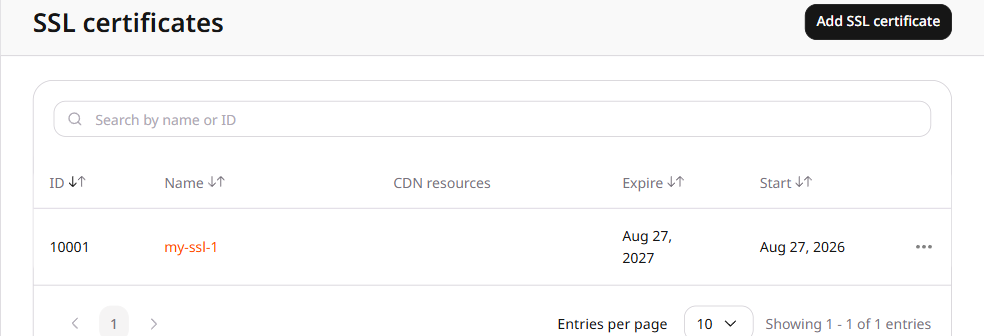
    In the Customer Portal, navigate to CDN > SSL certificates.

    SSL certificates list with Add SSL certificate
  2. 2

    Open the create form

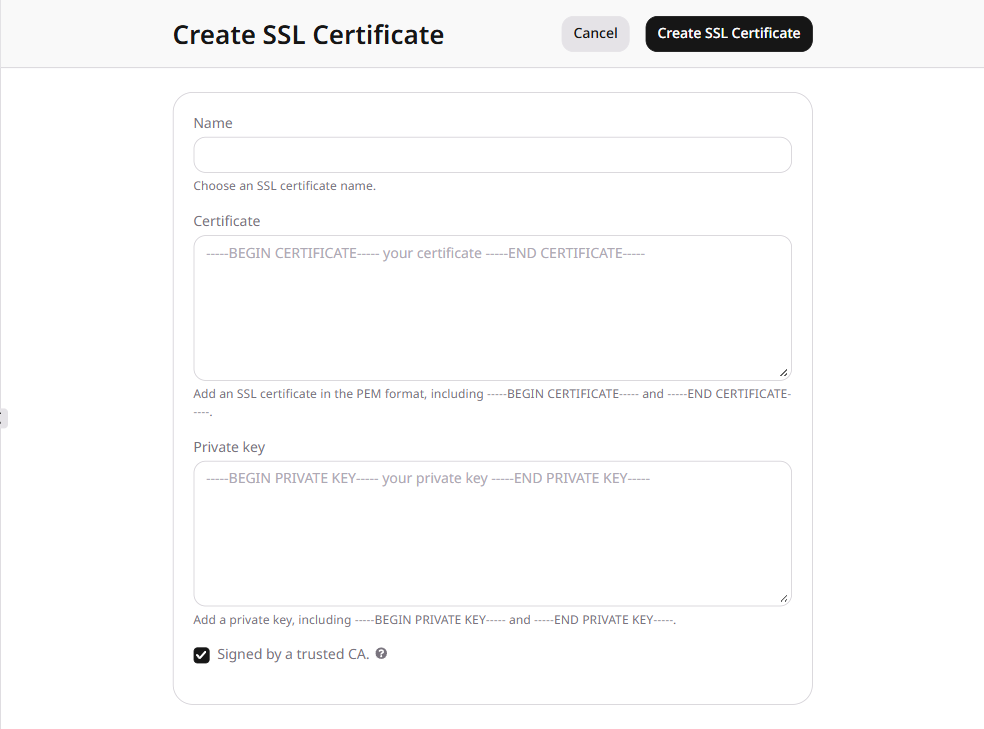
    Click Add SSL certificate. The Create SSL Certificate form opens.

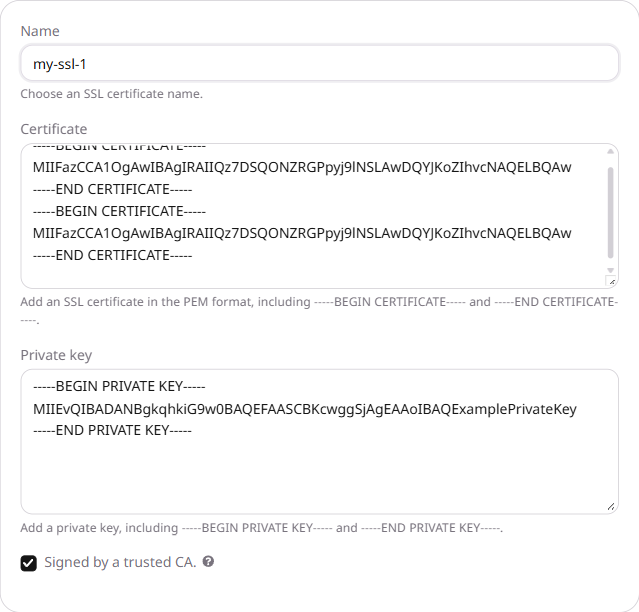
    Create SSL Certificate form with Name, Certificate, and Private key
  3. 3

    Enter the certificate data

    Enter the values from the certificate authority:

    • Name: a label used only in the Customer Portal.
    • Certificate: the certificate chain in PEM format (leaf certificate, intermediate CA, root CA).
    • Private key: the matching private key.

    Paste the chain and key as described in Certificate chain. Leave Signed by a trusted CA. checked when the certificate is from a trusted CA. Clear the checkbox when it is not.

    Create SSL Certificate form filled with name, certificate chain, and private key
  4. 4

    Create the certificate

    Click Create SSL Certificate. The certificate appears in the SSL certificates list.

    SSL certificate in the certificates list

Attach the certificate to a CDN resource after upload, because an uploaded certificate is not used until it is selected on a resource.

Certificate chain and key

Open the certificate file in PEM format (.pem, .crt, or .cer) in a text editor.

Copy the chain in this order: leaf certificate, intermediate CA, root CA. Paste the full contents into Certificate, including the -----BEGIN CERTIFICATE----- and -----END CERTIFICATE----- tags. Do not leave blank lines between certificates.

Certificate chain pasted into the Certificate field

Add a new line at the end of the chain.

Open the private key file (.key) in a text editor. Paste the full contents into Private key, and keep the exact BEGIN and END lines from the key file. Common delimiters include -----BEGIN PRIVATE KEY----- and -----BEGIN RSA PRIVATE KEY-----.

SSL certificate on a CDN resource

Create the CDN resource first. On the create form, enter the hostname in Add domain. After the resource exists, attach the custom certificate in the resource SSL settings.

  1. 1

    Open the CDN resource

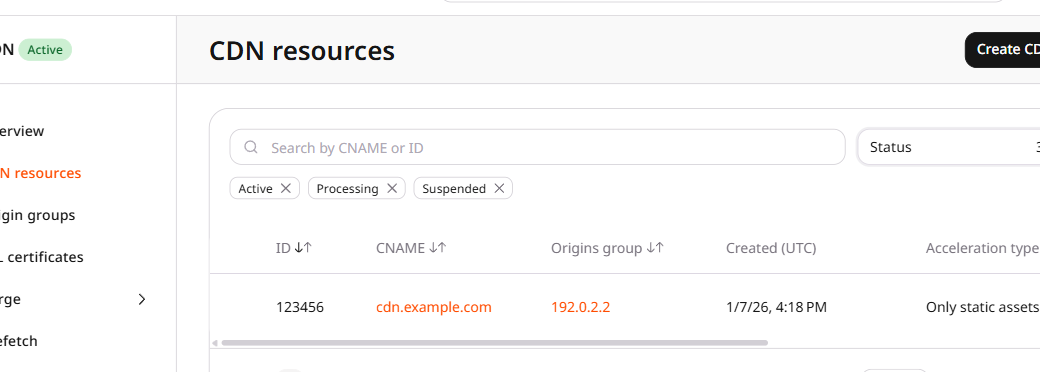
    In the Customer Portal, navigate to CDN > CDN resources and click the resource CNAME.

    CDN resources list with CNAME column
  2. 2

    Open SSL settings

    On the OPTIONS tab, open SSL under General.

  3. 3

    Select the custom certificate

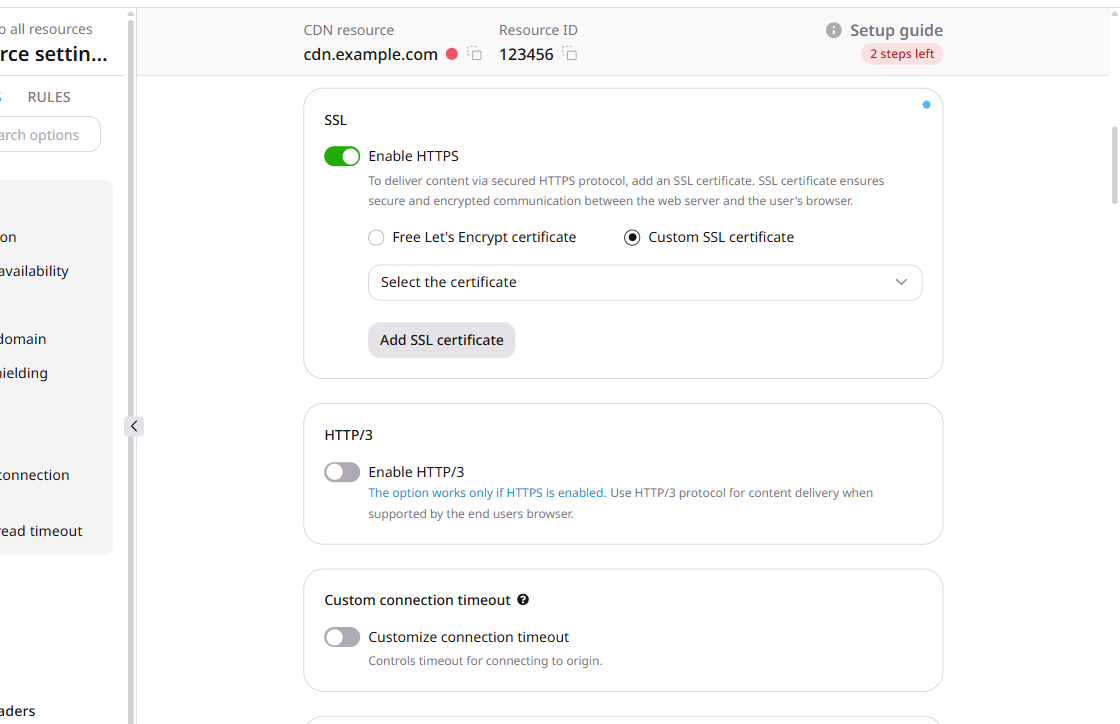
    Turn on Enable HTTPS and select Custom SSL certificate. If a certificate is already uploaded, select it in the certificate dropdown. If none are uploaded, click Add SSL certificate.

    Enable HTTPS and Custom SSL certificate on an existing resource
  4. 4

    Save the SSL settings

    Click Save changes.

Certificate management

Uploaded certificates are available under CDN > SSL certificates. In the Customer Portal, only the certificate name can be changed after upload — use Settings on the certificate row. To change the certificate or private key, upload a replacement and attach it on every resource listed under CDN resources.

SSL certificates table with ID, name, resources, start, and expire

SSL certificate renewal

Before expiration, upload a replacement certificate and select it on every resource listed under CDN resources for the old certificate.

  1. 1

    Upload a replacement certificate

    Add the replacement in SSL certificates. Do not delete the old certificate yet.

  2. 2

    Replace it on every connected resource

    On the old certificate row, note every resource under CDN resources. For each listed resource, open SSL settings, select the new certificate, and click Save changes.

  3. 3

    Wait for HTTPS to use the new certificate

    Wait at least 15 minutes after the last resource is saved.

  4. 4

    Verify each hostname

    For each hostname, open the site over HTTPS and inspect the certificate presented by the browser. The subject, SAN, and validity dates should match the replacement certificate.

  5. 5

    Delete the old certificate

    After every hostname matches the new certificate, delete the old certificate. Removing it earlier interrupts HTTPS delivery on any resource that still selects it.

Expiration notifications

Notification emails are sent to the administrator and engineer addresses 14 days before expiration, seven days before expiration, and on the expiration date. A reminder also appears on login during those 14 days and after expiration. SSL certificates in the side panel shows an exclamation mark when a certificate is expired or will expire within 14 days.

A red exclamation mark marks an expired certificate, while a yellow warning marks a certificate that expires in 14 days or fewer.

Delete an SSL certificate

A certificate that is selected on a CDN resource cannot be deleted. Replace it on every connected resource first.

Turning off Enable HTTPS stops HTTPS delivery on that resource. To detach a certificate, select a replacement certificate on every connected resource. Turn off Enable HTTPS only when HTTPS delivery is being removed.

  1. 1

    Detach the certificate from every resource

    On the certificate row, note every resource under CDN resources. For each listed resource, open SSL settings and select a replacement certificate, then click Save changes. Turn off Enable HTTPS only when HTTPS delivery is being removed from that resource.

  2. 2

    Open the delete action

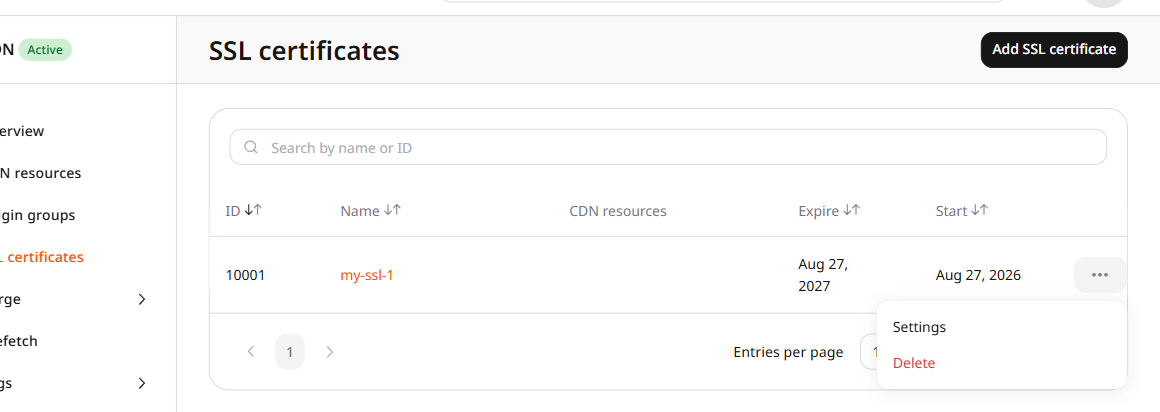
    Click the three dots next to the certificate, then click Delete. The same menu includes Settings.

    Settings and Delete actions on an SSL certificate row
  3. 3

    Confirm deletion

    In the confirmation dialog, click Yes, delete.

Upload a custom SSL certificate in PEM format, attach it to an existing CDN resource, and replace or delete it when the certificate changes. The certificate must cover the resource custom domain in its Subject Alternative Name (SAN) extension.

An API token is required. The CDN resource ID is visible under CDN → CDN Resources, or from the resources list call.

Open a terminal and export the required variables. SSL_CERTIFICATE and SSL_PRIVATE_KEY are the PEM chain and key with a newline after every line, including the final END line:

export GCORE_API_KEY="{YOUR_API_KEY}"
export CDN_RESOURCE_ID="{YOUR_CDN_RESOURCE_ID}"
export SSL_CERTIFICATE="$(cat ./fullchain.pem)"
export SSL_PRIVATE_KEY="$(cat ./privkey.pem)"

Upload a custom certificate

Create the certificate object first. HTTPS does not use it until the ID is set on a CDN resource. validate_root_ca is true when a trusted CA signed the chain. Set it to false for a private or self-signed chain — otherwise the API returns HTTP 400.

ParameterRequiredDescription
nameYesUnique label for the certificate object
sslCertificateYesPEM chain: leaf, intermediates, root, separated by \n
sslPrivateKeyYesMatching private key in PEM
validate_root_caNoSet to true for a trusted CA chain, false for a private or self-signed chain
import os

from gcore import CDB

client = CDB()

client.cdn.certificates.create(
    name="cdn.example.com",
    ssl_certificate=os.environ["SSL_CERTIFICATE"],
    ssl_private_key=os.environ["SSL_PRIVATE_KEY"],
    validate_root_ca=True,
)

uploaded = next(
    item
    for item in client.cdn.certificates.list(automated=False)
    if item.name == "cdn.example.com"
)
print(uploaded.id, uploaded.cert_subject_cn, uploaded.validity_not_after)
package main

import (
    "context"
    "fmt"
    "os"

    gcore "github.com/G-Core/gcore-go"
    "github.com/G-Core/gcore-go/cdn"
)

func main() {
    client := gcore.NewClient()
    ctx := context.Background()

    err := client.CDN.Certificates.New(ctx, cdn.CertificateNewParams{
        OfOwnCertificate: &cdn.CertificateNewParamsBodyOwnCertificate{
            Name:           "cdn.example.com",
            SslCertificate: os.Getenv("SSL_CERTIFICATE"),
            SslPrivateKey:  os.Getenv("SSL_PRIVATE_KEY"),
            ValidateRootCa: gcore.Bool(true),
        },
    })
    if err != nil {
        panic(err)
    }

    page, err := client.CDN.Certificates.List(ctx, cdn.CertificateListParams{
        Automated: gcore.Bool(false),
    })
    if err != nil {
        panic(err)
    }
    for _, item := range page.Results {
        if item.Name == "cdn.example.com" {
            fmt.Println(item.ID, item.CertSubjectCn, item.ValidityNotAfter)
        }
    }
}
jq -n \
  --arg name "cdn.example.com" \
  --arg sslCertificate "$SSL_CERTIFICATE" \
  --arg sslPrivateKey "$SSL_PRIVATE_KEY" \
  '{
    name: $name,
    sslCertificate: $sslCertificate,
    sslPrivateKey: $sslPrivateKey,
    validate_root_ca: true
  }' \
| curl -X POST "https://api.cdb-staging.cdn.orange.com/cdn/sslData" \
    -H "Authorization: APIKey $GCORE_API_KEY" \
    -H "Content-Type: application/json" \
    -d @-

The API returns HTTP 201:

{
  "id": 312679,
  "name": "cdn.example.com",
  "deleted": false,
  "cert_issuer": "Example CA",
  "cert_subject_cn": "cdn.example.com",
  "cert_subject_alt": "DNS:cdn.example.com",
  "validity_not_before": "2026-09-24T09:15:27Z",
  "validity_not_after": "2026-12-23T09:15:27Z",
  "sslCertificateChain": "",
  "hasRelatedResources": false,
  "automated": false
}

The upload endpoint creates the certificate object. Use the returned id to attach it to a CDN resource. If the SDK create method does not return the object, retrieve the certificate by name from the certificate list.

Get the certificate ID

The curl upload response already includes id. Use the list call when the SDK create method returns nothing, or when the ID is no longer at hand.

from gcore import CDB

client = CDB()

uploaded = next(
    item
    for item in client.cdn.certificates.list(automated=False)
    if item.name == "cdn.example.com"
)
print(uploaded.id, uploaded.name)
package main

import (
    "context"
    "fmt"

    gcore "github.com/G-Core/gcore-go"
    "github.com/G-Core/gcore-go/cdn"
)

func main() {
    client := gcore.NewClient()
    ctx := context.Background()

    page, err := client.CDN.Certificates.List(ctx, cdn.CertificateListParams{
        Automated: gcore.Bool(false),
    })
    if err != nil {
        panic(err)
    }
    for _, item := range page.Results {
        if item.Name == "cdn.example.com" {
            fmt.Println(item.ID, item.Name)
        }
    }
}
curl "https://api.cdb-staging.cdn.orange.com/cdn/sslData/312679" \
  -H "Authorization: APIKey $GCORE_API_KEY"

The API returns the same certificate object as the upload response, including id.

Attach a certificate to a CDN resource

Set sslEnabled to true and sslData to the certificate ID on the resource. An uploaded certificate is unused until this call succeeds. Wait at least 15 minutes after the last attach before checking HTTPS in a browser.

import os

from gcore import CDB

client = CDB()

resource = client.cdn.cdn_resources.update(
    resource_id=int(os.environ["CDN_RESOURCE_ID"]),
    ssl_enabled=True,
    ssl_data=312679,
)
print(resource.id, resource.ssl_enabled, resource.ssl_data)
package main

import (
    "context"
    "fmt"
    "os"
    "strconv"

    gcore "github.com/G-Core/gcore-go"
    "github.com/G-Core/gcore-go/cdn"
)

func main() {
    client := gcore.NewClient()
    ctx := context.Background()

    resourceID, err := strconv.ParseInt(os.Getenv("CDN_RESOURCE_ID"), 10, 64)
    if err != nil {
        panic(err)
    }

    resource, err := client.CDN.CDNResources.Update(ctx, resourceID, cdn.CDNResourceUpdateParams{
        SslEnabled: gcore.Bool(true),
        SslData:    gcore.Int(312679),
    })
    if err != nil {
        panic(err)
    }
    fmt.Println(resource.ID, resource.SslEnabled, resource.SslData)
}
curl -X PATCH "https://api.cdb-staging.cdn.orange.com/cdn/resources/$CDN_RESOURCE_ID" \
  -H "Authorization: APIKey $GCORE_API_KEY" \
  -H "Content-Type: application/json" \
  -d '{
    "sslEnabled": true,
    "sslData": 312679
  }'

The API returns the CDN resource. The SSL fields are:

{
  "id": 101,
  "cname": "cdn.example.com",
  "sslEnabled": true,
  "sslData": 312679
}

Find resources that use a certificate

Read the connected resource IDs and CNAMEs before replacing or deleting a certificate. Those IDs are the targets of the next attach call.

from gcore import CDB

client = CDB()

for resource in client.cdn.cdn_resources.list(ssl_data=312679):
    print(resource.id, resource.cname)
package main

import (
    "context"
    "fmt"

    gcore "github.com/G-Core/gcore-go"
    "github.com/G-Core/gcore-go/cdn"
)

func main() {
    client := gcore.NewClient()
    ctx := context.Background()

    page, err := client.CDN.CDNResources.List(ctx, cdn.CDNResourceListParams{
        SslData: gcore.Int(312679),
    })
    if err != nil {
        panic(err)
    }
    for _, item := range page.Results {
        fmt.Println(item.ID, item.Cname)
    }
}
curl "https://api.cdb-staging.cdn.orange.com/cdn/sslData/312679/usage" \
  -H "Authorization: APIKey $GCORE_API_KEY"

The API returns:

{
  "resources": [
    {
      "id": 101,
      "cname": "cdn.example.com",
      "status": "processed"
    }
  ],
  "aliases": []
}

Rename a certificate

The certificate name is a unique label. A curl PUT can send name alone. The REST API can also replace the uploaded chain and key on the existing certificate object — the Customer Portal cannot edit that material after create. The Python and Go replace methods send name together with the PEM files: pass the same files to change only the label, or a new chain to replace the uploaded material.

import os

from gcore import CDB

client = CDB()

detail = client.cdn.certificates.replace(
    ssl_id=312679,
    name="cdn.example.com-2026",
    ssl_certificate=os.environ["SSL_CERTIFICATE"],
    ssl_private_key=os.environ["SSL_PRIVATE_KEY"],
    validate_root_ca=True,
)
print(detail.id, detail.name)
package main

import (
    "context"
    "fmt"
    "os"

    gcore "github.com/G-Core/gcore-go"
    "github.com/G-Core/gcore-go/cdn"
)

func main() {
    client := gcore.NewClient()
    ctx := context.Background()

    detail, err := client.CDN.Certificates.Replace(ctx, 312679, cdn.CertificateReplaceParams{
        Name:           "cdn.example.com-2026",
        SslCertificate: os.Getenv("SSL_CERTIFICATE"),
        SslPrivateKey:  os.Getenv("SSL_PRIVATE_KEY"),
        ValidateRootCa: gcore.Bool(true),
    })
    if err != nil {
        panic(err)
    }
    fmt.Println(detail.ID, detail.Name)
}
curl -X PUT "https://api.cdb-staging.cdn.orange.com/cdn/sslData/312679" \
  -H "Authorization: APIKey $GCORE_API_KEY" \
  -H "Content-Type: application/json" \
  -d '{"name": "cdn.example.com-2026"}'

The API returns the certificate with the new name. The subject, issuer, and validity dates stay the same when only name is sent.

Replace a certificate on a CDN resource

Upload the replacement certificate, then set sslData to the new ID on every connected resource.

from gcore import CDB

client = CDB()
old_id = 312679
new_id = 312680

for resource in client.cdn.cdn_resources.list(ssl_data=old_id):
    updated = client.cdn.cdn_resources.update(
        resource_id=resource.id,
        ssl_enabled=True,
        ssl_data=new_id,
    )
    print(updated.id, updated.ssl_data)
package main

import (
    "context"
    "fmt"

    gcore "github.com/G-Core/gcore-go"
    "github.com/G-Core/gcore-go/cdn"
)

func main() {
    client := gcore.NewClient()
    ctx := context.Background()
    oldID := int64(312679)
    newID := int64(312680)

    page, err := client.CDN.CDNResources.List(ctx, cdn.CDNResourceListParams{
        SslData: gcore.Int(oldID),
    })
    if err != nil {
        panic(err)
    }
    for _, item := range page.Results {
        updated, err := client.CDN.CDNResources.Update(ctx, item.ID, cdn.CDNResourceUpdateParams{
            SslEnabled: gcore.Bool(true),
            SslData:    gcore.Int(newID),
        })
        if err != nil {
            panic(err)
        }
        fmt.Println(updated.ID, updated.SslData)
    }
}
curl "https://api.cdb-staging.cdn.orange.com/cdn/sslData/312679/usage" \
  -H "Authorization: APIKey $GCORE_API_KEY"

curl -X PATCH "https://api.cdb-staging.cdn.orange.com/cdn/resources/101" \
  -H "Authorization: APIKey $GCORE_API_KEY" \
  -H "Content-Type: application/json" \
  -d '{
    "sslEnabled": true,
    "sslData": 312680
  }'

The API returns the CDN resource with sslData set to the replacement ID. Repeat the PATCH for every resource in the usage list.

Wait at least 15 minutes after the last resource update. For each hostname, open the site over HTTPS and inspect the certificate presented by the browser. The subject, SAN, and validity dates should match the replacement certificate. Keep the old certificate until that check succeeds.

Delete a certificate

A certificate that is still selected on a resource cannot be deleted. After HTTPS presents the replacement certificate, delete the old object.

from gcore import CDB

client = CDB()
client.cdn.certificates.delete(312679)
package main

import (
    "context"

    gcore "github.com/G-Core/gcore-go"
)

func main() {
    client := gcore.NewClient()
    ctx := context.Background()

    if err := client.CDN.Certificates.Delete(ctx, 312679); err != nil {
        panic(err)
    }
}
curl -X DELETE "https://api.cdb-staging.cdn.orange.com/cdn/sslData/312679" \
  -H "Authorization: APIKey $GCORE_API_KEY"

Delete returns HTTP 204. If the certificate is still selected on a resource, the API returns HTTP 400:

{
  "errors": [
    "You cannot delete this certificate because it is used by resources: [101]. Unlink the certificate and try again."
  ]
}

Stop HTTPS delivery

When HTTPS delivery is being removed from a resource, set sslEnabled to false and sslData to null before deleting the unused certificate. That stops HTTPS on the resource.

Setting sslEnabled to false stops HTTPS delivery on that resource.

import os

from gcore import CDB

client = CDB()

client.cdn.cdn_resources.update(
    resource_id=int(os.environ["CDN_RESOURCE_ID"]),
    ssl_enabled=False,
    ssl_data=None,
)
package main

import (
    "context"
    "os"
    "strconv"

    gcore "github.com/G-Core/gcore-go"
    "github.com/G-Core/gcore-go/cdn"
    "github.com/G-Core/gcore-go/packages/param"
)

func main() {
    client := gcore.NewClient()
    ctx := context.Background()
    resourceID, err := strconv.ParseInt(os.Getenv("CDN_RESOURCE_ID"), 10, 64)
    if err != nil {
        panic(err)
    }

    _, err = client.CDN.CDNResources.Update(ctx, resourceID, cdn.CDNResourceUpdateParams{
        SslEnabled: gcore.Bool(false),
        SslData:    param.Null[int64](),
    })
    if err != nil {
        panic(err)
    }
}
curl -X PATCH "https://api.cdb-staging.cdn.orange.com/cdn/resources/$CDN_RESOURCE_ID" \
  -H "Authorization: APIKey $GCORE_API_KEY" \
  -H "Content-Type: application/json" \
  -d '{
    "sslEnabled": false,
    "sslData": null
  }'

Upload a custom SSL certificate and attach it to a CDN resource with the Terraform provider v2.

The certificate must cover the resource custom domain in its Subject Alternative Name (SAN) extension. The PEM file contains the leaf certificate, then intermediate certificates, then the root, with a newline after the final END line. Set automated to false. A later edit that omits it replaces the certificate. Set validate_root_ca to false for a private or self-signed chain. The same chain with true returns HTTP 400, because a trusted CA cannot confirm it. Wait at least 15 minutes after the last attach before checking HTTPS in a browser.

Upload the certificate

Create the certificate and set ssl_enabled and ssl_data on the CDN resource. One terraform apply uploads the certificate and attaches it. ssl_certificate_wo and ssl_private_key_wo are write-only: Terraform sends the PEM files and does not store them in state.

resource "gcore_cdn_origin_group" "example" {
  name = "my-origin-group"

  sources = [
    {
      source  = "example.com"
      enabled = true
    }
  ]
}

resource "gcore_cdn_certificate" "example" {
  name                       = "own-ssl-certificate"
  automated                  = false
  ssl_certificate_wo         = file("fullchain.pem")
  ssl_private_key_wo         = file("privkey.pem")
  ssl_certificate_wo_version = 1
  validate_root_ca           = false
}

resource "gcore_cdn_resource" "example" {
  cname           = "own.mywebsite.com"
  origin_group    = gcore_cdn_origin_group.example.id
  origin_protocol = "HTTPS"
  ssl_enabled     = true
  ssl_data        = gcore_cdn_certificate.example.id
}

Rename the certificate

Edit name and run terraform apply. The label changes and the certificate subject stays the same. Keep automated set to false.

resource "gcore_cdn_origin_group" "example" {
  name = "my-origin-group"

  sources = [
    {
      source  = "example.com"
      enabled = true
    }
  ]
}

resource "gcore_cdn_certificate" "example" {
  name                       = "own-ssl-certificate-renamed"
  automated                  = false
  ssl_certificate_wo         = file("fullchain.pem")
  ssl_private_key_wo         = file("privkey.pem")
  ssl_certificate_wo_version = 1
  validate_root_ca           = false
}

resource "gcore_cdn_resource" "example" {
  cname           = "own.mywebsite.com"
  origin_group    = gcore_cdn_origin_group.example.id
  origin_protocol = "HTTPS"
  ssl_enabled     = true
  ssl_data        = gcore_cdn_certificate.example.id
}

Replace the certificate files

Replace fullchain.pem and privkey.pem, increment ssl_certificate_wo_version, and run terraform apply. The same certificate object is updated. The apply prints an error that cert_subject_cn, cert_issuer, and validity_not_after changed. The next terraform plan shows no differences.

resource "gcore_cdn_origin_group" "example" {
  name = "my-origin-group"

  sources = [
    {
      source  = "example.com"
      enabled = true
    }
  ]
}

resource "gcore_cdn_certificate" "example" {
  name                       = "own-ssl-certificate-renamed"
  automated                  = false
  ssl_certificate_wo         = file("fullchain.pem")
  ssl_private_key_wo         = file("privkey.pem")
  ssl_certificate_wo_version = 2
  validate_root_ca           = false
}

resource "gcore_cdn_resource" "example" {
  cname           = "own.mywebsite.com"
  origin_group    = gcore_cdn_origin_group.example.id
  origin_protocol = "HTTPS"
  ssl_enabled     = true
  ssl_data        = gcore_cdn_certificate.example.id
}

Attach a different certificate

Add the replacement certificate with ssl_data pointing at it, and run terraform apply twice. The first apply creates the certificate and leaves the resource on the previous certificate. The second apply attaches the new certificate. Wait at least 15 minutes, then check HTTPS for each hostname.

resource "gcore_cdn_origin_group" "example" {
  name = "my-origin-group"

  sources = [
    {
      source  = "example.com"
      enabled = true
    }
  ]
}

resource "gcore_cdn_certificate" "example" {
  name                       = "own-ssl-certificate-renamed"
  automated                  = false
  ssl_certificate_wo         = file("fullchain2.pem")
  ssl_private_key_wo         = file("privkey2.pem")
  ssl_certificate_wo_version = 2
  validate_root_ca           = false
}

resource "gcore_cdn_certificate" "replacement" {
  name                       = "own-ssl-certificate"
  automated                  = false
  ssl_certificate_wo         = file("fullchain.pem")
  ssl_private_key_wo         = file("privkey.pem")
  ssl_certificate_wo_version = 1
  validate_root_ca           = false
}

resource "gcore_cdn_resource" "example" {
  cname           = "own.mywebsite.com"
  origin_group    = gcore_cdn_origin_group.example.id
  origin_protocol = "HTTPS"
  ssl_enabled     = true
  ssl_data        = gcore_cdn_certificate.replacement.id
}

Delete the old certificate

Set ssl_data to the certificate that remains and run terraform apply while the old certificate block is still present. Then remove the old block and run terraform apply again. Removing the block in the same apply as the ssl_data change returns HTTP 400, because the resource still selects that certificate.

resource "gcore_cdn_origin_group" "example" {
  name = "my-origin-group"

  sources = [
    {
      source  = "example.com"
      enabled = true
    }
  ]
}

resource "gcore_cdn_certificate" "example" {
  name                       = "own-ssl-certificate-renamed"
  automated                  = false
  ssl_certificate_wo         = file("fullchain.pem")
  ssl_private_key_wo         = file("privkey.pem")
  ssl_certificate_wo_version = 2
  validate_root_ca           = false
}

resource "gcore_cdn_resource" "example" {
  cname           = "own.mywebsite.com"
  origin_group    = gcore_cdn_origin_group.example.id
  origin_protocol = "HTTPS"
  ssl_enabled     = true
  ssl_data        = gcore_cdn_certificate.example.id
}

Stop HTTPS and delete the resources

Set ssl_enabled to false and ssl_data to null, then run terraform apply, to stop HTTPS while the certificate object remains. terraform destroy deletes the CDN resource first, then the certificate and the origin group.
resource "gcore_cdn_origin_group" "example" {
  name = "my-origin-group"

  sources = [
    {
      source  = "example.com"
      enabled = true
    }
  ]
}

resource "gcore_cdn_certificate" "example" {
  name                       = "own-ssl-certificate"
  automated                  = false
  ssl_certificate_wo         = file("fullchain.pem")
  ssl_private_key_wo         = file("privkey.pem")
  ssl_certificate_wo_version = 1
  validate_root_ca           = false
}

resource "gcore_cdn_resource" "example" {
  cname           = "own.mywebsite.com"
  origin_group    = gcore_cdn_origin_group.example.id
  origin_protocol = "HTTPS"
  ssl_enabled     = false
  ssl_data        = null
}
terraform destroy