
DNS Healthchecks

Healthchecks keep a site or application available when one or more servers go down. This feature monitors server availability and excludes non-working IPs from DNS responses when issues occur. As a result, traffic is redirected from the problematic server to a working one, and the resource stays available for all users.

Healthchecks mechanism

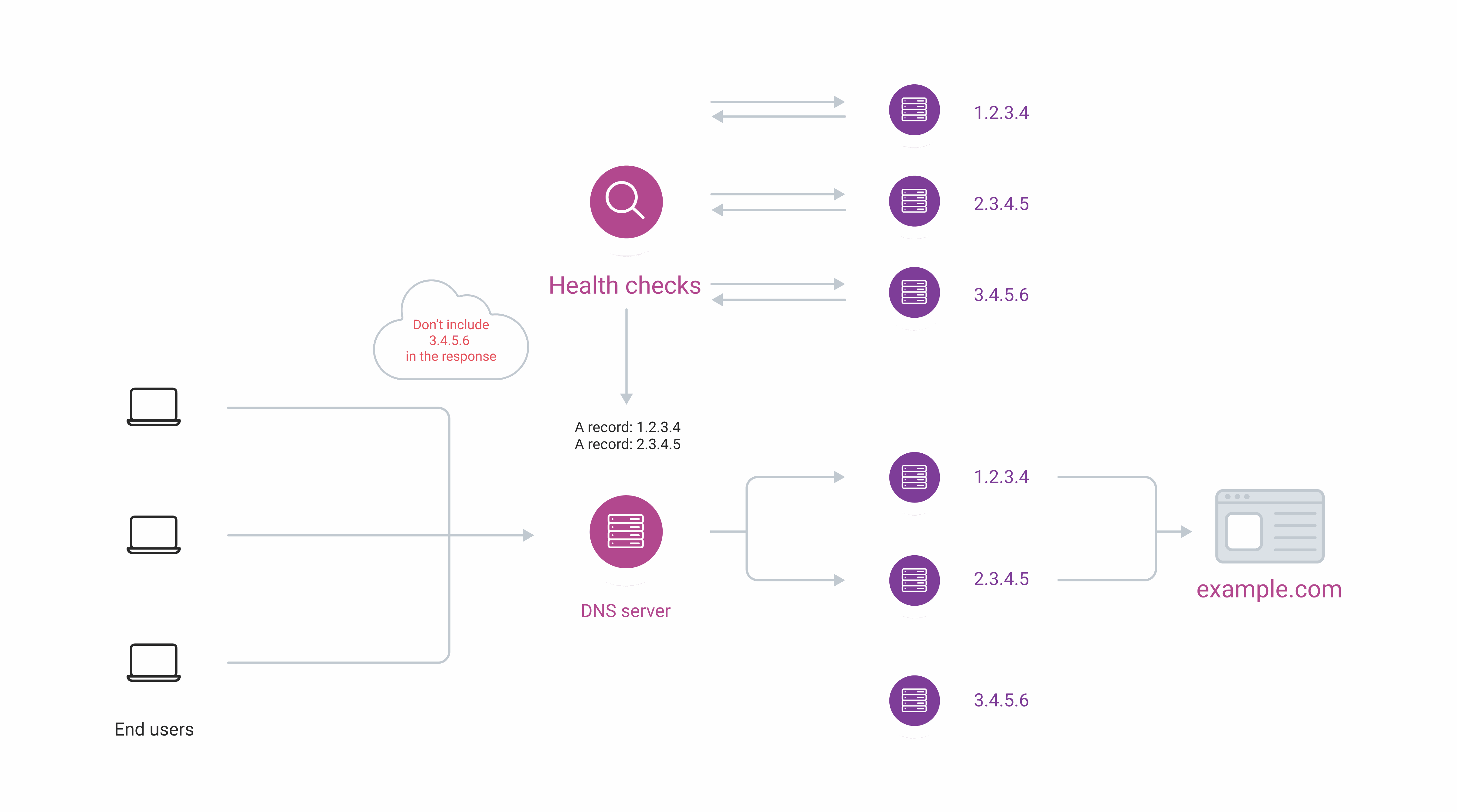
Healthchecks continuously poll configured records and update DNS responses based on server availability:

  1. 1

    Healthchecks send requests to servers

    DNS Healthchecks sends requests to servers to check their availability. Configure request settings — protocol, frequency, and others — in the CDB Technical Web Portal after the feature is enabled.

    A sample configuration:

    • Protocol: ICMP
    • Frequency: 1 minute
    • Timeout: 10 seconds

    With this configuration, DNS Healthchecks sends requests to web servers via ICMP every 60 seconds.
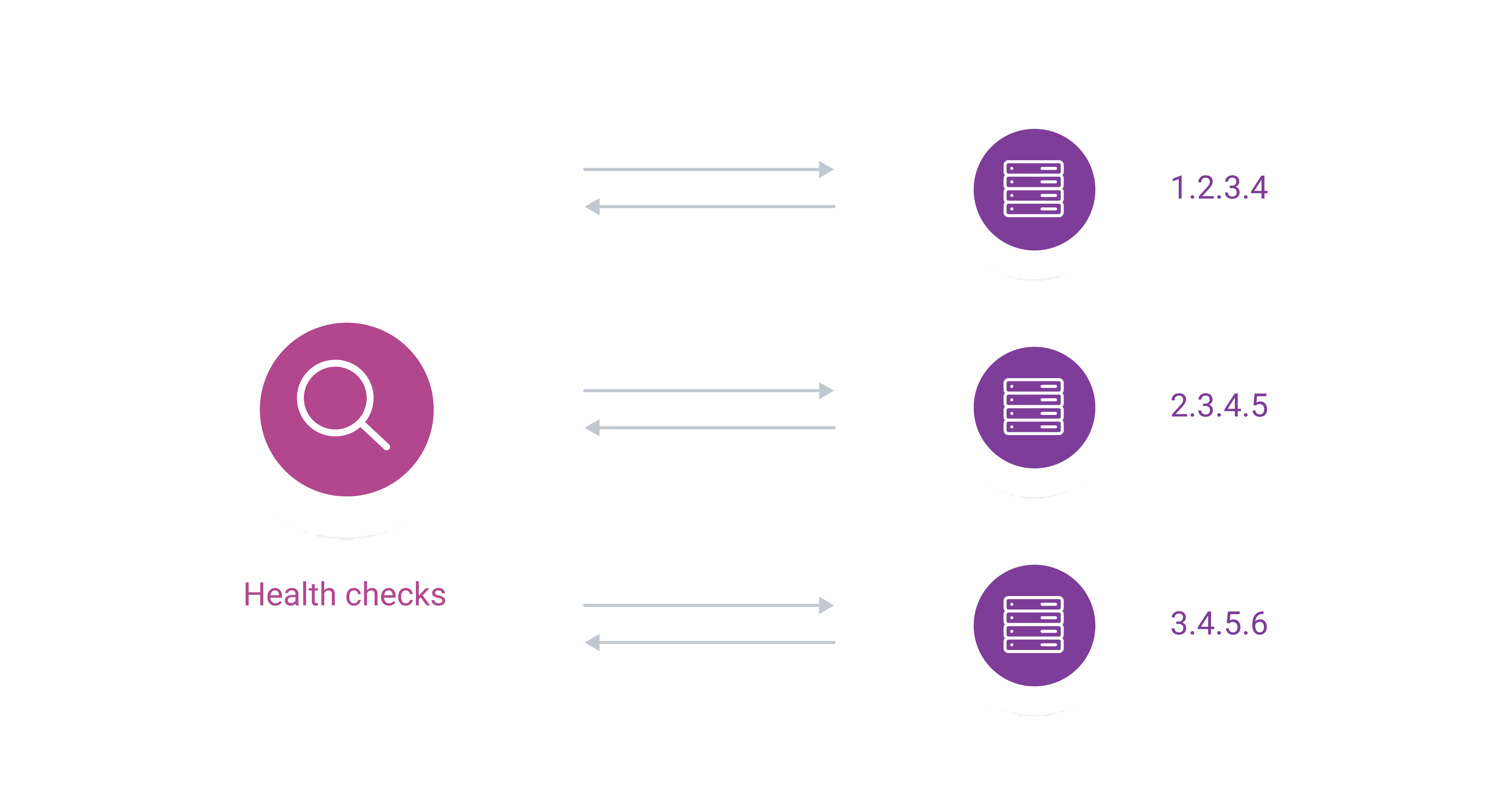
    Health Checks scheme
  2. 2

    Healthchecks classify servers

    A server is marked available when it responds successfully from at least 85% of CDB DNS locations. It is marked unavailable when successful responses drop below 20% of locations. The gap between these thresholds prevents status flapping — a server must fully recover above 85% before being restored to DNS responses.
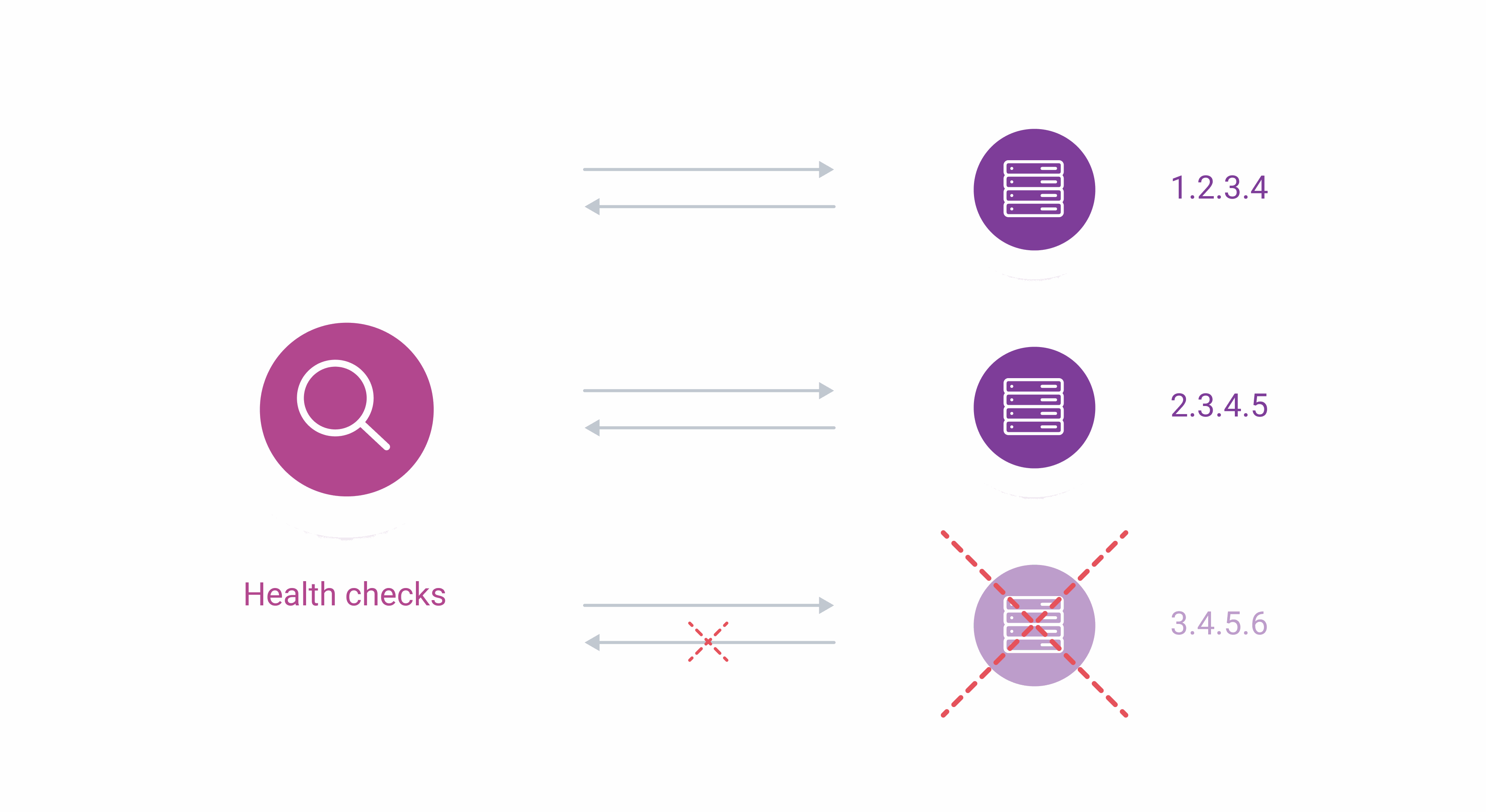
    Health Checks scheme
  3. 3

    Unavailable records are excluded from DNS responses

    If a web server is unavailable, Healthchecks marks the corresponding record as unavailable, and the DNS server excludes it from responses.

    If all Healthchecks fail, their A records will be included in the DNS response, while still adhering to other filters like geo county or first_n.
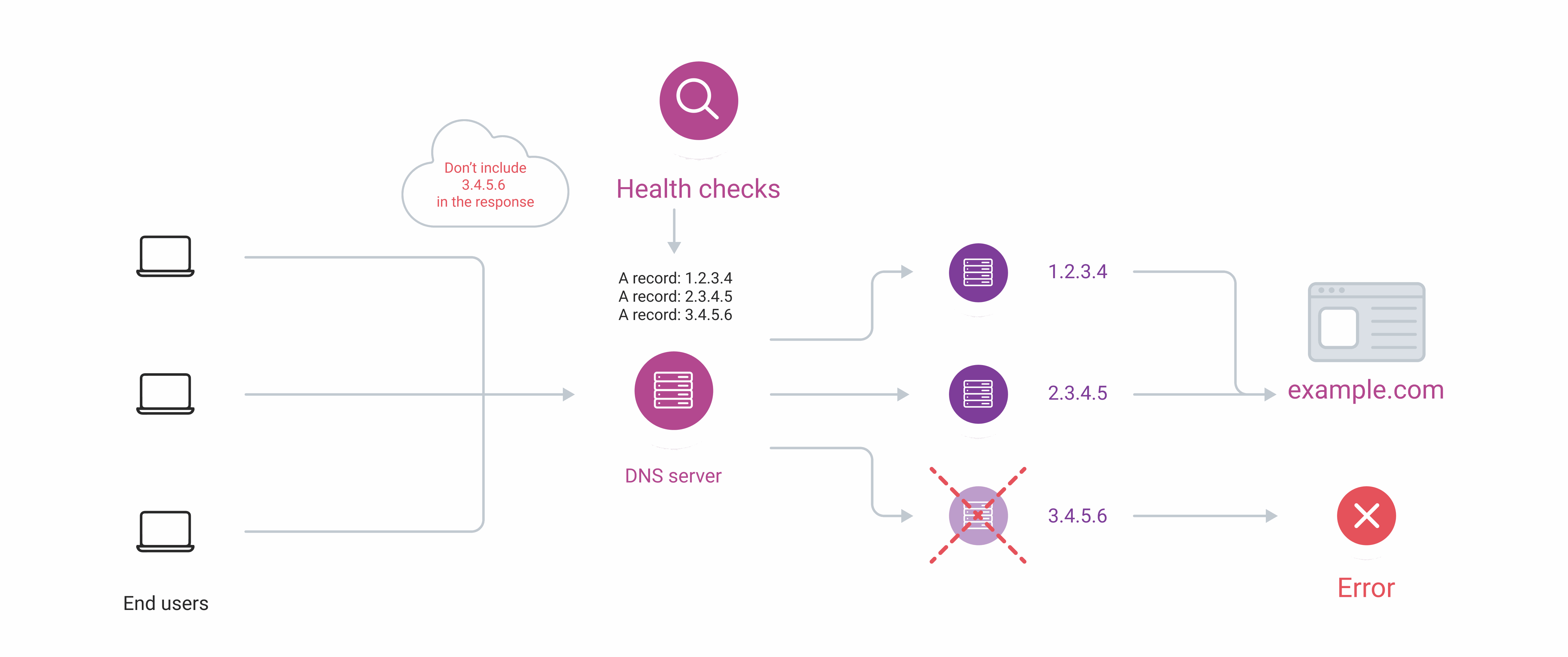
    Health Checks scheme
  4. 4

    DNS responses include only available servers

    The DNS server removes the unavailable record from responses. Subsequent DNS queries return only available records, so clients resolve the hostname to working servers.

    The load balancing mechanism decides which server responds. By default, DNS Healthchecks use round-robin, but a custom mechanism can be configured. Dynamic response covers the available load balancing options.
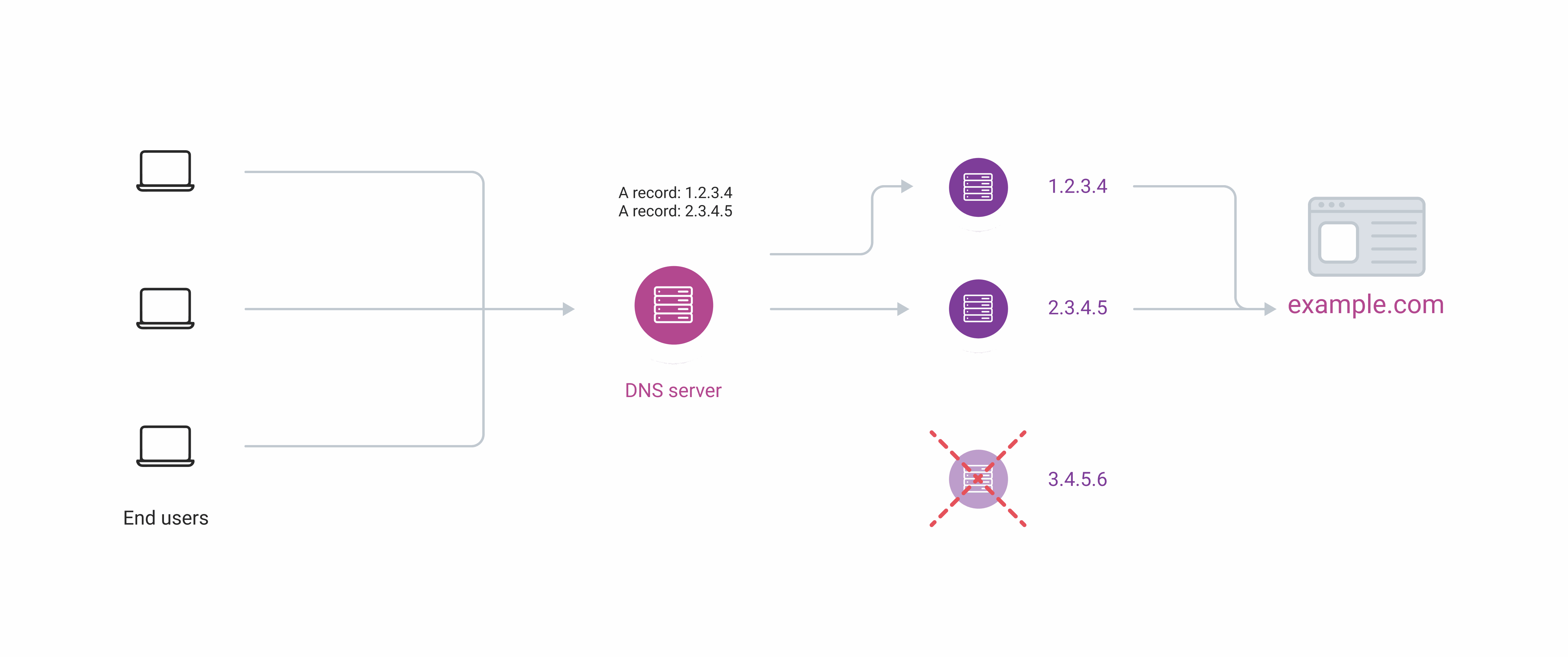
    Health Checks scheme
  5. 5

    Recovered servers are restored to DNS responses

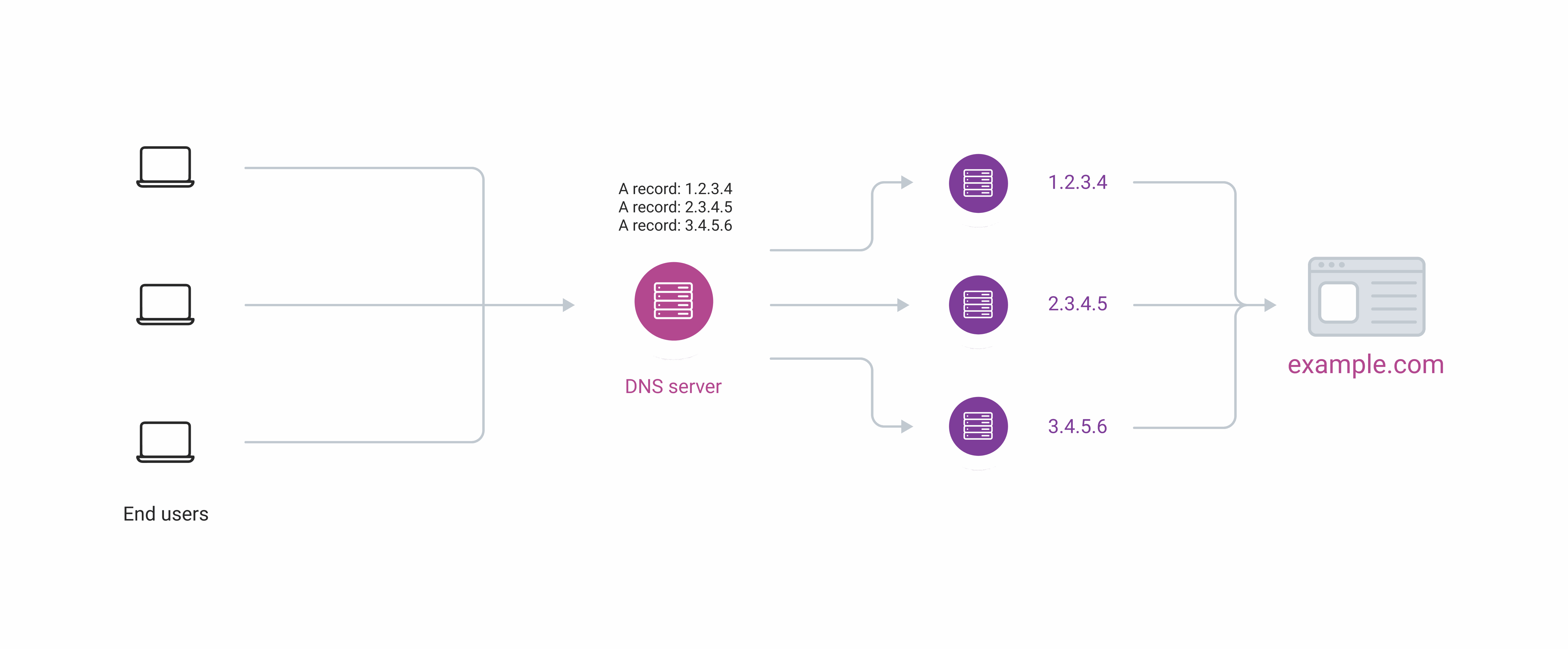
    Healthchecks keep sending requests to web servers. When the web server becomes available and responds, the feature sends the appropriate update to the DNS server, and the web server goes back online for end-users.
    Health Checks scheme
    Health Checks scheme

Configure healthchecks

Healthchecks are available only in advanced interface mode and apply to A, AAAA, and CNAME records only.

  1. 1

    Open the DNS section

    In the CDB Technical Web Portal, navigate to DNS.

  2. 2

    Open the DNS zone

    Click the domain name of the DNS zone where Healthchecks will be configured.

    Open a DNS zone
  3. 3

    Open the record for editing

    Click the three-dot icon and click Edit record in the row of the A, AAAA, or CNAME record.

    Open a Records list/Edit record set page
  4. 4

    Enable Dynamic response

    Enable the Dynamic response toggle.

  5. 5

    Add a Healthcheck picker

    In the left column, select the Healthcheck picker.

    Select a Healthchecks picker
  6. 6

    Open picker settings

    Click the edit icon when the picker is added to the left column.

    A pop-up will open. The settings differ depending on the protocol: TCP/UDP, ICMP, or HTTP. Select the relevant tab below to complete configuration.

    Configure a Healthchecks picker: TCP or UDP
    1. Under "Protocol", select TCP or UDP.
    2. In the "Port" field, specify the connection port (e.g., 80 or 443).
    3. In the "Check Frequency" field, select the interval of checks from the list.
    4. In the "Timeout" field, set the time within which the web servers should give the response before being considered down.
    5. (Optional) In the "Command" field, enter the text that will be sent to the host as plain text, for instance: GET / HTTP/1.1\n\n.
    6. (Optional) In the "Expected content regexp" field, enter a regular expression that matches the response body or leave it blank.
    7. Click Save.
    Configure a Healthchecks picker: ICMP
    1. Under "Protocol", select ICMP.
    2. In the "Check Frequency" field, select the interval of checks from the list.
    3. In the "Timeout" field, set the time within which the web servers should give the response before being considered down.
    4. Click Save.
    Configure a Healthchecks picker: HTTP
    1. In the "Protocol" block, select HTTP.
    2. In the "Port" field, specify the connection port (e.g., 80 or 443).
    3. In the "Check Frequency" field, select the interval of checks from the list.
    4. In the "Timeout" field, set the time within which the web servers should give the response before being considered down.
    5. (Optional) In the "Host" field, specify a value of the Host header to be passed during the HTTP request.
    6. In the Request URL field, enter the URL that will be requested for checks.
    7. In the Request Method block, select the method for checking requests; e.g., GET.
    8. In the "Use TLS" block, select whether TLS should be used.
    9. In the "HTTP status code" field, put the expected HTTP response code or leave it blank if any response is acceptable.
    10. (Optional) In the "Expected content regexp" field, enter a regular expression that matches the response body or leave it blank.
    11. Click Save.

Healthchecks begin monitoring the configured address on the next check interval. If the server is unreachable, its record is excluded from DNS responses automatically and restored once it recovers. Recent monitoring events are available in the logs.

Enable backup metadata

Backup metadata keeps designated records out of DNS responses as long as at least one non-backup record is healthy. When all primary records fail, backup records take over automatically.

In the record settings, open the metadata dropdown for the record that should serve as the backup, select backup, and enable it.

Configure backup metadata

By default, DNS Healthchecks use round-robin balancing. Dynamic response covers the options for configuring how requests are distributed among available servers.

Check healthchecks logs

To check for recent monitoring events, open the DNS zone page where Healthchecks is configured. Select the relevant record, click the three-dot icon on the right, and click Health check logs.

Check monitoring logs

Healthchecks are configured at the RRset level. The meta.failover object defines the check protocol and parameters; the healthcheck picker activates monitoring. Individual records that act as backup — used only when all primary records fail — carry meta.backup: true at the record level.

An API token is required. Healthchecks apply to A, AAAA, and CNAME records only.

Export these variables:

export GCORE_API_KEY="{YOUR_API_KEY}"
export ZONE_NAME="{YOUR_ZONE_NAME}"
export RECORD_NAME="{RECORD_FQDN}"

RECORD_NAME is the fully qualified domain name (FQDN) of the record. For an apex record it equals ZONE_NAME; for a subdomain it is the full FQDN — www.yourdomain.com.

Configure healthchecks

This code creates an A record with HTTP health monitoring and a backup record that takes over when the primary fails. The meta.failover object sits at the RRset level and applies to all records; meta.backup: true marks a single record as the failover target. The first_n picker limits each DNS response to one available record.

import os
from gcore import CDB

client = CDB()

rrset = client.dns.zones.rrsets.create(
    "A",
    zone_name=os.environ["ZONE_NAME"],
    rrset_name=os.environ["RECORD_NAME"],
    resource_records=[
        {"content": ["1.2.3.4"]},
        {"content": ["5.6.7.8"], "meta": {"backup": True}},
    ],
    meta={
        "failover": {
            "protocol": "HTTP",
            "port": 80,
            "frequency": 300,
            "timeout": 10,
            "method": "GET",
            "url": "/health",
            "tls": False,
            "http_status_code": 200,
        }
    },
    pickers=[
        {"type": "healthcheck"},
        {"type": "first_n", "limit": 1},
    ],
    ttl=300,
)
print(rrset.name, rrset.pickers)
package main

import (
    "context"
    "fmt"
    "os"

    gcore "github.com/G-Core/gcore-go"
    "github.com/G-Core/gcore-go/dns"
)

func main() {
    client := gcore.NewClient()
    ctx := context.Background()

    rrset, err := client.DNS.Zones.Rrsets.New(ctx, "A", dns.ZoneRrsetNewParams{
        ZoneName:  os.Getenv("ZONE_NAME"),
        RrsetName: os.Getenv("RECORD_NAME"),
        ResourceRecords: []dns.ZoneRrsetNewParamsResourceRecord{
            {Content: []any{"1.2.3.4"}},
            {Content: []any{"5.6.7.8"}, Meta: map[string]any{"backup": true}},
        },
        Meta: map[string]any{
            "failover": map[string]any{
                "protocol":         "HTTP",
                "port":             80,
                "frequency":        300,
                "timeout":          10,
                "method":           "GET",
                "url":              "/health",
                "tls":              false,
                "http_status_code": 200,
            },
        },
        Pickers: []dns.ZoneRrsetNewParamsPicker{
            {Type: "healthcheck"},
            {Type: "first_n", Limit: gcore.Int(1)},
        },
        Ttl: gcore.Int(300),
    })
    if err != nil {
        panic(err)
    }
    fmt.Println(rrset.Name, rrset.Pickers)
}
curl -X POST "https://api.cdb-staging.cdn.orange.com/dns/v2/zones/${ZONE_NAME}/${RECORD_NAME}/A" \
  -H "Authorization: APIKey $GCORE_API_KEY" \
  -H "Content-Type: application/json" \
  -d '{
    "ttl": 300,
    "resource_records": [
      {"content": ["1.2.3.4"]},
      {"content": ["5.6.7.8"], "meta": {"backup": true}}
    ],
    "meta": {
      "failover": {
        "protocol": "HTTP",
        "port": 80,
        "frequency": 300,
        "timeout": 10,
        "method": "GET",
        "url": "/health",
        "tls": false,
        "http_status_code": 200
      }
    },
    "pickers": [
      {"type": "healthcheck"},
      {"type": "first_n", "limit": 1}
    ]
  }'

The API returns the created RRset:

{
  "name": "example.com",
  "type": "A",
  "ttl": 300,
  "meta": {
    "failover": {
      "frequency": 300,
      "http_status_code": 200,
      "method": "GET",
      "port": 80,
      "protocol": "HTTP",
      "timeout": 10,
      "tls": false,
      "url": "/health"
    }
  },
  "pickers": [
    {"type": "healthcheck", "strict": false},
    {"type": "first_n", "limit": 1, "strict": false}
  ],
  "resource_records": [
    {"content": ["1.2.3.4"], "enabled": true, "meta": {}},
    {"content": ["5.6.7.8"], "enabled": true, "meta": {"backup": true}}
  ]
}
ProtocolRequired meta.failover changes
ICMP"protocol": "ICMP", "port": 0; omit HTTP-specific fields
TCP/UDP"protocol": "TCP" or "UDP", port required; add "command" to send a specific payload
HTTPFull configuration shown above

Failover logs

Retrieve recent monitoring events for an RRset. Each log entry reports the record address, the action taken (activated or deactivated), and the Unix timestamp.

import os
from gcore import CDB

client = CDB()

logs = client.dns.zones.rrsets.get_failover_logs(
    "A",
    zone_name=os.environ["ZONE_NAME"],
    rrset_name=os.environ["RECORD_NAME"],
)
print(logs.total_amount, logs.log)
package main

import (
    "context"
    "fmt"
    "os"

    gcore "github.com/G-Core/gcore-go"
    "github.com/G-Core/gcore-go/dns"
)

func main() {
    client := gcore.NewClient()
    ctx := context.Background()

    logs, err := client.DNS.Zones.Rrsets.GetFailoverLogs(ctx, "A", dns.ZoneRrsetGetFailoverLogsParams{
        ZoneName:  os.Getenv("ZONE_NAME"),
        RrsetName: os.Getenv("RECORD_NAME"),
    })
    if err != nil {
        panic(err)
    }
    fmt.Println(logs.TotalAmount, logs.Log)
}
curl "https://api.cdb-staging.cdn.orange.com/dns/v2/zones/${ZONE_NAME}/${RECORD_NAME}/A/failover/log" \
  -H "Authorization: APIKey $GCORE_API_KEY"

The API returns:

{
  "log": [
    {"action": "deactivated", "address": "1.2.3.4", "time": 1790000000},
    {"action": "activated",   "address": "1.2.3.4", "time": 1790003600}
  ],
  "total_amount": 2
}

Configure health checks and backup records with the gcore_dns_zone_rrset resource from the CDB Terraform provider v2. meta.failover sets the probe and turns health checks on. meta.backup = "true" marks a fallback record.

Configure healthchecks

Declare the zone, the RRset with the failover probe parameters, and mark backup records. The meta.failover value must be JSON-encoded because the provider stores all rrset-level metadata as a map of strings.

resource "gcore_dns_zone" "example" {
  name = "yourdomain.com"
}

resource "gcore_dns_zone_rrset" "app" {
  zone_name  = gcore_dns_zone.example.name
  rrset_name = gcore_dns_zone.example.name
  rrset_type = "A"
  ttl        = 300

  # Probe settings — applied to all records in this RRset
  meta = {
    failover = jsonencode({
      protocol         = "HTTP"
      port             = 80
      frequency        = 300   # seconds between checks
      timeout          = 10
      method           = "GET"
      url              = "/health"
      tls              = false
      http_status_code = 200
    })
  }

  resource_records = [
    {
      content = ["1.2.3.4"]   # primary record
    },
    {
      content = ["5.6.7.8"]
      meta    = { backup = "true" }  # used only when all primary records fail
    },
  ]
  # terraform import gcore_dns_zone_rrset.app yourdomain.com/yourdomain.com/A
}

For ICMP probes, replace meta.failover with { protocol = "ICMP", port = 0, frequency = 60, timeout = 10 }. For TCP/UDP, set protocol = "TCP" or "UDP" and specify a port.

Delete a record

Remove the resource block — Terraform detects the missing declaration and deletes the RRset on the next terraform apply.

# Remove or comment out this block:
# resource "gcore_dns_zone_rrset" "app" { ... }
terraform apply