Create and manage templates

A template packages a WebAssembly binary together with a predefined configuration — environment variables, secrets, response headers, and instructions — so the same application can be deployed repeatedly without reconfiguring it from scratch. Templates can be created from a new binary or saved from an existing application.

Create a template

The configuration process is identical for HTTP and CDN applications.

1. In the CDB Technical Web Portal, navigate to CDB EdgeCompute and open HTTP Applications or CDN Applications.

2. Select Templates and click Create template.
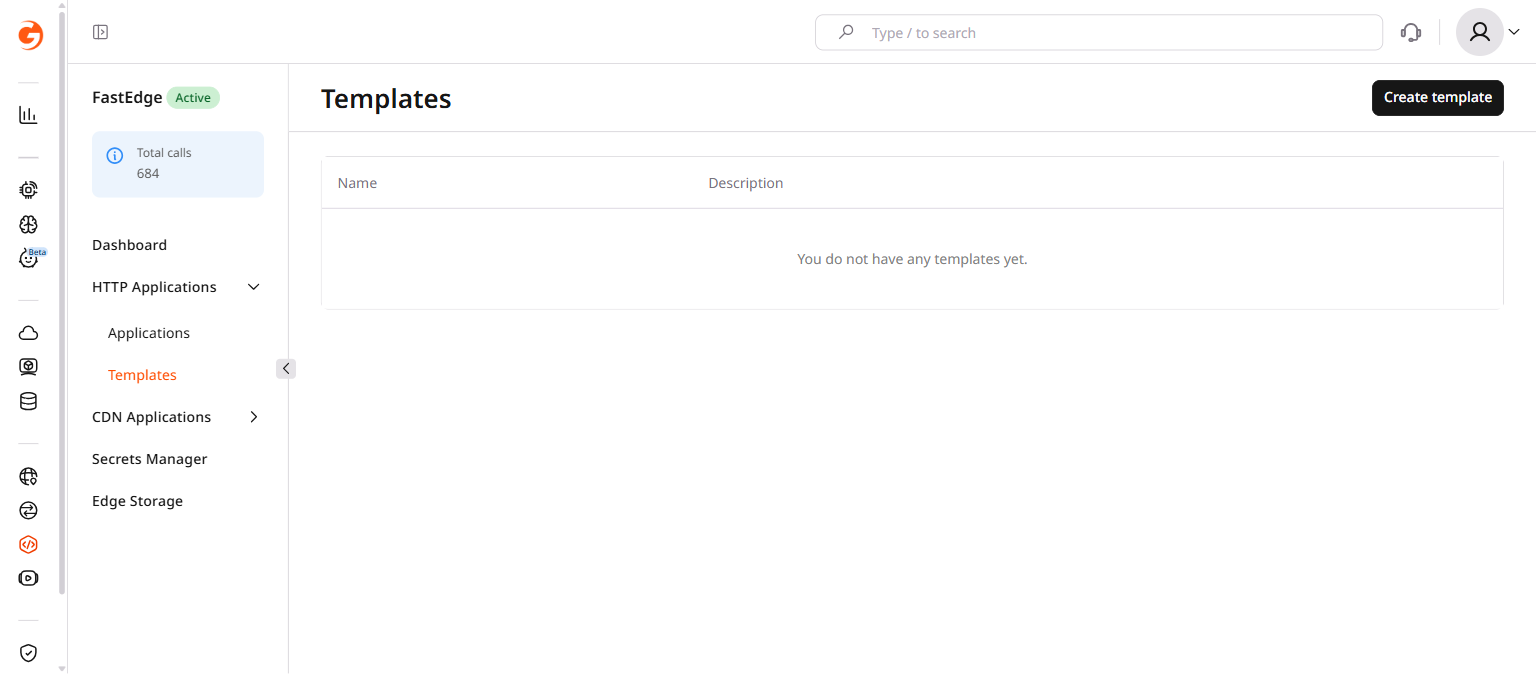
Create template button

3. Upload a .wasm binary. Click the upload area or drag and drop the file. Once the upload completes, click Save binary — the rest of the form fields appear after the binary is saved.
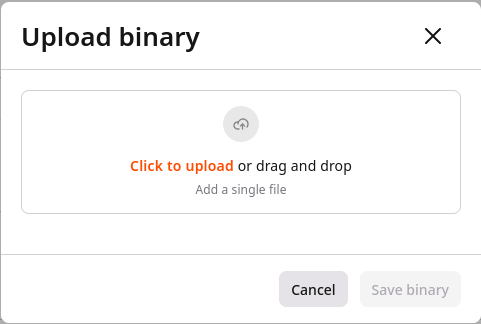
Add raw binary dialog

4. Enter the template metadata:

  • Name — required.
  • Description — optional, shown in the template list.
  • Usage instructions — optional, displayed when deploying from this template. Include any required variables or configuration notes.

5. Define template parameters:

  • Leave the Mandatory parameter checkbox unchecked for optional parameters.
  • Select Mandatory parameter to require a value at deployment time.
  • Set the parameter type to Secret to link the value from Secrets Manager — the deploying user will need to supply a secret rather than a plain value.

Secret parameter marked as required
Example of a secret parameter in an app

6. Click Save template.

The template is now available in the account.

Templates are account-scoped. To make a template visible to other users in the account, contact the account admin.
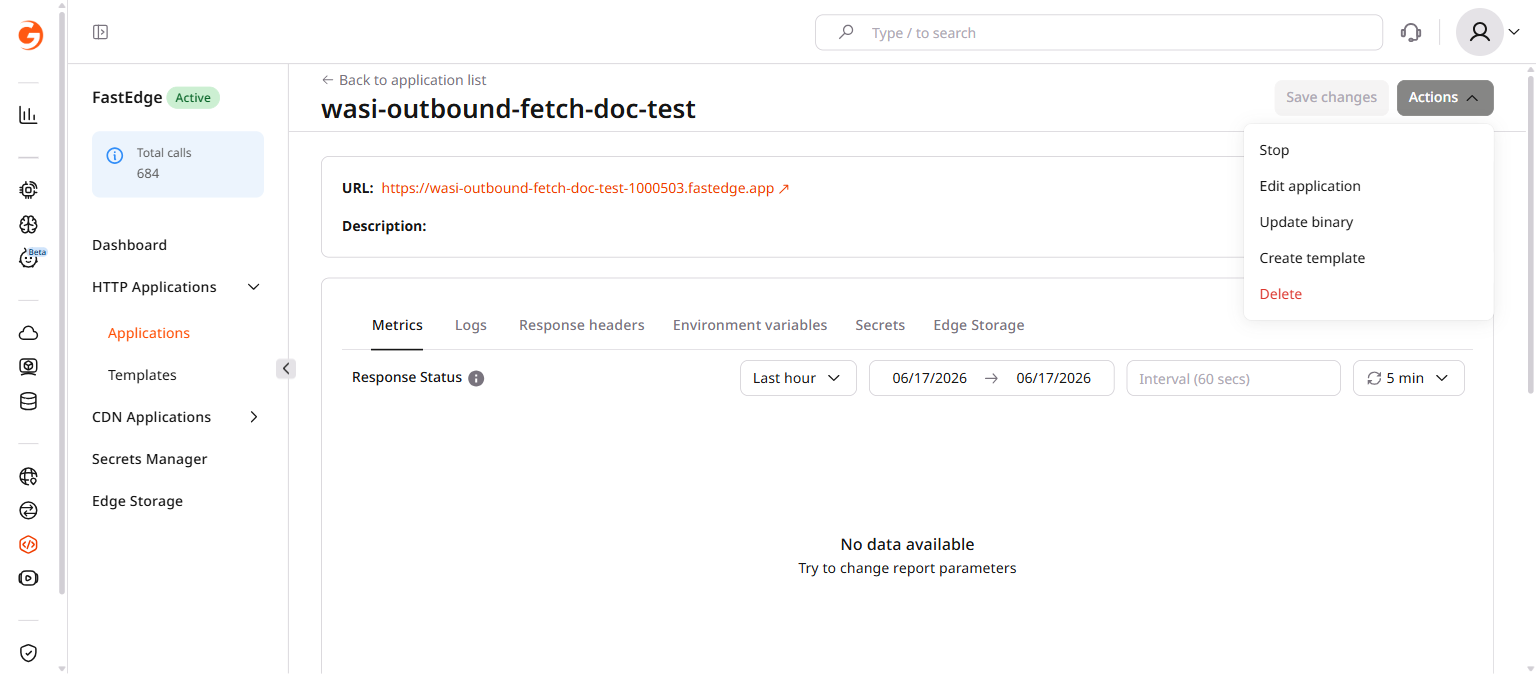
Converting an existing application creates a template from its binary. The application name becomes the template name, and environment variable names are carried over as parameter definitions — their values are not included.

1. In the Customer Portal, navigate to CDB EdgeCompute and open HTTP Applications or CDN Applications.

2. On the Applications page, click the three-dot icon next to the application.

3. Select Manage.

4. Click Actions and choose Create template.

Create template from app menu

5. Review the configuration. Update the name and description if needed.

6. Click Save template.

Edit a template

  1. In the Customer Portal, navigate to CDB EdgeCompute and open HTTP Applications or CDN Applications.

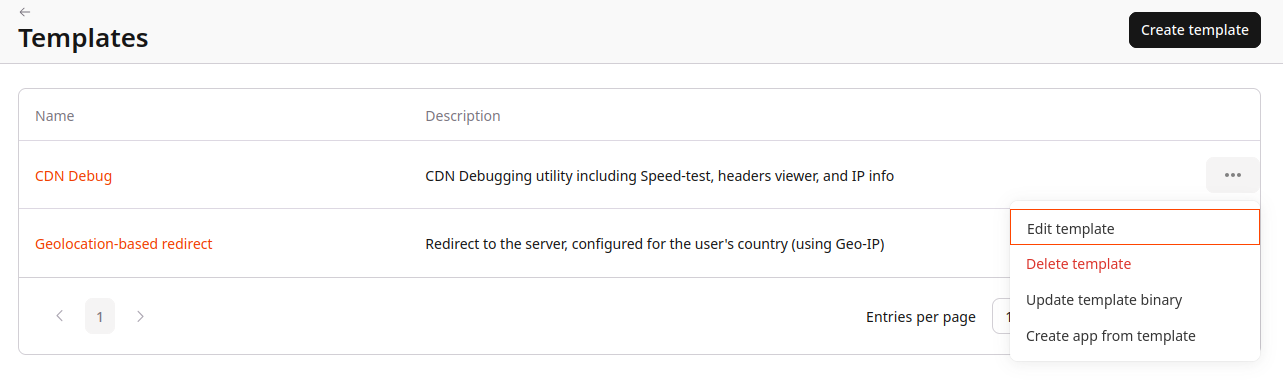
  2. Select Templates and click the three-dot icon next to the template.

  3. Click Edit template.

Edit template menu item
  1. Update the configuration and click Save template.
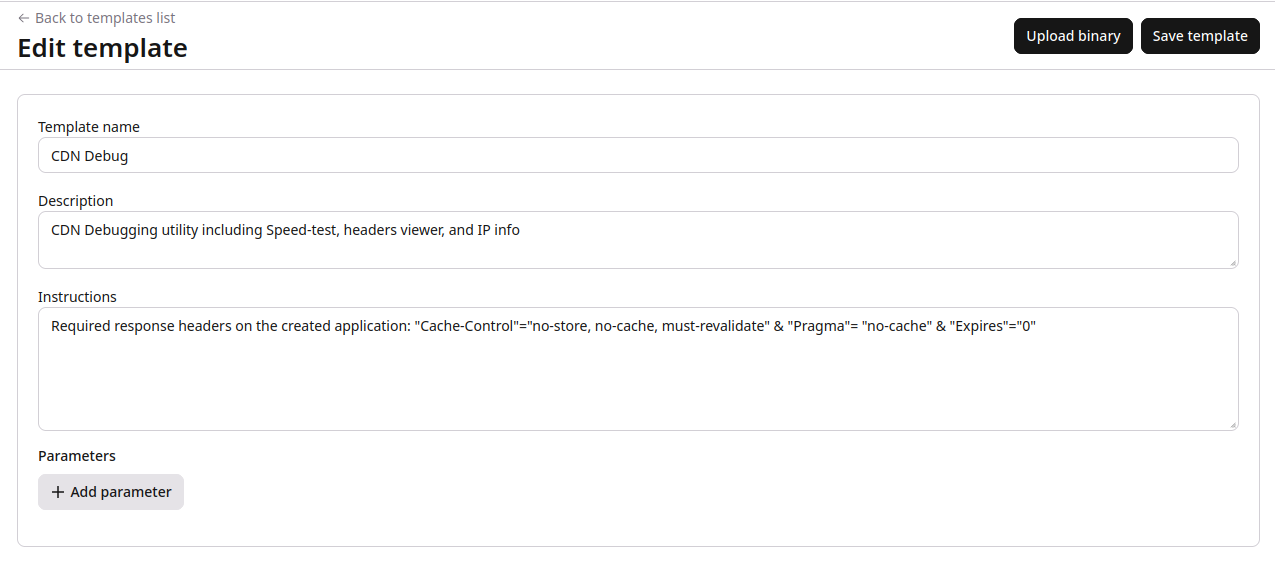
Edit template form

Delete a template

Deleted templates cannot be restored.

  1. In the Customer Portal, navigate to CDB EdgeCompute and open HTTP Applications or CDN Applications.

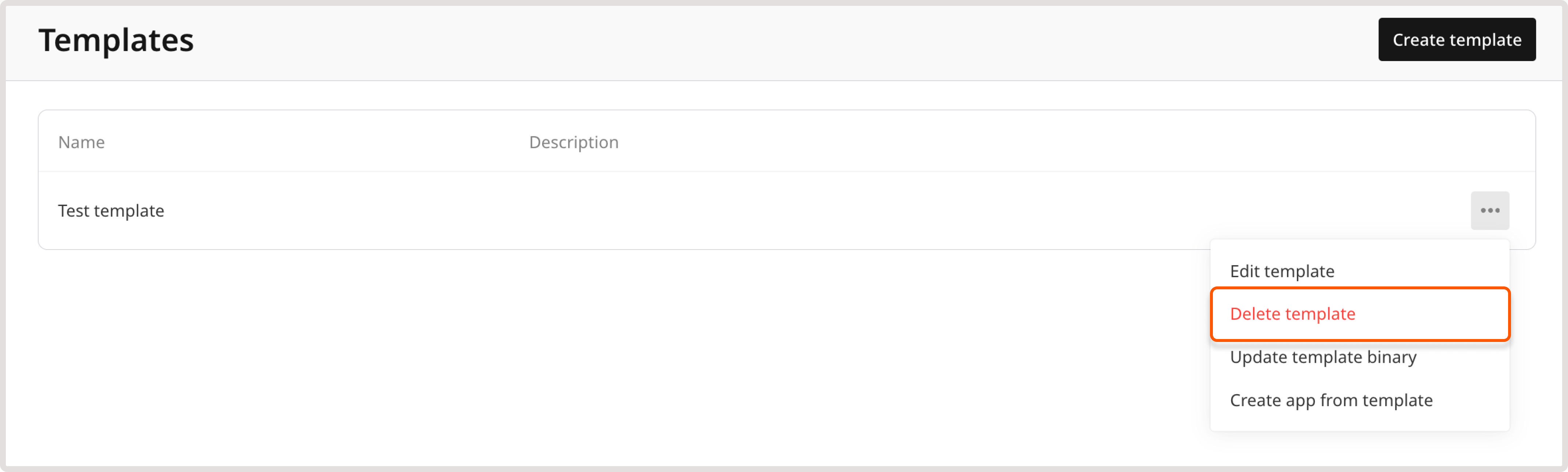
  2. Select Templates and click the three-dot icon next to the template.

  3. Click Delete template.

Delete template menu item

Update template binary

Use this option to replace the WebAssembly binary without changing the template's name, description, or parameters.

  1. In the Customer Portal, navigate to CDB EdgeCompute and open HTTP Applications or CDN Applications.

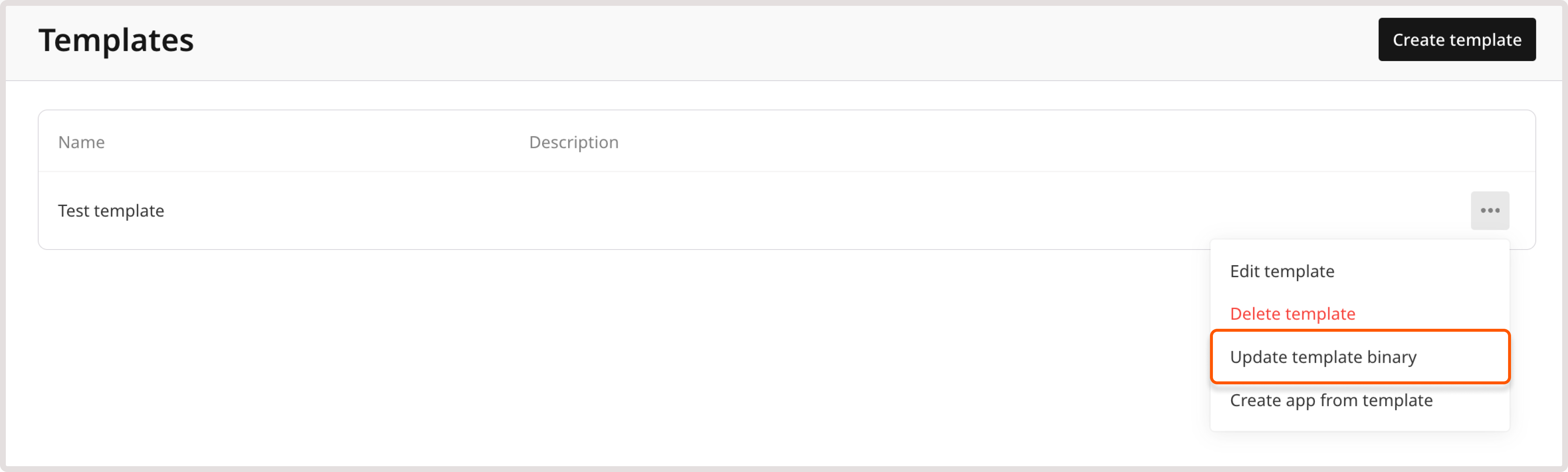
  2. Select Templates and click the three-dot icon next to the template.

  3. Click Update template binary.

Update template binary menu item
  1. Upload the new .wasm file and click Save binary.
Upload template binary dialog
  1. Review the configuration and click Save template.
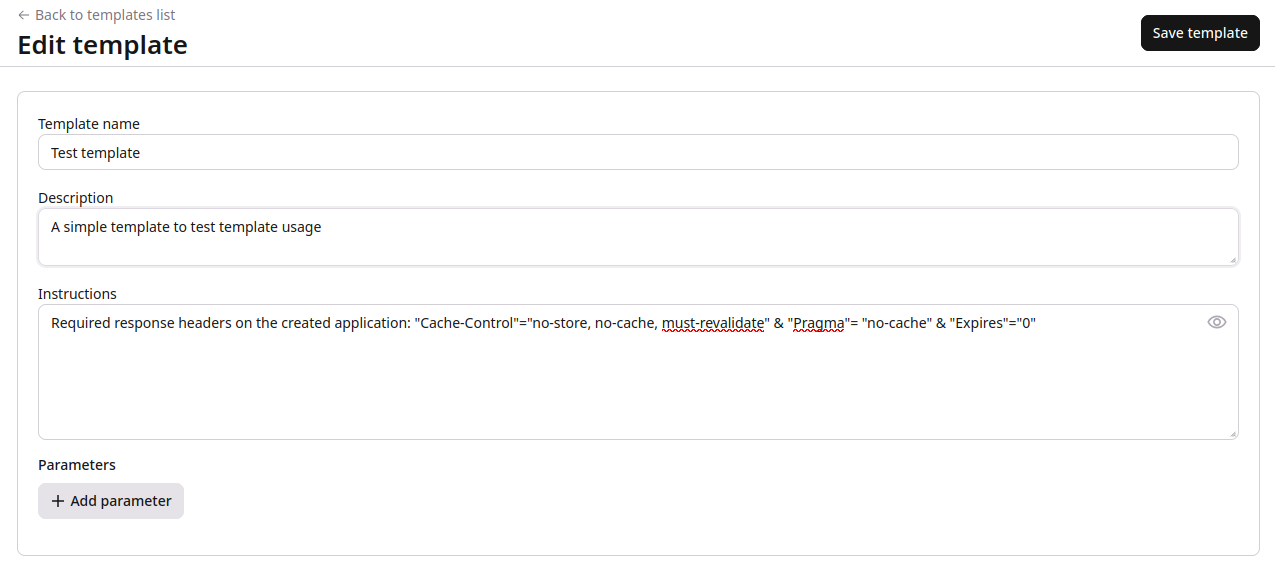
Edit template binary form

Create an app from a template

  1. In the Customer Portal, navigate to CDB EdgeCompute and open HTTP Applications or CDN Applications.

  2. Select Templates, then click the three-dot icon next to the template and choose Create app from template.

  3. Complete the application configuration:

After deployment, the application inherits the template's binary and predefined configuration. Any mandatory parameters defined in the template must be supplied during deployment.

A template packages a WebAssembly binary together with a predefined configuration — environment variables, secrets, response headers, and parameters — and can be deployed as an application any number of times without manual reconfiguration.

All requests authenticate with an API token. Set it as an environment variable before running the examples:

export GCORE_API_KEY="{YOUR_API_KEY}"

Create a template

Creating a template requires two steps: upload a .wasm binary, then create the template referencing that binary.

Upload a binary

Send the raw .wasm file as an application/octet-stream body:

curl -X POST https://api.cdb-staging.cdn.orange.com/edgecompute/v1/binaries/raw \
  -H "Authorization: APIKey $GCORE_API_KEY" \
  -H "Content-Type: application/octet-stream" \
  --data-binary @my-app.wasm

The response contains the binary ID:

{
  "id": 4748,
  "api_type": "wasi-http",
  "status": 1
}

The api_type is determined by the binary and cannot be set manually. Use the returned id as the binary_id in the next step.

Create the template

curl -X POST https://api.cdb-staging.cdn.orange.com/edgecompute/v1/template \
  -H "Authorization: APIKey $GCORE_API_KEY" \
  -H "Content-Type: application/json" \
  -d '{
    "name": "My template",
    "short_descr": "Short description shown in the template list",
    "long_descr": "Full usage instructions shown at deployment time.",
    "binary_id": BINARY_ID,
    "owned": true,
    "params": [
      {
        "name": "BASE_URL",
        "data_type": "string",
        "descr": "Base URL for the application",
        "mandatory": true
      }
    ]
  }'

The response contains the created template:

{
  "id": 174,
  "name": "My template",
  "api_type": "wasi-http",
  "short_descr": "Short description shown in the template list",
  "long_descr": "Full usage instructions shown at deployment time.",
  "owned": true
}

Template names may only contain letters, digits, spaces, underscores, and hyphens.

The owned field controls account visibility, not ownership. When set to true, the template is visible to all users in the account. When set to false, it is private to the token owner.

List templates

curl https://api.cdb-staging.cdn.orange.com/edgecompute/v1/template \
  -H "Authorization: APIKey $GCORE_API_KEY"

To filter by application type, add the api_type query parameter (wasi-http for HTTP applications or proxy-wasm for CDN applications):

curl "https://api.cdb-staging.cdn.orange.com/edgecompute/v1/template?api_type=wasi-http&only_mine=true" \
  -H "Authorization: APIKey $GCORE_API_KEY"

The response field is templates:

{
  "count": 2,
  "templates": [
    {
      "id": 174,
      "name": "My template",
      "api_type": "wasi-http"
    }
  ]
}

Get template details

curl https://api.cdb-staging.cdn.orange.com/edgecompute/v1/template/TEMPLATE_ID \
  -H "Authorization: APIKey $GCORE_API_KEY"

Response:

{
  "id": 174,
  "name": "My template",
  "api_type": "wasi-http",
  "binary_id": 4748,
  "short_descr": "Short description",
  "long_descr": "Full usage instructions.",
  "owned": true,
  "params": [
    {
      "name": "BASE_URL",
      "data_type": "string",
      "descr": "Base URL for the application",
      "mandatory": true
    }
  ]
}

Edit a template

PUT replaces the entire template definition. Any fields omitted from the request body — including params — are cleared. Always include the full configuration.

curl -X PUT https://api.cdb-staging.cdn.orange.com/edgecompute/v1/template/TEMPLATE_ID \
  -H "Authorization: APIKey $GCORE_API_KEY" \
  -H "Content-Type: application/json" \
  -d '{
    "name": "My template",
    "short_descr": "Updated description",
    "long_descr": "Updated usage instructions.",
    "binary_id": BINARY_ID,
    "owned": true,
    "params": [
      {
        "name": "BASE_URL",
        "data_type": "string",
        "descr": "Base URL for the application",
        "mandatory": true
      }
    ]
  }'

Update template binary

To replace the binary while keeping the name, description, and parameters, upload a new binary first, then update the template with the new binary_id.

Upload the new binary:

curl -X POST https://api.cdb-staging.cdn.orange.com/edgecompute/v1/binaries/raw \
  -H "Authorization: APIKey $GCORE_API_KEY" \
  -H "Content-Type: application/octet-stream" \
  --data-binary @my-app-v2.wasm

Then update the template with the new binary ID:

curl -X PUT https://api.cdb-staging.cdn.orange.com/edgecompute/v1/template/TEMPLATE_ID \
  -H "Authorization: APIKey $GCORE_API_KEY" \
  -H "Content-Type: application/json" \
  -d '{
    "name": "My template",
    "short_descr": "Short description",
    "long_descr": "Usage instructions.",
    "binary_id": NEW_BINARY_ID,
    "owned": true,
    "params": []
  }'

Delete a template

curl -X DELETE https://api.cdb-staging.cdn.orange.com/edgecompute/v1/template/TEMPLATE_ID \
  -H "Authorization: APIKey $GCORE_API_KEY"

A successful response returns HTTP 200 with an empty body.

Deleted templates cannot be restored. Applications previously deployed from the template are not affected.

Create an app from a template

Pass the template ID in the template field of the application creation request. Provide values for any mandatory parameters in env:

curl -X POST https://api.cdb-staging.cdn.orange.com/edgecompute/v1/apps \
  -H "Authorization: APIKey $GCORE_API_KEY" \
  -H "Content-Type: application/json" \
  -d '{
    "name": "my-app",
    "template": TEMPLATE_ID,
    "env": {
      "BASE_URL": "https://example.com"
    }
  }'

The application inherits the template's binary and configuration. The response includes the new application's id and url.