Create an object or SFTP storage
Storage types
CDB Object Storage offers three storage types:
- S3 Standard – general-purpose S3-compatible storage for backups, content delivery, and most workloads
- S3 Fast – high-performance S3-compatible storage optimized for AI/ML workloads, IoT telemetry, and latency-sensitive applications (available in Sines-2, Sines-3, and London-2)
- SFTP – legacy file-based storage accessed via SFTP protocol, with the same pricing and billing terms as S3 Standard
When creating a storage, the location name indicates both the storage type and the data center location.
Create a storage
To create a storage:
- In the CDB Technical Web Portal, click Add new storage in the top-right corner of the screen.
- Specify the storage name and location. The location name has two elements: the storage type (Object Storage or SFTP) and the city/region where the data center is located. SFTP locations are added/removed from the list automatically depending on the amount of free storage space available.
A maximum of 3600 storages can be created per account.
Object storage
Object Storage has the following limits:
- Maximum 1000 buckets per storage
- Maximum 10 million objects per bucket (for optimal performance, keep under 100K objects and distribute across multiple buckets)
To create an Object Storage, specify its name and location, and click the Create button.
The next window displays both access and secret keys. Copy and save them immediately—the keys are shown only once.

The created storage appears in the storage list.
To see its information (location, hostname), click the Details button.
To regenerate lost keys, click Generate new keys.
The Delete storage button permanently deletes all files in the storage.

SFTP
To create an SFTP storage, specify the name, location, and preferred authentication method: SSH key or password. Both methods become available after storage creation.
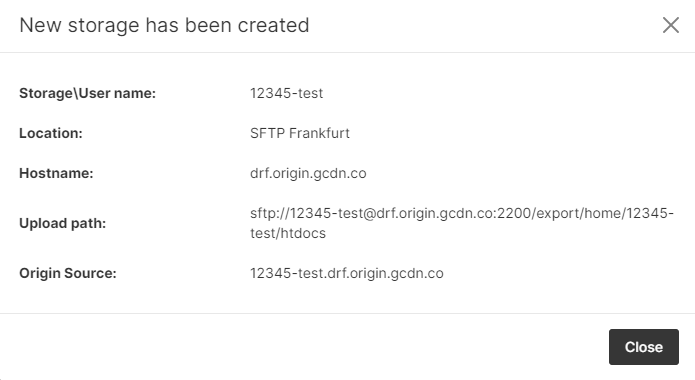
To see the hostname, click the Details button (use port 2200 to connect to the storage).
Passwords can be set, removed, and updated. SSH keys (up to 5 per storage) are managed in the SSH keys manager.
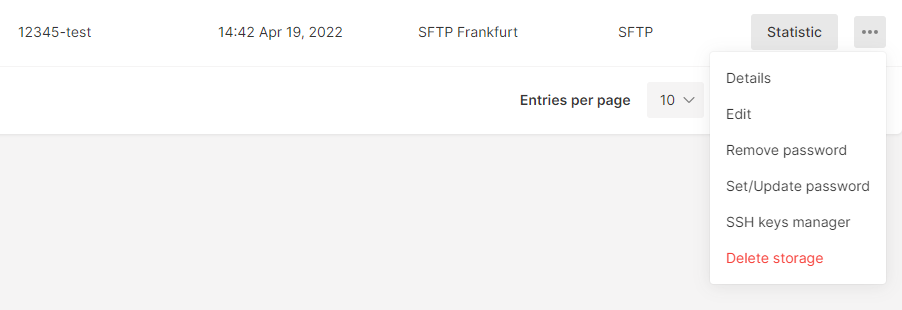
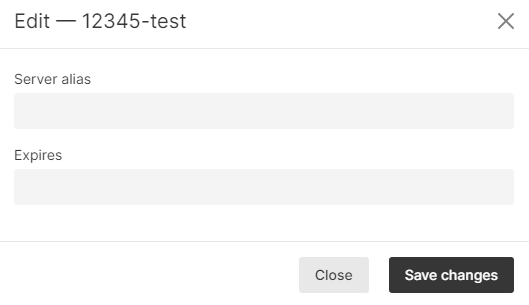
To set an alias or regulate the Expires header value, click Edit.
Specify a domain name (subdomains are supported) in the Server alias field, and add a CNAME record to the DNS settings: <server_name>.<host>. A storage named 12345-test in Amsterdam would use the record CNAME 12345-test.ams.origin.gcdn.co.
Expires header can be modified via the "Expires" field. The default value is a year.
Storage status indicator
Circles on the left from the storage IDs are status indicators.
After creation or settings update (adding keys or changing password), it might take time for the requests to get processed. Orange color indicates a processing state, while green one shows that the storage is ready.