S3 access keys authenticate AWS CLI, SDKs, and other S3-compatible clients. An S3 storage is required before keys can be created.
S3 Standard storage holds up to 10 keys, and S3 Fast storage holds up to two keys. If the storage has an available key slot, create a replacement key, update applications, then delete the old key to rotate credentials without downtime.
Read-only keys can list and download objects, but cannot upload, overwrite, or delete them, and cannot create or delete buckets. They are supported on S3 Standard only, and permissions are fixed at creation, so delete a key and create another to change access.
1
Open Access keys
In the CDB Technical Web Portal, navigate to Storage > Object Storages. Click ... next to the storage name and select Access keys.
2
Create a key
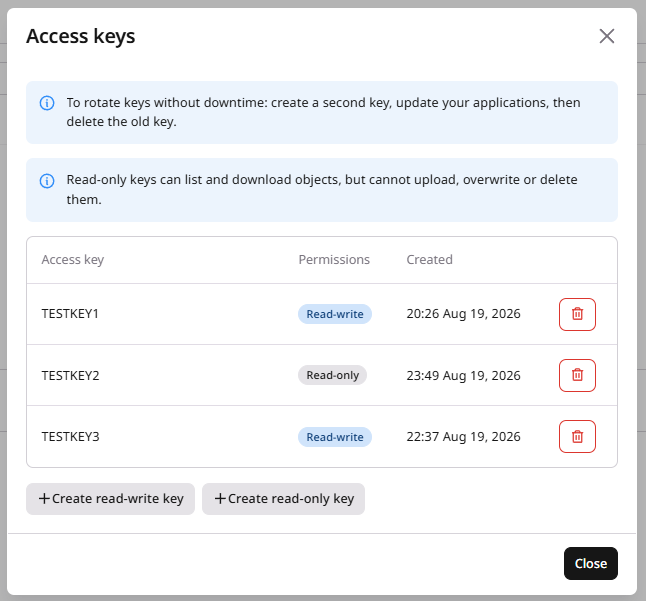
On S3 Standard, click Create read-write key or Create read-only key, while S3 Fast shows Create read-write key only. The dialog shows the access key and secret key. Click Copy credentials and store both values, because the secret is shown only once.
The list shows Access key, Permissions, and Created for each key.
3
Delete a key
Click the delete control next to the key. Create a replacement and update clients before deleting a key that is still in use.
Access keys are created and deleted on an existing S3 storage, and the numeric storage ID is returned when creating storage or from the storage list. The secret key is returned only in the create response.
An empty POST body creates a read-write key, and the response sets read_only to false. A JSON body with read_only set to true creates a read-only key on S3 Standard storage. Key permissions cannot be changed after creation. To change access, create a replacement key and delete the old one.
The following examples create access keys. Read-only keys are supported on S3 Standard only.
from gcore import CDB

client = CDB()

storage_id = 13864

new_key = client.storage.object_storages.access_keys.create(storage_id)
print(f"New access key: {new_key.access_key}")
print(f"New secret key: {new_key.secret_key}")

# Read-only keys are supported on S3 Standard only
ro_key = client.storage.object_storages.access_keys.create(
    storage_id,
    extra_body={"read_only": True},
)
print(f"Read-only access key: {ro_key.access_key}")
print(f"Read-only secret key: {ro_key.secret_key}")
Create additional S3 access keys on an existing storage with the CDB Terraform provider v2. gcore_storage_access_key creates a read-write key, and the storage already has one key from provisioning.
Additional key
Declare gcore_storage_access_key with the storage ID. Apply creates the key, and the secret is available in Terraform state.
This rotation applies only to additional keys declared as gcore_storage_access_key. The key created when the storage is provisioned belongs to gcore_storage_object_storage and is not deleted by removing an access key resource. Declare a new gcore_storage_access_key, update clients to the new credentials, then remove the resource block for the previous Terraform-managed key and apply.
# Add a new key resource, update clients, then remove this block:
# resource "gcore_storage_access_key" "extra" {
#   storage_id = gcore_storage_object_storage.example.id
# }