Create CDB EdgeCompute HTTP applications
CDB EdgeCompute HTTP applications run on CDB's edge network and respond to HTTP requests via a dedicated URL. An application is deployed from a compiled WebAssembly binary — built using the JavaScript SDK or Rust SDK — or from a preconfigured template. Templates require no binary build step.
Step 1. Build a Wasm binary
Skip this step when deploying from a template — go directly to Step 2.
Required: Rust and Cargo. On Windows, also install Visual Studio Build Tools with the Desktop development with C++ workload.
-
Add the Wasm compilation target:
rustup target add wasm32-wasip2 -
Scaffold an application from the
http-basetemplate:npm create edgecompute-app@latest my-rust-app -- --rust --template http-base --no-verify -
Build the Wasm binary:
cd my-rust-app
cargo build --release
The Wasm file is written to ./target/wasm32-wasip2/release/basic_wasi_http.wasm. Upload this file in Step 2.
Step 2. Deploy the application
Two deployment methods are available: from a custom binary built in Step 1, or from a preconfigured template — no binary is required for templates.
From a binary
Use this method when deploying a Wasm binary built with the Rust or JavaScript SDK in Step 1.
-
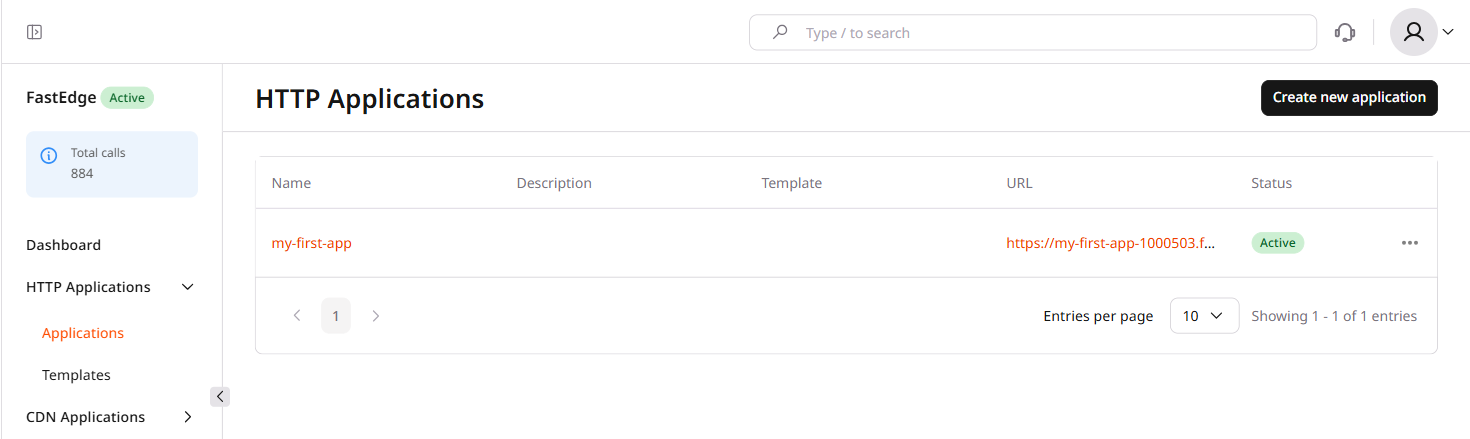
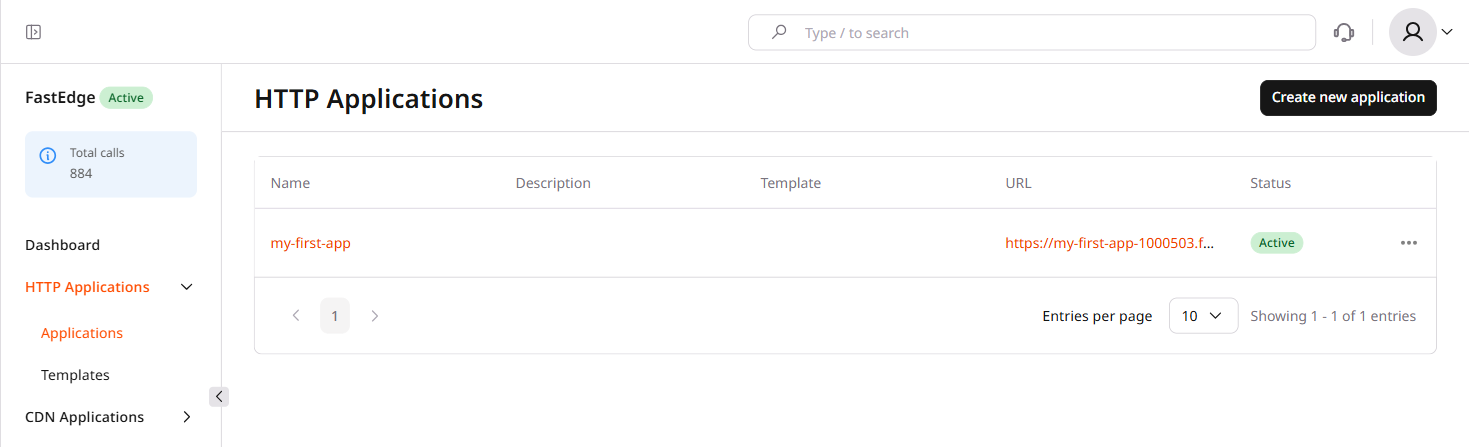
In the CDB Technical Web Portal, navigate to CDB EdgeCompute > HTTP Applications > Applications and click Create new application.
-
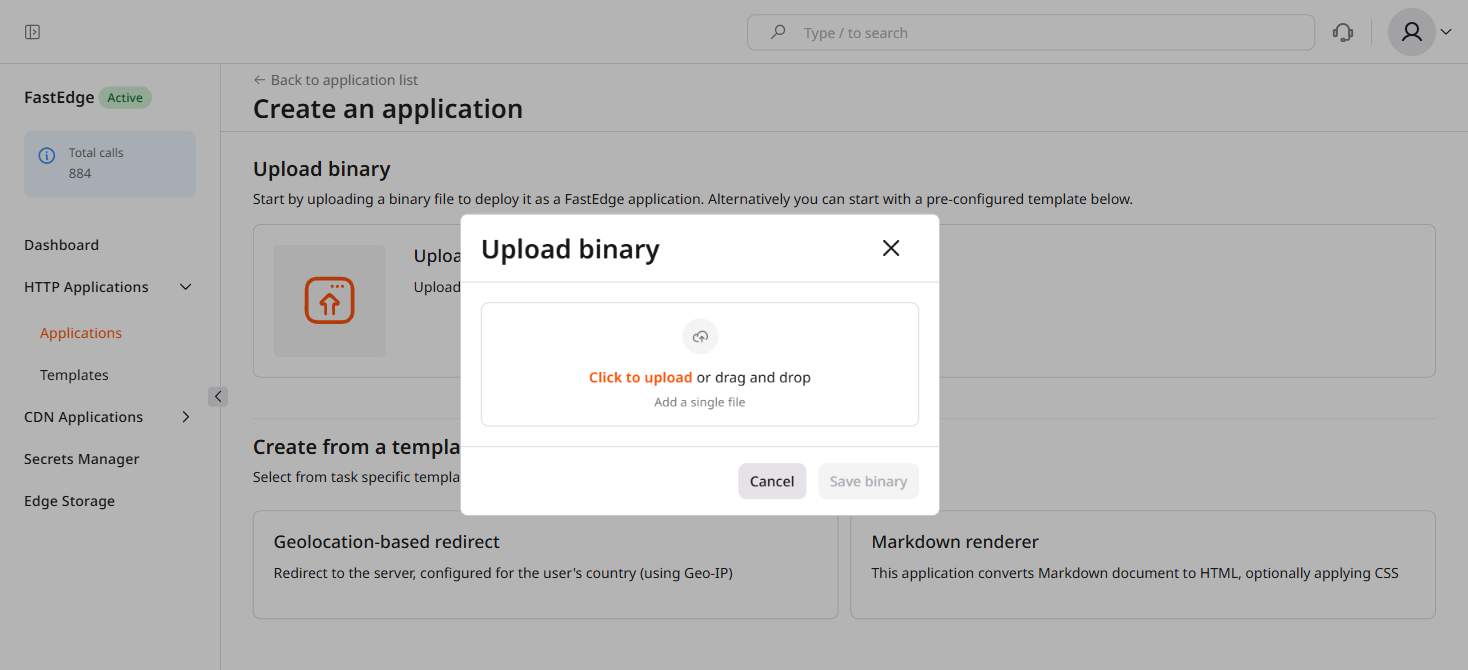
On the Create an application page, click the Upload binary card.
-
In the Upload binary dialog, click Click to upload or drag and drop and select the
.wasmfile. The portal processes the upload and opens the Deploy application page. -
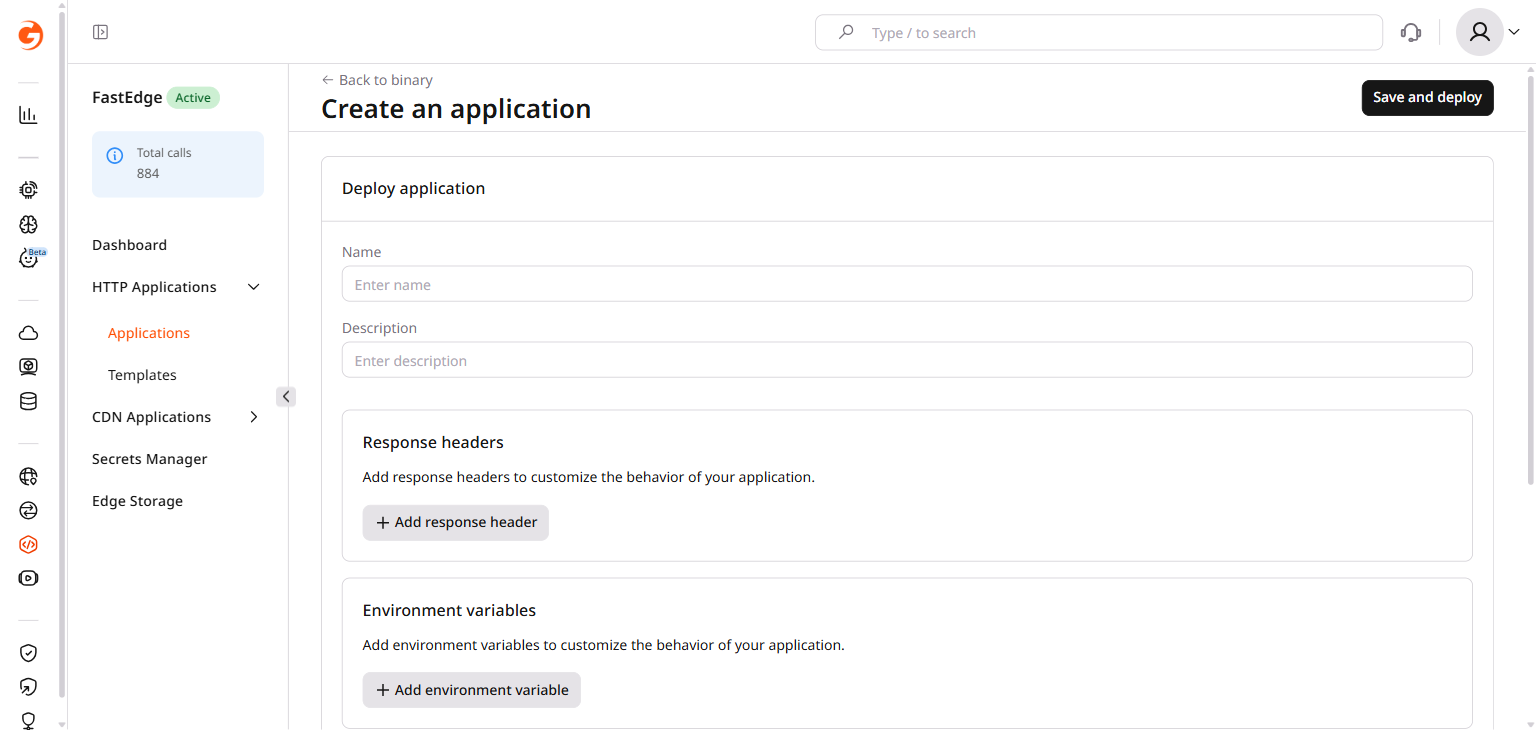
Enter a Name for the application and an optional description.
-
(Optional) In the Response headers section, click Add response header to add static headers to every HTTP response. Common uses: CORS (
Access-Control-Allow-Origin: *), security headers (X-Frame-Options: DENY), custom cache directives. -
(Optional) In the Environment variables section, click Add environment variable and enter key-value pairs. The application reads these values at runtime using the CDB EdgeCompute SDK — for example,
getEnv('API_ENDPOINT')in JavaScript orstd::env::var("API_ENDPOINT")in Rust. Use for configuration that changes between deployments without rebuilding the binary. -
(Optional) In the Secrets section, click Add secret to attach an encrypted value for sensitive data such as API keys or tokens. The app accesses it as a regular environment variable — the key set here becomes the variable name. A secret must exist in Secrets Manager before it can be attached.
-
(Optional) In the Edge Storage section, click Add Edge Storage to attach a key-value store the application can query at the edge without hitting the origin server. The store must exist on the Edge Storage page before it can be attached.
-
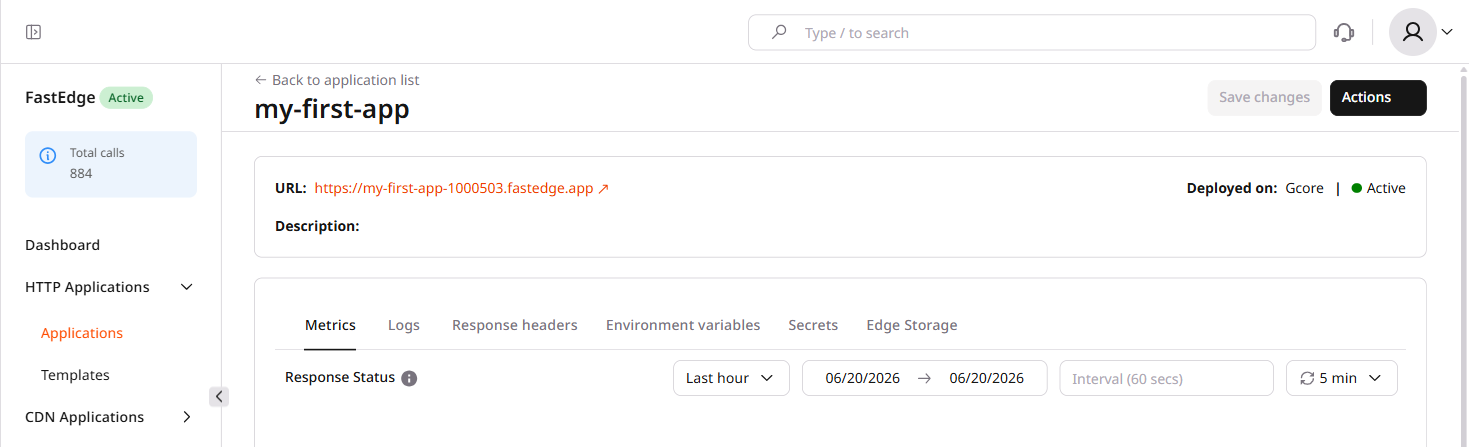
Click Save and deploy.
The application details page opens with the deployment URL.
From a template
Use this method to deploy a built-in or custom template without writing or building any code.
-
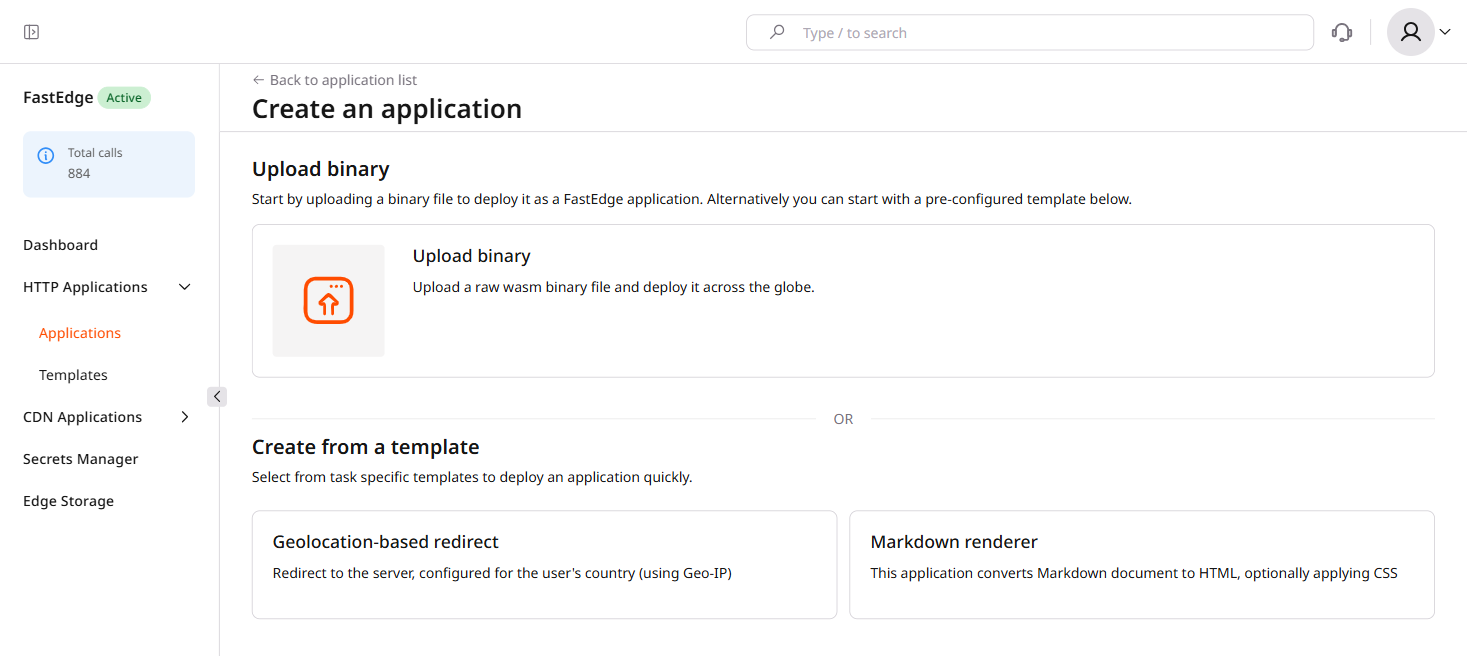
In the Customer Portal, navigate to CDB EdgeCompute > HTTP Applications > Applications and click Create new application.
-
Scroll to the Create from a template section and select a template. Built-in templates are Geolocation-based redirect and Markdown renderer. To deploy from a custom template, create it first on the HTTP Applications > Templates page as described in custom templates.
-
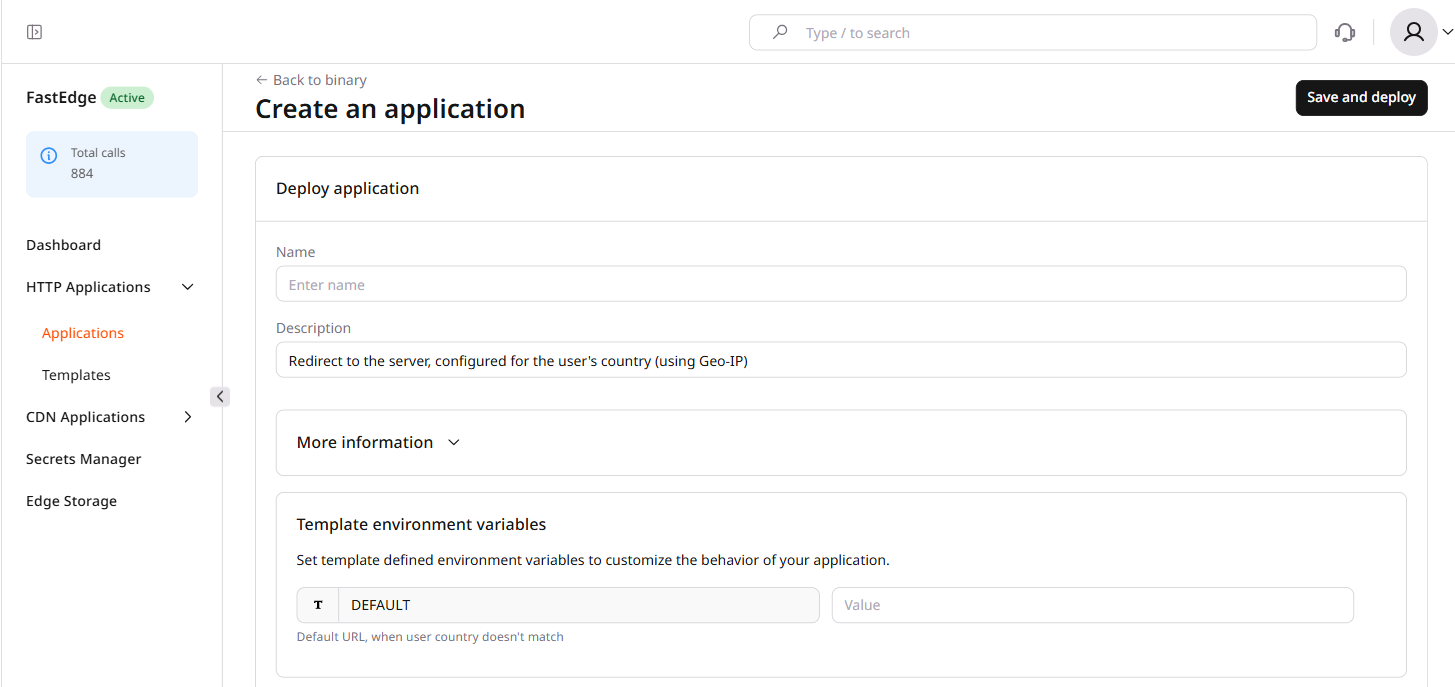
Enter a Name for the application and an optional description.
-
Fill in the Template environment variables required by the selected template:
Markdown renderer
- BASE (required): Base URL for Markdown source files. Example:
https://raw.githubusercontent.com/G-Core/CDB EdgeCompute-sdk-js/main/ - HEAD (optional): HTML inserted into the
<head>tag. Example:<style>body{font-family:sans-serif}</style>
Geolocation-based redirect
- DEFAULT (required): Fallback redirect URL for visitors whose country does not match any rule. Example:
https://example.com/fallback - In the Environment variables section, add ISO 3166-1 alpha-2 country codes as keys with redirect URLs as values. Example: key
LU, valuehttps://example.com/luxembourg.
- BASE (required): Base URL for Markdown source files. Example:
-
(Optional) Configure additional sections:
- Response headers: static headers added to every response (e.g., CORS or security headers).
- Environment variables: runtime key-value pairs the application reads via the SDK. These are separate from the template-defined variables above.
- Secrets: encrypted values for sensitive data such as API keys. The app accesses a secret as an environment variable using the key name set here. Requires an existing secret in Secrets Manager.
- Edge Storage: a key-value store the app queries at the edge. Requires an existing store on the CDB EdgeCompute > Edge Storage page.
-
Click Save and deploy.
The application details page opens with the deployment URL.
Step 3. Test the application
Click the URL at the top of the application details page to open the application in a browser, or test with curl:
curl -i https://<app-name>-<id>.edgecompute.app/
To find the URL later, navigate to CDB EdgeCompute > HTTP Applications > Applications and check the URL column.