Bloom Filters are designed for fast membership checks on large datasets. Common use cases include IP blocklists, bot detection, deduplication, and cache pre-screening.
Unlike a regular key-value store, applications do not use Bloom Filters to retrieve stored values. Instead, they answer one question: "Have I seen this value before?" Bloom Filters can return false positives — reporting a value as present when it is not — but never false negatives. Once a value is added, it cannot be removed individually.
Create a Bloom Filter
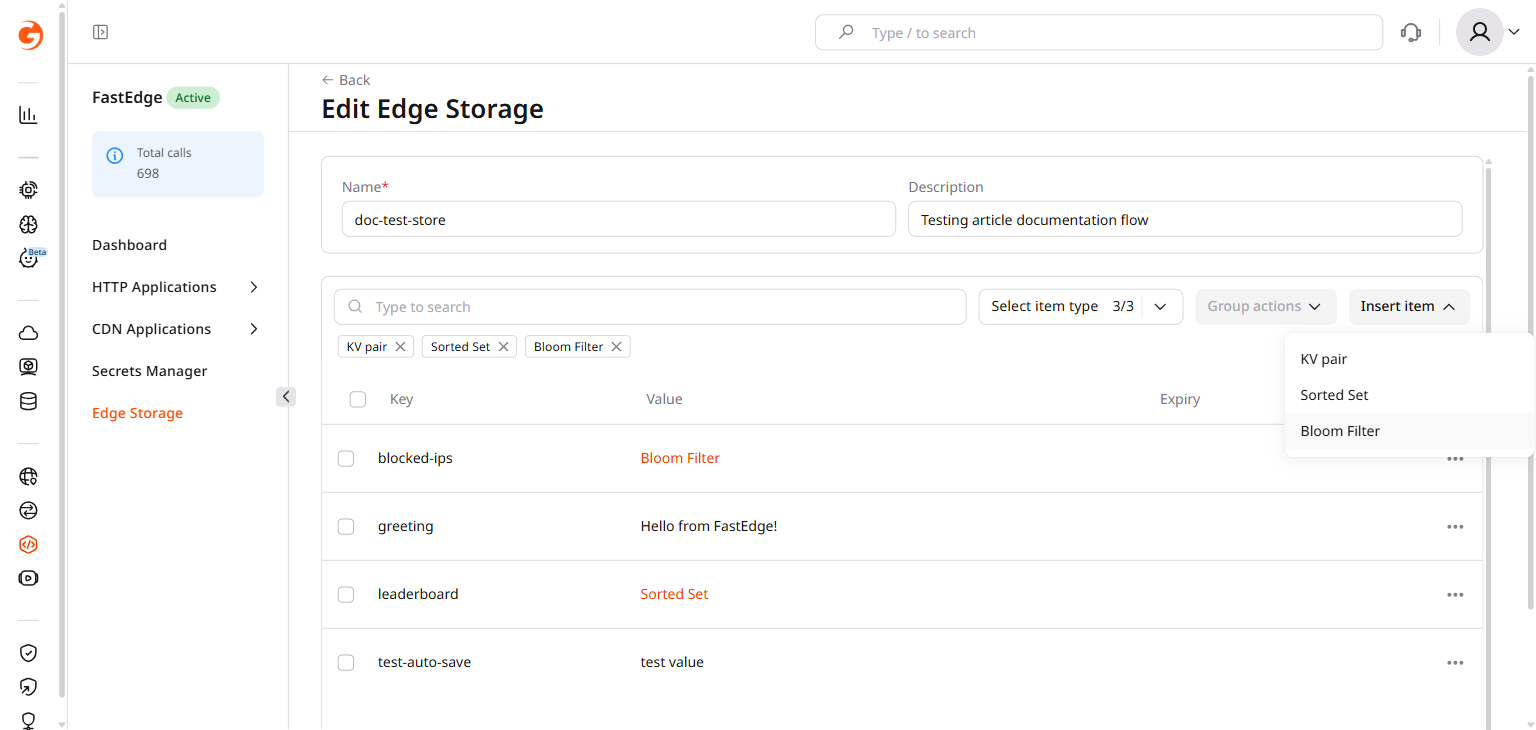
Open the CDB Technical Web Portal, navigate to Edgecompute, and select Edge Storage in the sidebar. Click the store name to open it.
- Click Insert item and select Bloom Filter.
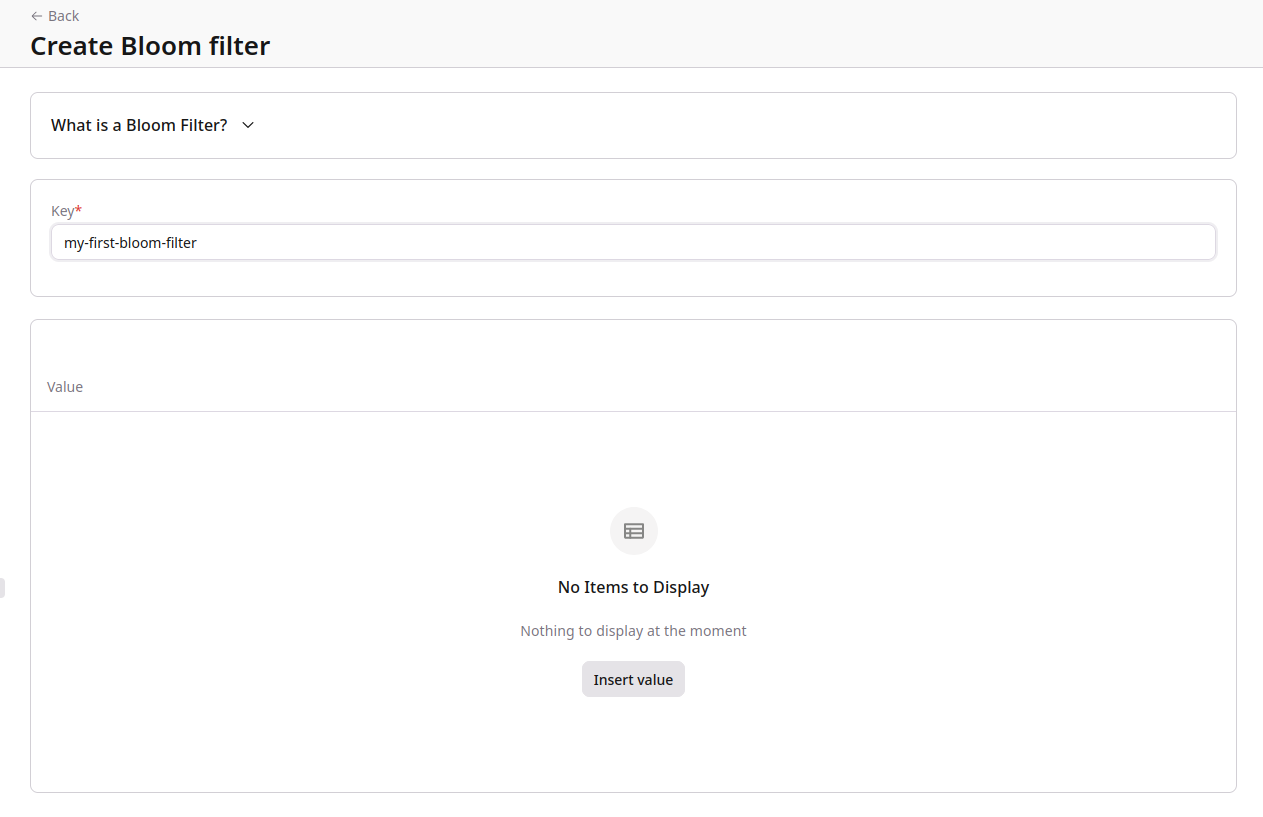
- Enter a key in the Key field.
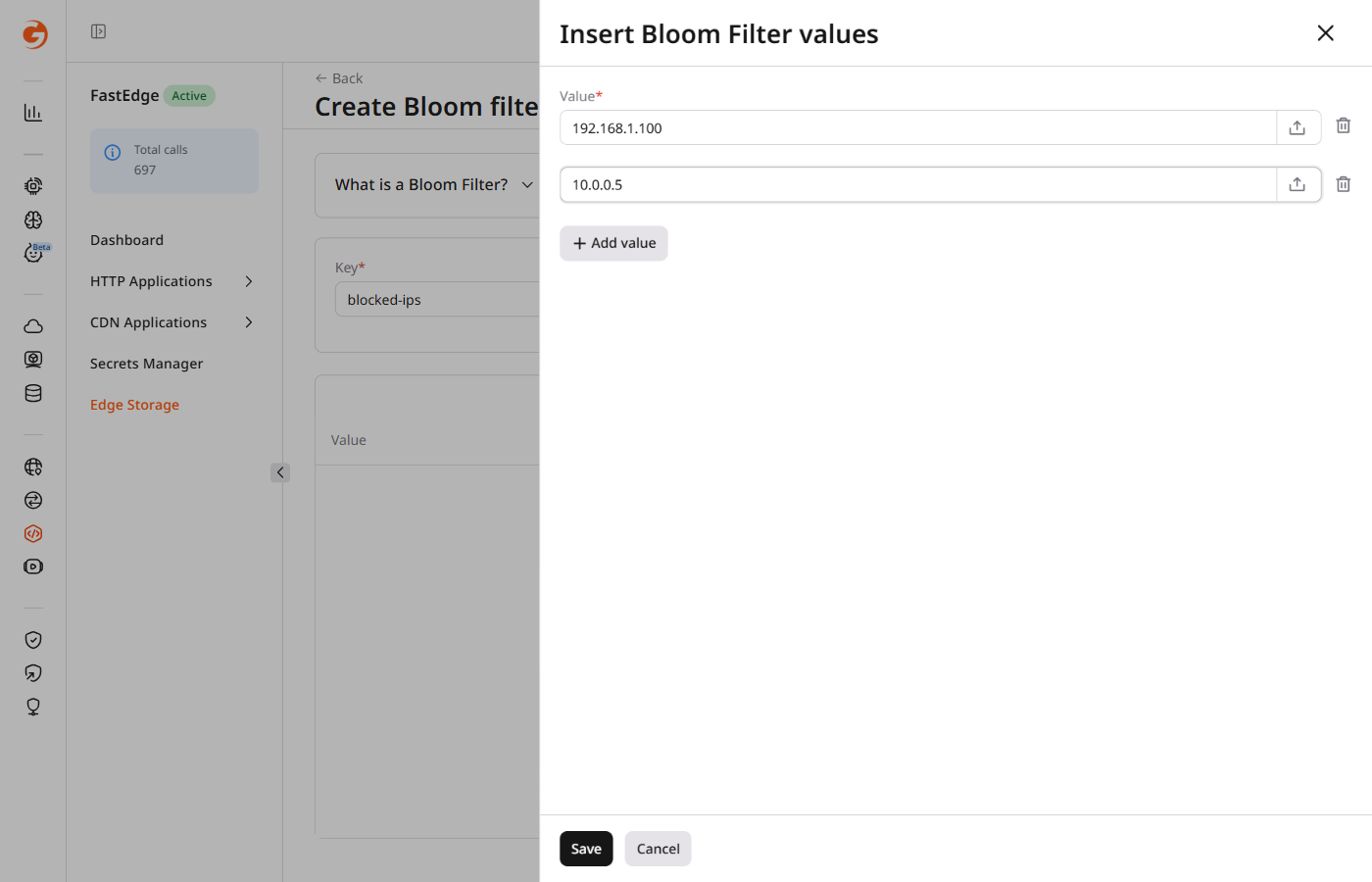
- Click Insert value. In the panel that opens, enter a value in the Value field.
-
To add more values, click + Add value and fill in the field.
-
Click Save to create the Bloom Filter.
ℹ️Uploading a value from a file has a 1 MB size limit. File uploads replace the value in the portal with a hash of the file content.
Edit a Bloom Filter
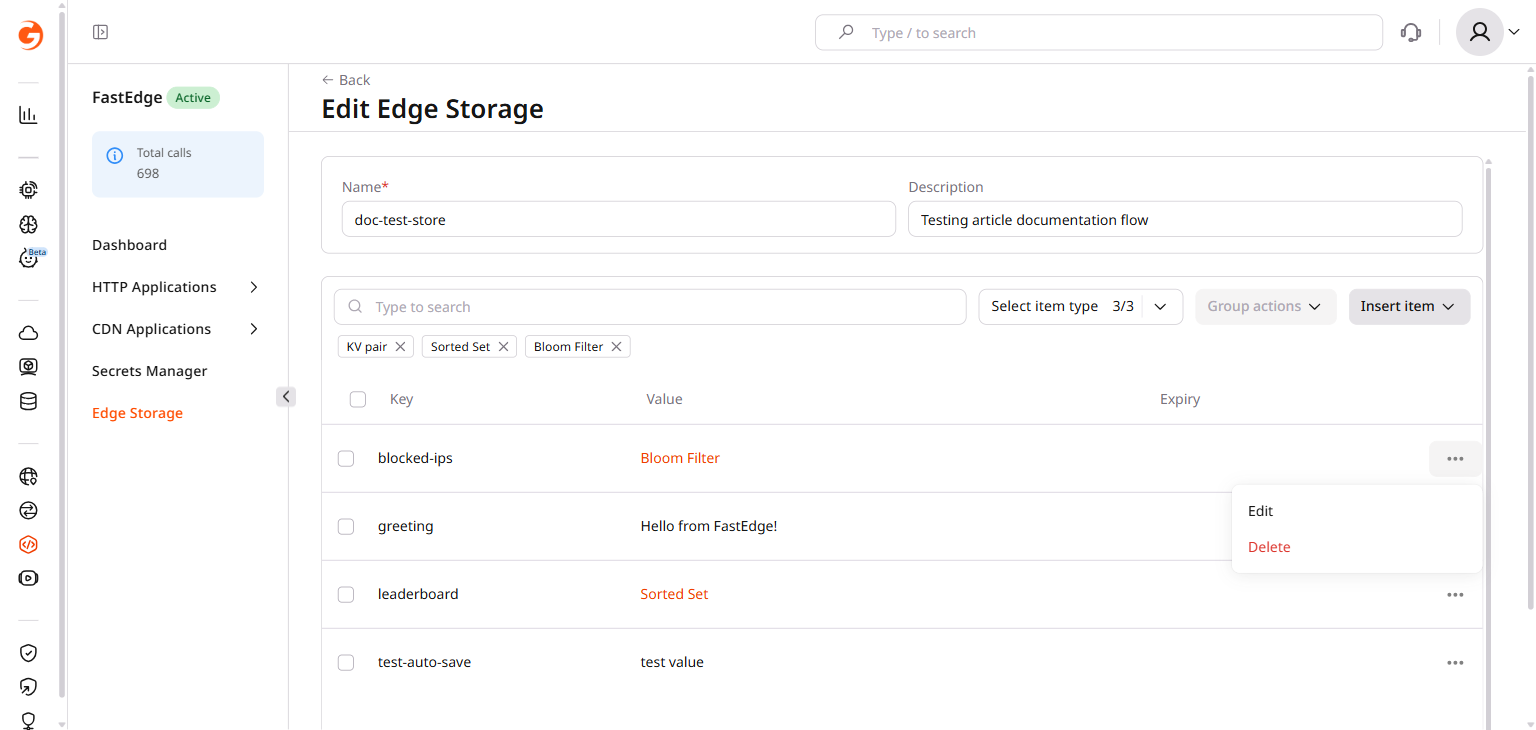
To edit a Bloom Filter, open the store that contains it. In the item list, click the three-dot icon next to the Bloom Filter and select Edit.
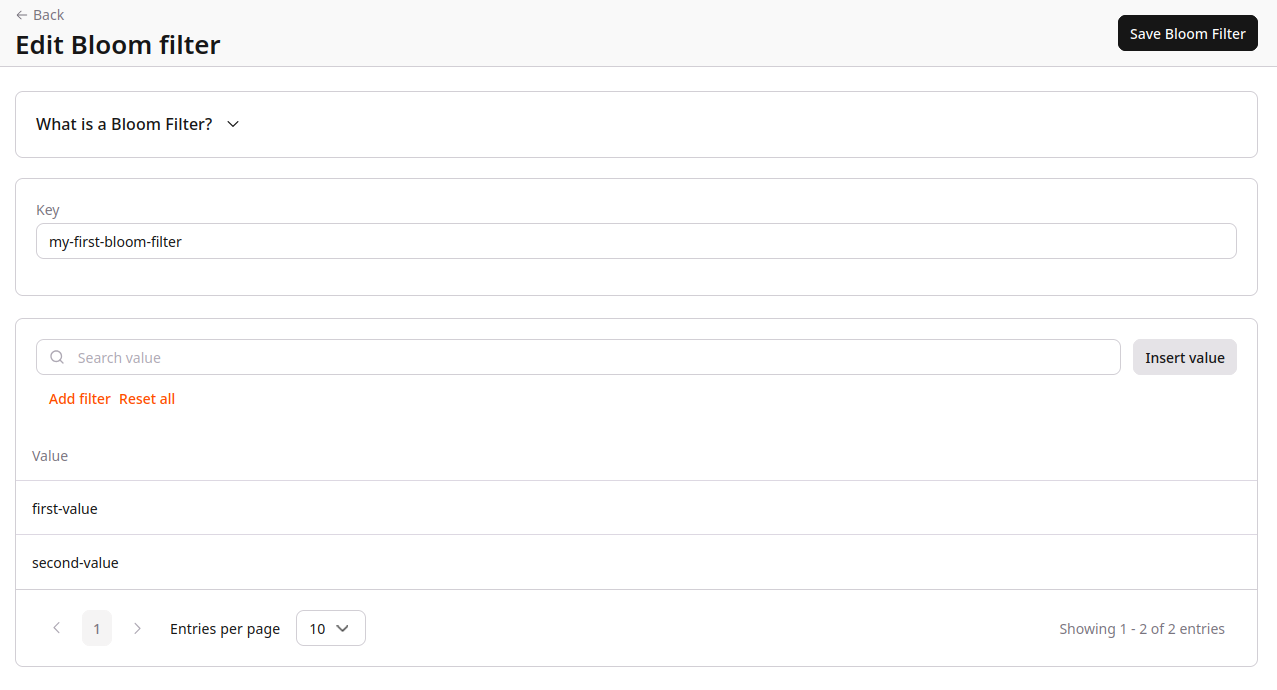
The editor lists the current values and a search box. Click Insert value to open the value panel, add entries, and click Save Bloom Filter to apply.
ℹ️Bloom Filters are append-only. Individual values cannot be edited or removed. To reset the filter, delete it and create a new one.
Delete a Bloom Filter
To delete a Bloom Filter, open the store that contains it. Click the three-dot icon next to the Bloom Filter and select Delete. Confirm the deletion when prompted.
Bloom Filters are managed through the same data endpoint as key-value pairs. Use datatype: bloom_filter in all operations.
ℹ️An API token is required. Use the store ID from the store creation response or from the list endpoint.
export GCORE_API_KEY="{YOUR_API_KEY}"
export STORE_ID="{YOUR_STORE_ID}"
Create a Bloom Filter
A Bloom Filter is stored as a single key inside an Edge Storage store. The key identifies the filter, while the payload contains its values.
Use PUT /docs/edgecompute/v1/kv/{store_id}/data with op: add to create a Bloom Filter. The payload is an array of values, each with an encoding and a value field.
curl -X PUT "https://api.gcore.com/fastedge/v1/kv/$STORE_ID/data" \
  -H "Authorization: APIKey $GCORE_API_KEY" \
  -H "Content-Type: application/json" \
  -d '[
    {
      "op": "add",
      "key": "blocked-ips",
      "datatype": "bloom_filter",
      "payload": [
        { "encoding": "plain", "value": "192.168.1.1" },
        { "encoding": "plain", "value": "10.0.0.1" },
        { "encoding": "plain", "value": "172.16.0.5" }
      ]
    }
  ]'
The API returns write statistics:
{
  "write_count": 3,
  "del_count": 0,
  "write_size": 71,
  "store_size": 356,
  "revision": 602
}
Read a Bloom Filter
The API exposes the stored values for management and debugging purposes. Applications typically use Bloom Filters for membership checks rather than value retrieval.
Retrieve the values stored in a Bloom Filter with GET /docs/edgecompute/v1/kv/{store_id}/data/{key}:
curl "https://api.gcore.com/fastedge/v1/kv/$STORE_ID/data/blocked-ips" \
  -H "Authorization: APIKey $GCORE_API_KEY"
The API returns the full value list:
{
  "datatype": "bloom_filter",
  "key": "blocked-ips",
  "payload": [
    { "encoding": "plain", "value": "192.168.1.1" },
    { "encoding": "plain", "value": "10.0.0.1" },
    { "encoding": "plain", "value": "172.16.0.5" }
  ],
  "count": 3
}
Add values
Unlike sorted sets, Bloom Filters do not support updates or removals. New values can only be appended. Use the same PUT endpoint with op: add to add values to an existing filter. Values that are already present are ignored without error.
curl -X PUT "https://api.gcore.com/fastedge/v1/kv/$STORE_ID/data" \
  -H "Authorization: APIKey $GCORE_API_KEY" \
  -H "Content-Type: application/json" \
  -d '[
    {
      "op": "add",
      "key": "blocked-ips",
      "datatype": "bloom_filter",
      "payload": [
        { "encoding": "plain", "value": "192.168.2.100" }
      ]
    }
  ]'
⚠️del_entries is not supported for Bloom Filters. Removing individual values would introduce false negatives and break the fundamental guarantee of the data structure — Bloom Filters are append-only by design. To reset a filter, delete it with op: del_key and recreate it.
Delete a Bloom Filter
Use op: del_key to delete the entire Bloom Filter and all its values.
curl -X PUT "https://api.gcore.com/fastedge/v1/kv/$STORE_ID/data" \
  -H "Authorization: APIKey $GCORE_API_KEY" \
  -H "Content-Type: application/json" \
  -d '[
    {
      "op": "del_key",
      "key": "blocked-ips",
      "datatype": "bloom_filter"
    }
  ]'
The API returns del_count: 1 on success.