Manage Edgecompute apps
The application management page provides access to all settings and runtime data for a deployed Edgecompute application in one place.
To open the management page:
-
In the CDB Technical Web Portal, navigate to Edgecompute and select either HTTP Applications or CDN Applications.
-
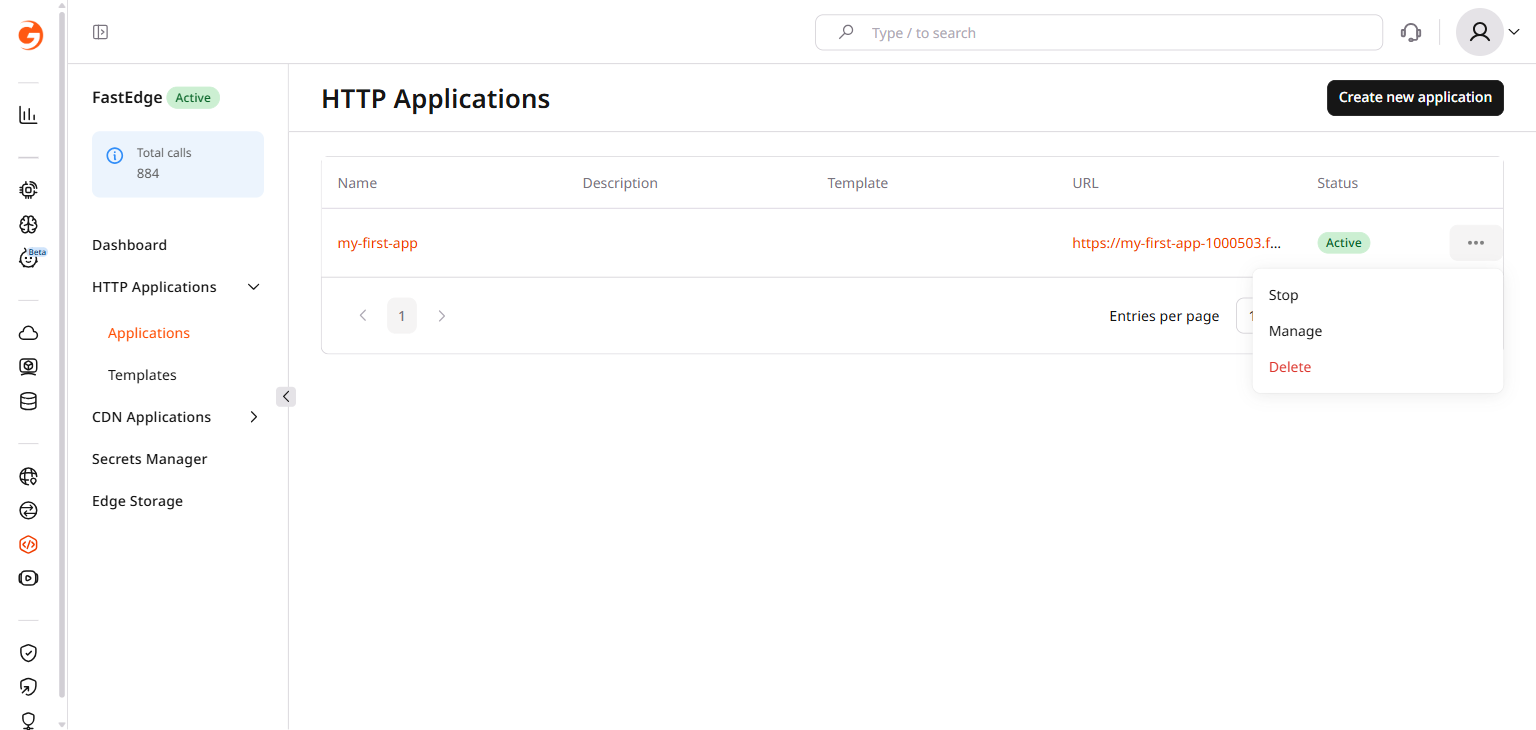
On the Applications page, click the three-dot icon next to the application and select Manage.
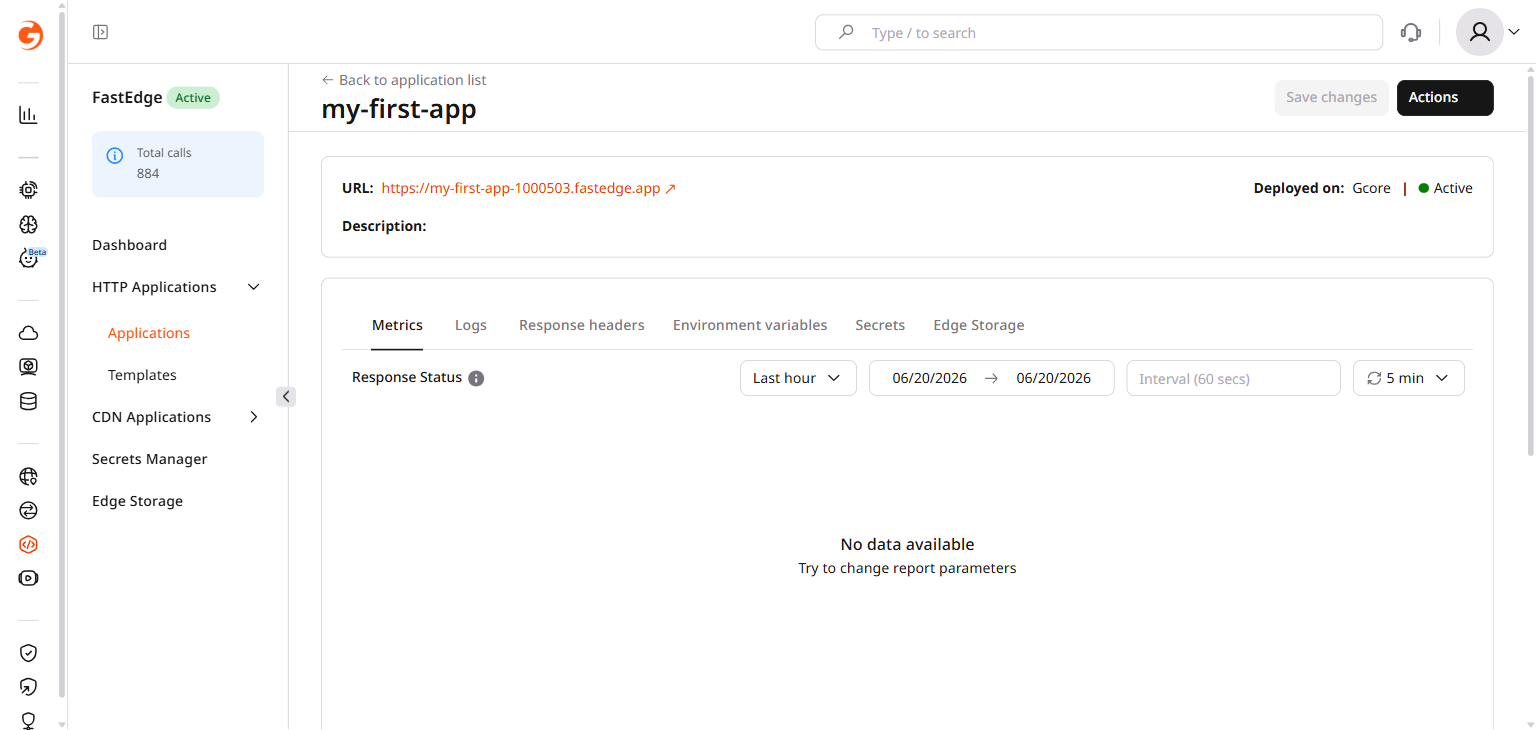
The following tabs are available on the management page:
- Metrics: response status counts and runtime duration charts.
- Logs: enable log collection and filter log entries.
- Response headers: add HTTP headers to every application response.
- Environment variables: define configuration values the application reads at runtime.
- Secrets: link encrypted secrets from Secrets Manager to the application.
- Edge Storage: link key-value stores to the application.
The table below describes when to use each configuration option:
| Feature | Use for |
|---|---|
| Response headers | HTTP headers added to every response — CORS, cache control, security headers |
| Environment variables | Configuration values available to the application at runtime, up to 64 KB each |
| Secrets | API keys, credentials, and other sensitive values encrypted at rest |
| Edge Storage | Shared mutable key-value data the application reads at runtime |
| Dictionary | Parameters over 64 KB and read-only edge node metadata — accessed from application code |
Application lifecycle
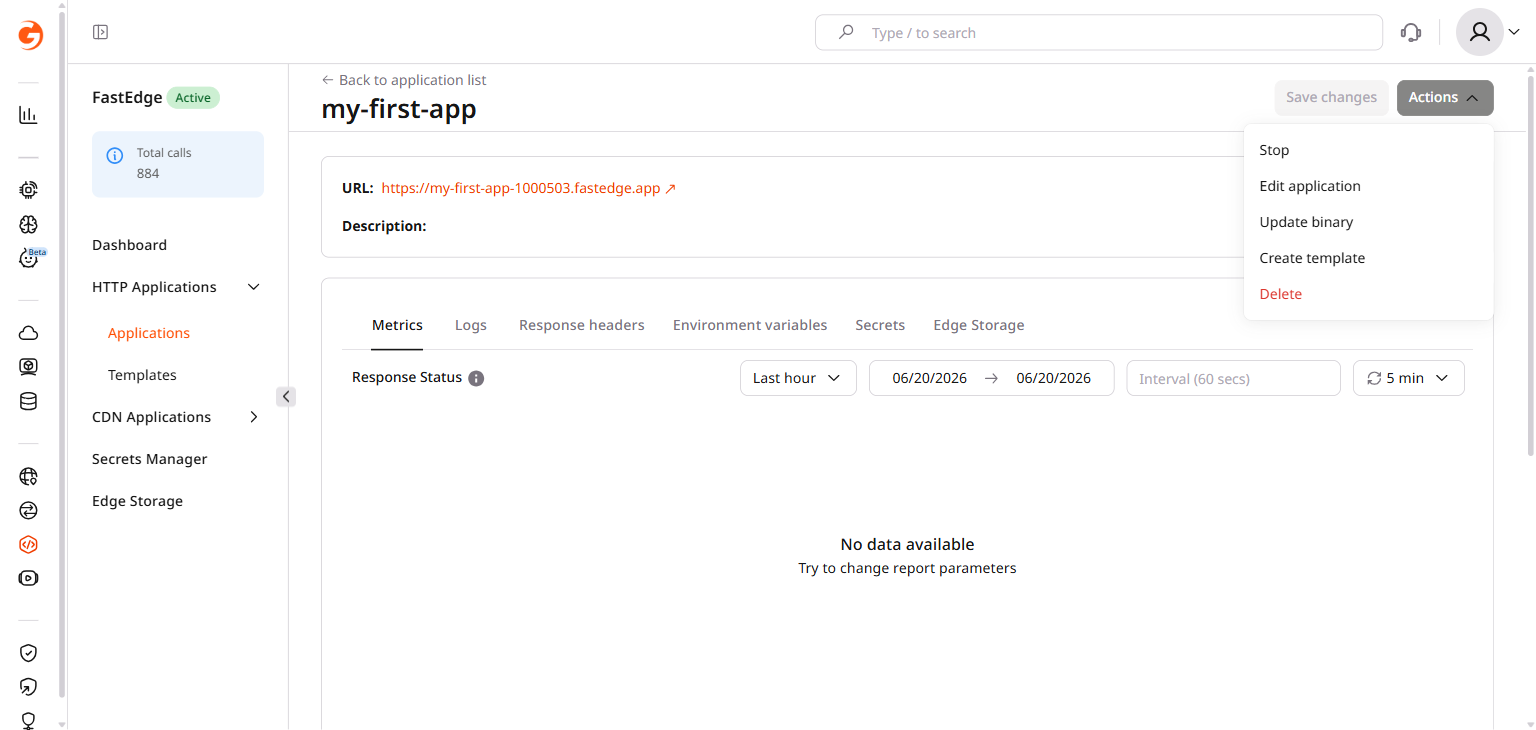
Use the Actions button in the page header to control the application lifecycle — stop or restart it, deploy a new binary, save its configuration as a reusable template, or delete it entirely.
- Stop — pause the application. Stopped applications don't process requests.
- Start — resume a stopped application.
- Edit application — update the application name or description.
- Update binary — upload a new compiled Wasm binary.
- Create template — save the current configuration as a reusable template.
- Delete — permanently remove the application.
An application may also stop automatically if payment for the product fails. In that case, it can't be restarted until payment is completed.
Metrics
The Metrics tab shows two charts: Response Status groups completed requests by HTTP status code, and Runtime Duration (ms) shows execution time per request in milliseconds. Use the time-range dropdown and the interval control in the chart header to adjust the view.
Logs
Logging is disabled by default. After enabling, the application records logs for 30 minutes, then stops automatically.
To enable logging:
-
Select the Logs tab.
-
Turn on the Enable logging toggle.
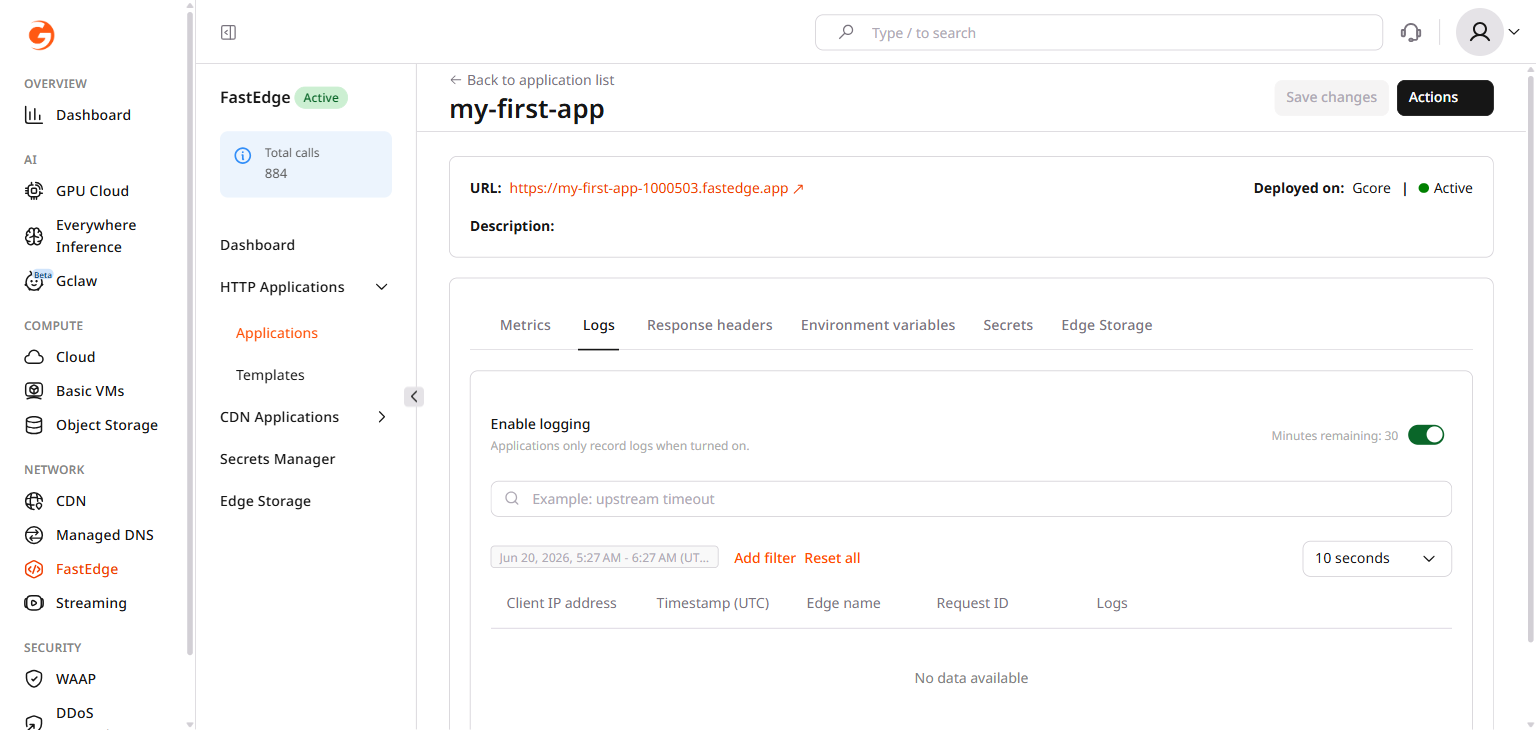
The remaining logging time appears next to the toggle as Minutes remaining: N. To extend logging, turn the toggle off and on again.
Log entries appear in the table with the following columns:
- Client IP address — IP of the client that sent the request.
- Timestamp (UTC) — time the request was received.
- Edge name — identifier of the edge node that handled the request.
- Request ID — unique identifier assigned to the request.
- Logs — application log output for that request.
Use the text search field above the table to filter by log content, or select a date range. The Refresh rate dropdown controls how often the table updates — it defaults to 10 seconds when logging is active.
Application configuration
The Response headers, Environment variables, Secrets, and Edge Storage tabs each control a different aspect of how the application receives configuration and accesses external data at runtime. Click Save changes to apply any edits. The dictionary is a separate read-only data source that the application accesses directly from code.
Response headers
Use response headers to add CORS, cache-control, security, or custom headers to every application response.
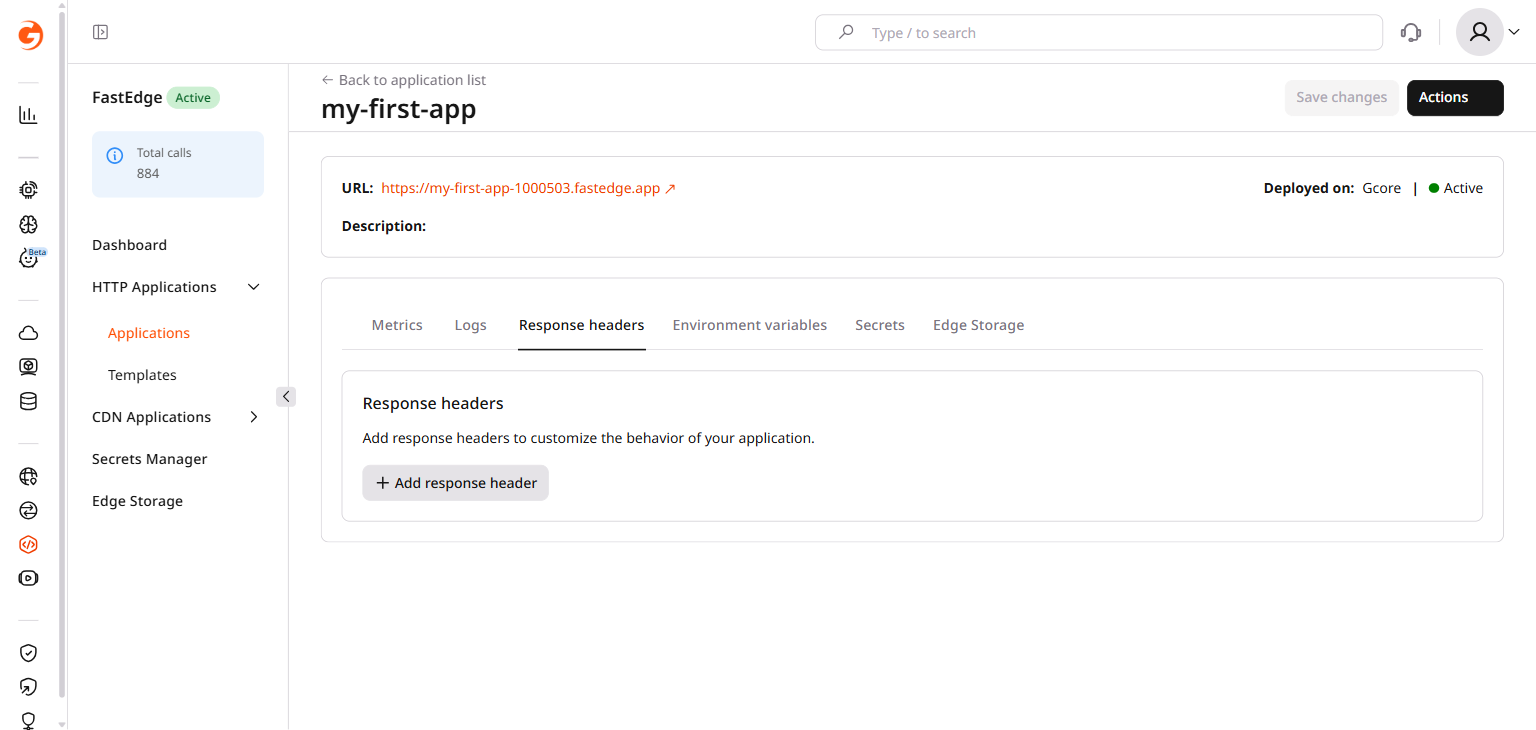
To add a header, click Add response header, enter the header name in the Key field and the value in the Value field, then click Save changes.
Environment variables
Environment variables pass configuration values to the application at runtime. Each variable can store up to 64 KB of data; for larger values, define the parameter here and read it from code through the dictionary using the same key name.
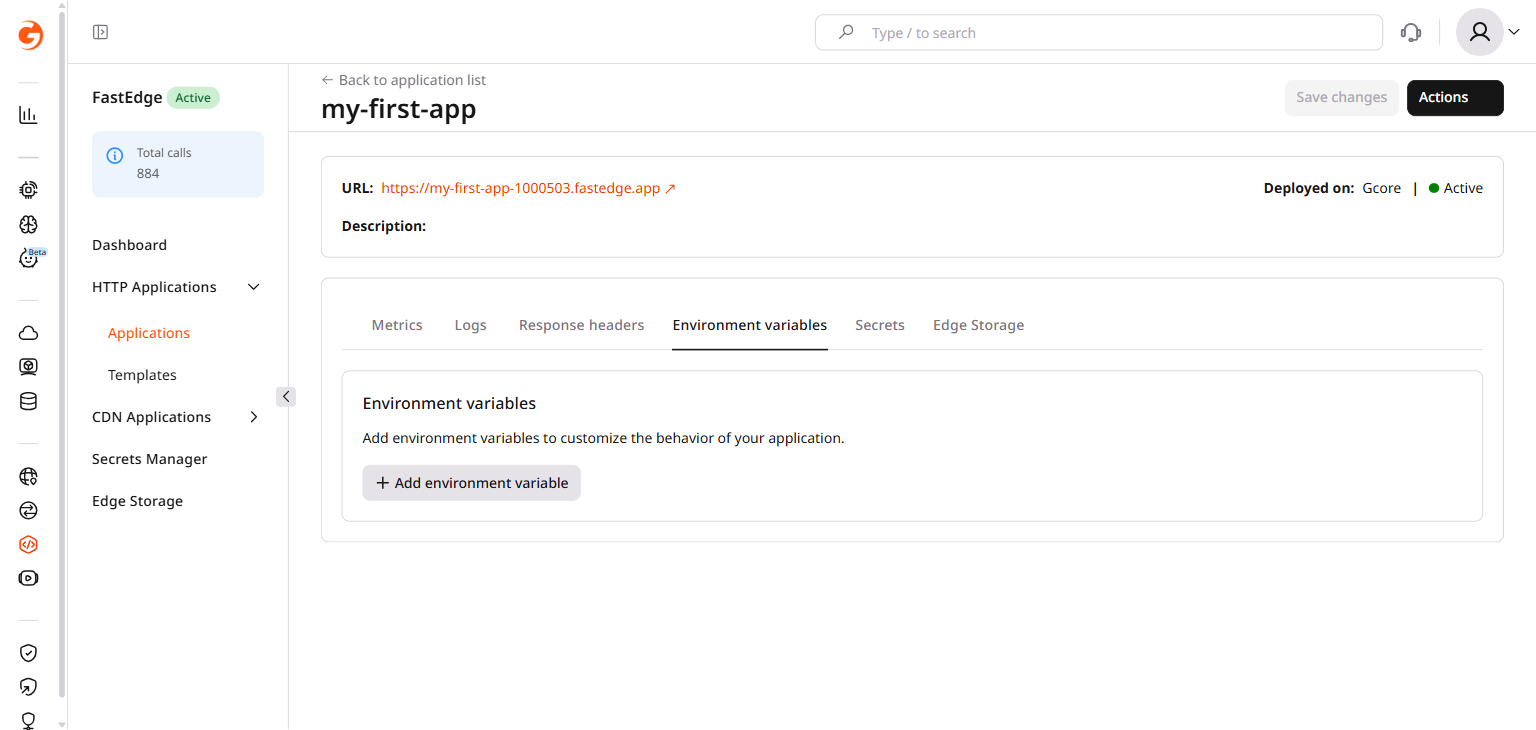
To add a variable, click Add environment variable, enter the variable name in the Key field and its value in the Value field, then click Save changes.
Access environment variables in code using the JavaScript SDK or standard Rust std::env::var("KEY_NAME").
Secrets
Use environment variables for ordinary configuration values. When a value is sensitive — an API key, access token, or password — store it as a secret instead.
Secrets let an application access sensitive values without storing them directly in its configuration. Each secret is stored in Secrets Manager and linked to the application under a local key name that the code uses to retrieve the value at runtime.
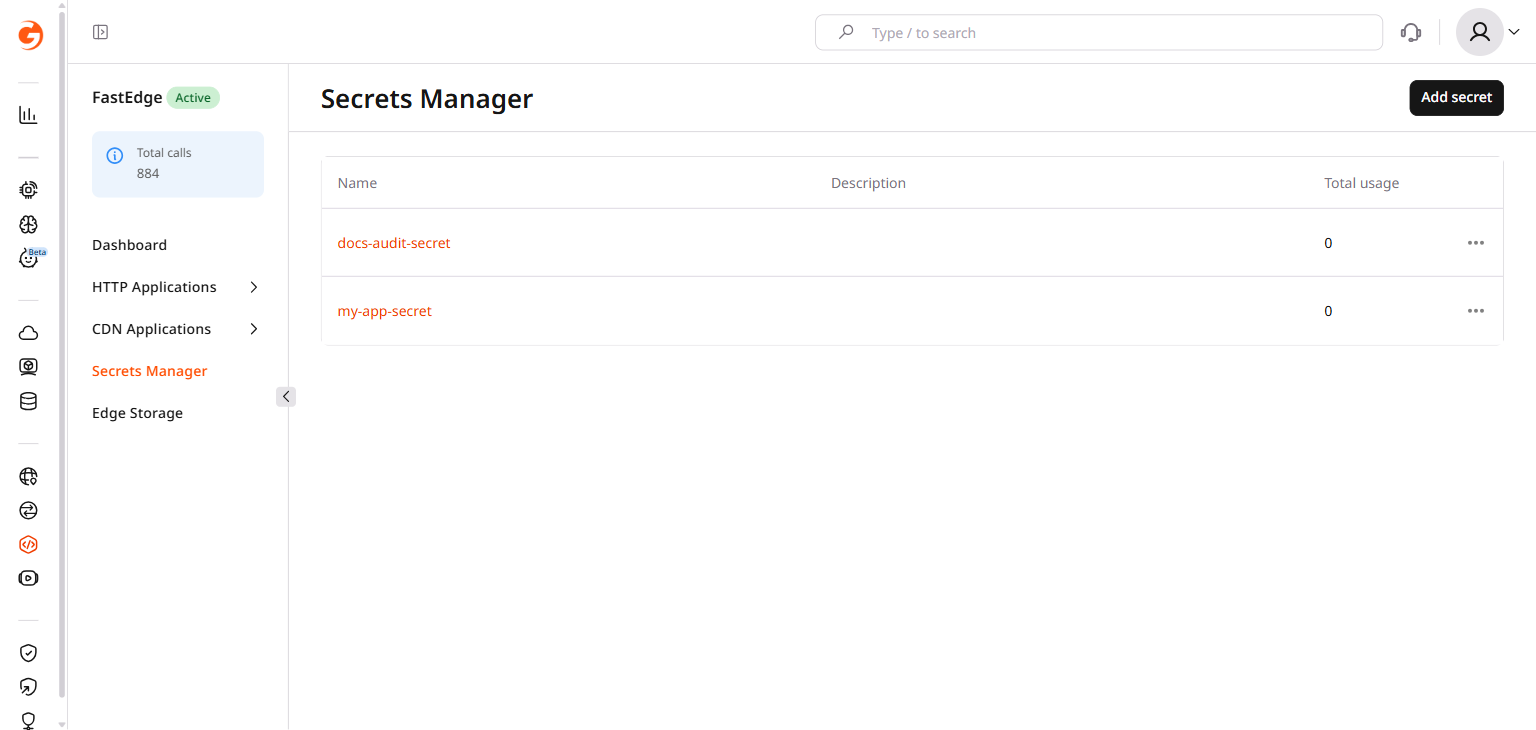
To link a secret:
-
Click Add secret.
-
In the Key field, enter the name the application will use to reference the secret.
-
In the second field, select a secret from Secrets Manager. To create a new secret first, select Add secret in the dropdown.
-
Click Save changes.
Access the secret in code using secret::get("KEY_NAME") in the Rust SDK, or getSecret in the JavaScript SDK.
Edge Storage
Edge Storage provides a shared key-value store that applications can read and update at runtime. Link a store under a local key name, and the code uses that name to open and query it.
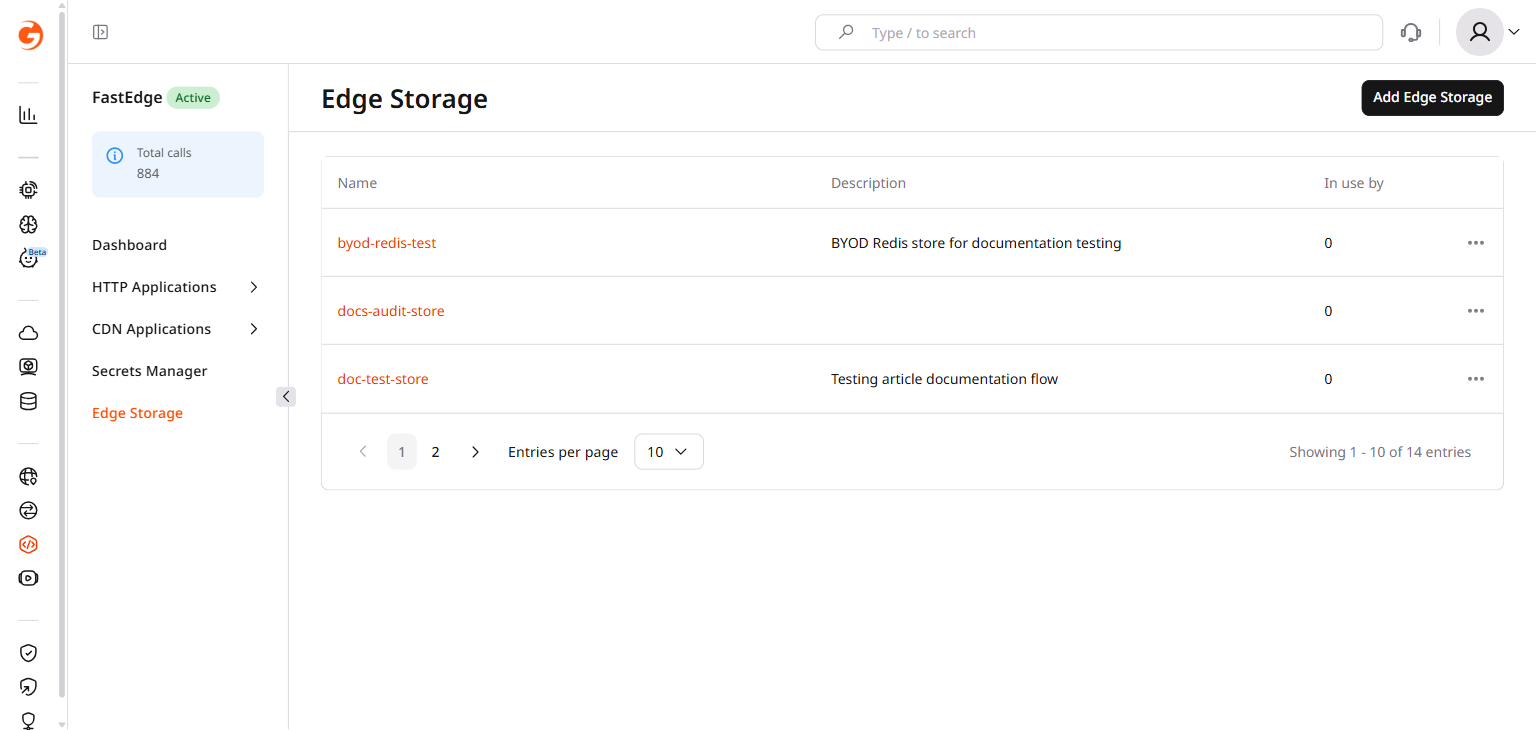
To link a store:
-
Click Add Edge Storage.
-
In the Key field, enter the name the application will use to open the store.
-
In the second field, select a store from Edge Storage. To create a new store first, select Add Edge Storage in the dropdown.
-
Click Save changes.
Access the store in code using Store::open("KEY_NAME") in the Rust SDK, or open in the JavaScript SDK.
Dictionary
The dictionary gives application code read-only access to edge node metadata that Edgecompute populates automatically on every node, and to application parameters that exceed the 64 KB environment variable limit.
Edge node metadata
Edgecompute automatically populates the following keys on every edge node. These values reflect the physical node handling each request:
| Key | Description |
|---|---|
hostname | Hostname of the edge node |
env | Deployment environment: prod or preprod |
role | Node role: edge or shield |
region | Geographic region of the edge node: africa, asia, au, cis, eu, latam, me, na. Additional values may be returned for reseller networks. |
country | Full name of the country where the node is located |
country2char | ISO 3166-1 alpha-2 country code |
city | City where the node is located |
dc | Point of Presence (PoP) identifier |
ipv4_addr_ip | IPv4 address of the edge node |
ipv6_addr_ip | IPv6 address of the edge node |
ipv6_enabled | Whether IPv6 is enabled on the node: true or false |
Built-in keys take priority over application parameters with the same name. To avoid unexpected behavior, don't use built-in key names as environment variable names.
Large application parameters
Standard environment variable access is limited to 64 KB per value. For parameters that exceed this limit, define them on the Environment variables tab and read them through the dictionary using the same key name.
Read dictionary values in code
In Rust, use the dictionary module:
use fastedge::dictionary;

if let Some(value) = dictionary::get("country") {
    // use value
}
In JavaScript, dictionary values are exposed through getEnv() from the fastedge::env module:
import { getEnv } from 'fastedge::env';

const country = getEnv('country');