Secrets Manager
Secrets Manager stores encrypted values that Edgecompute applications can read at runtime. Each secret has a name, an optional description, and one or more slots — each slot holds an independently encrypted value. Use slot 0 for a regular single-value secret. Multiple slots are used for rotation scenarios where different values become active at different times.
Create a secret
-
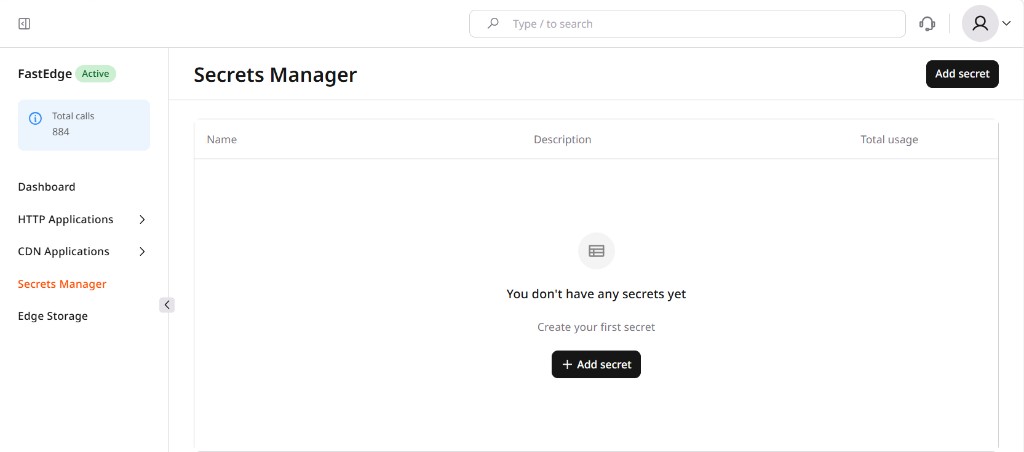
In the CDB Technical Web Portal, navigate to Edgecompute > Secrets Manager.
-
Click Add secret.
-
Enter a Name and an optional Description.
-
In the Slots section, enter a Slot index and the secret value in the Value field. Use
0for a single-value secret. -
Click Encrypt. The field shows "Encrypted Value" to confirm the value was encrypted.
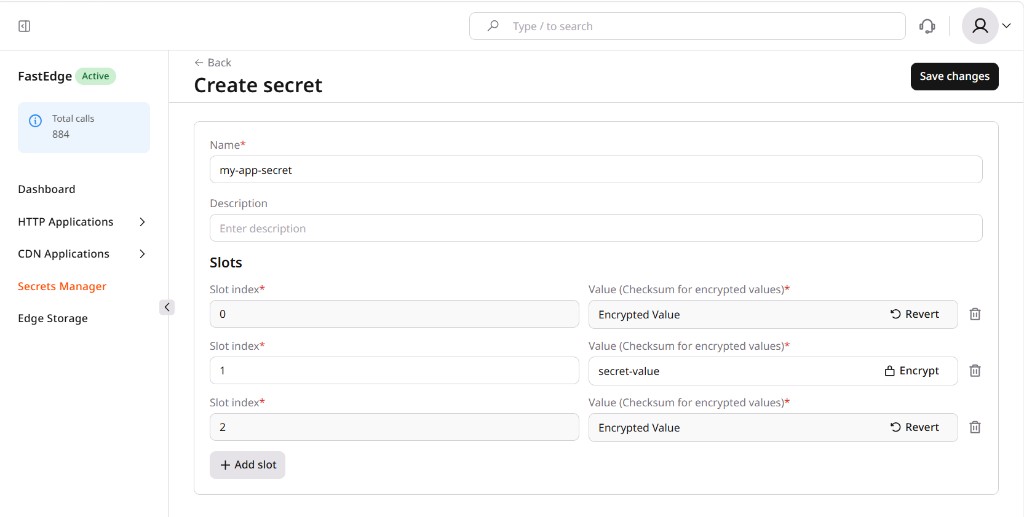
- Click Save changes.
Once saved, the original value cannot be viewed — only replaced. Encrypted values are stored separately from application data to protect against unauthorized access.
Edit a secret
-
Navigate to Edgecompute > Secrets Manager.
-
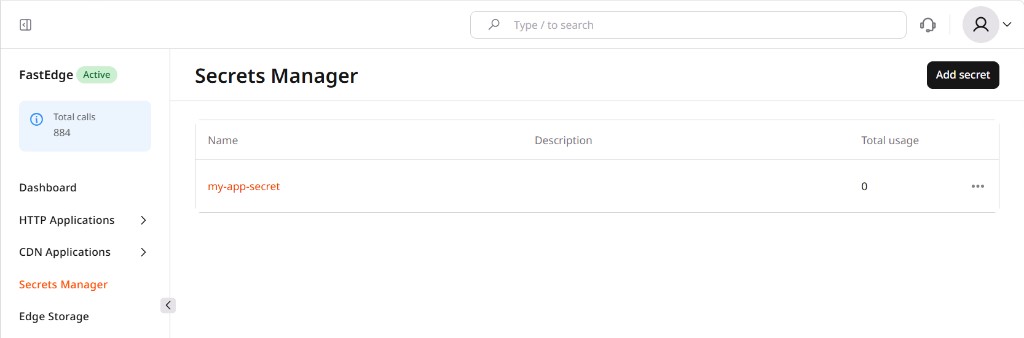
Click the secret name to open the edit form.
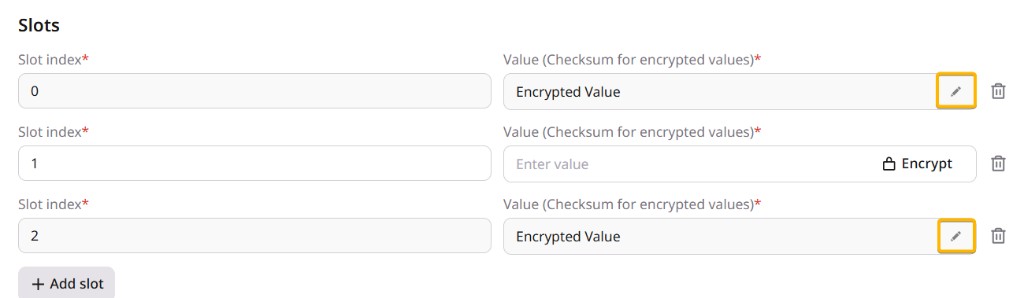
- To replace an encrypted value, click the pencil icon next to the Value field, enter the new value, and click Encrypt.
- Click Save changes.
Delete a secret
-
Navigate to Edgecompute > Secrets Manager.
-
Click the three-dot icon (...) next to the secret and select Delete.
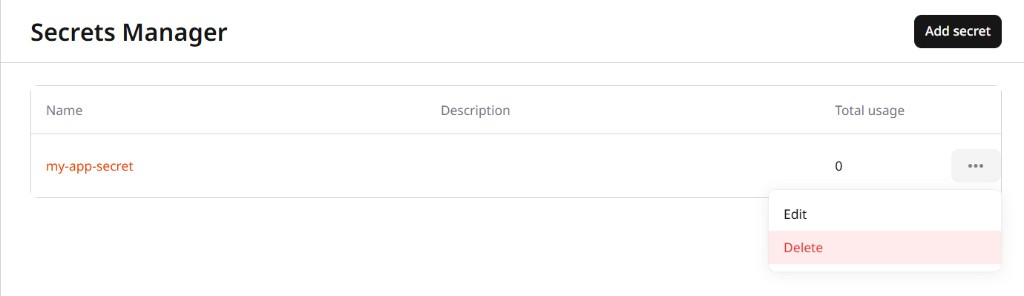
- Click Yes, delete to confirm.
A secret assigned to an application cannot be deleted — remove it from the application first. Deleted secrets cannot be restored.
Secrets in applications
Creating a secret only stores the encrypted value. To make it available to an application, link it from the application's Secrets tab in manage apps. The application reads the value at runtime using the secret name and slot index via the JavaScript SDK or Rust SDK.